PCIe Lanes Explained for SSD Buyers
You just bought a blazing-fast PCIe 4.0 NVMe SSD, installed it in your motherboard’s M.2 slot, and ran a benchmark. The results? Half the speed you expected. Before you blame the drive or start a return, the problem is almost certainly your PCIe lanes. Where you plug in your SSD matters just as much as which SSD you buy, and most people never think about it until something feels off.
PCIe lanes are the invisible highways that carry data between your CPU, GPU, storage, and other components. Understanding how they’re allocated on your specific motherboard can mean the difference between getting full NVMe performance and accidentally throttling your brand-new drive. Let’s break down exactly how this works and what you need to check before your next SSD purchase.
What Are PCIe Lanes and Why Do They Matter?
Think of PCIe lanes as individual data lanes on a highway. Each lane can carry a specific amount of data per second, and components need a certain number of lanes to hit their maximum speed. A single PCIe 4.0 lane delivers roughly 2 GB/s of bandwidth. A PCIe 4.0 x4 connection (four lanes) gives you about 8 GB/s, which is what most modern NVMe SSDs need to reach their rated speeds.
Your CPU and chipset have a fixed number of PCIe lanes to distribute among all your components. On a typical Intel 13th or 14th Gen desktop platform, the CPU provides 20 lanes directly (16 for your GPU, 4 for your primary M.2 slot). The chipset adds more lanes for secondary M.2 slots, SATA ports, USB controllers, and other I/O. AMD’s Ryzen 7000 series works similarly, with 24 CPU lanes on most chips.
The critical detail: lanes connected directly to the CPU are faster and lower-latency than lanes routed through the chipset. If you’re curious about the differences between M.2 and 2.5-inch SSDs, lane allocation is one of the biggest performance factors that separates these form factors.
How PCIe Lanes Get Allocated on Your Motherboard
Every motherboard has a specific lane map, and it’s not always intuitive. Here’s a typical allocation on a mid-range Intel Z790 board:
- PCIe x16 slot (GPU): 16 lanes directly from the CPU
- Primary M.2 slot (M2_1): 4 lanes directly from the CPU (PCIe 4.0 or 5.0)
- Secondary M.2 slots (M2_2, M2_3): 4 lanes each from the chipset (PCIe 4.0)
- Additional PCIe x16 slots: Wired as x4, routed through chipset
- SATA ports, USB, networking: Remaining chipset lanes
The tricky part is lane sharing. Many motherboards share lanes between components, meaning installing a drive in one slot may disable another slot or reduce your GPU to x8 mode. For example, on some B660 boards, using the second M.2 slot disables two SATA ports. On certain X670 boards, populating both secondary M.2 slots drops the second full-length PCIe slot from x4 to x1.
This is why reading your motherboard manual matters more than you’d think. The block diagram in the manual (usually in the first few pages) shows exactly which lanes are shared and what trade-offs exist.
Why M.2 Slot Placement Directly Affects SSD Speed
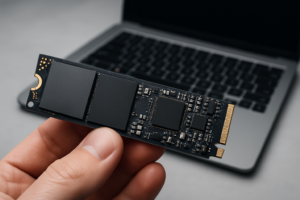
Not all M.2 slots on your motherboard deliver the same performance. The first M.2 slot (often labeled M2_1 or M.2 CPU) connects directly to the CPU’s PCIe lanes, giving your SSD the shortest, fastest data path possible. Secondary slots route through the chipset, which adds a small amount of latency and shares bandwidth with other chipset-connected devices.
For most users, this difference is minor in everyday tasks. But if you’re doing heavy sequential reads and writes (video editing, large file transfers, game loading with DirectStorage), the CPU-direct slot can make a noticeable difference. A Samsung 990 Pro installed in a CPU-direct PCIe 4.0 slot will consistently hit its rated 7,450 MB/s sequential read speed. Put that same drive in a chipset slot on a busy system, and you might see slightly lower numbers during heavy multitasking.

Samsung 990 Pro 2TB NVMe SSD
Top-tier PCIe 4.0 performance that will saturate any CPU-direct M.2 slot with sequential reads up to 7,450 MB/s
My recommendation: always install your primary/boot SSD in the CPU-direct M.2 slot. Use chipset-connected slots for secondary storage drives, game libraries, or scratch disks. If you’re noticing your SSD isn’t performing as expected, this guide on why SSDs slow down over time covers other factors that can impact speeds beyond lane allocation.
How to Check Your Motherboard’s Lane Layout
Before buying a new NVMe SSD, you need to know exactly what your motherboard supports and where. Here’s how to find out:
Check Your Motherboard Manual
Open the PDF manual from your motherboard manufacturer’s website. Look for the “block diagram” or “PCIe lane allocation” section. This shows every PCIe connection, which component it links to (CPU or chipset), and any lane-sharing configurations. Pay attention to footnotes about disabled ports.
Use CPU-Z or HWiNFO
If you already have a drive installed and want to verify its connection, open CPU-Z and check the “Mainboard” tab for chipset info. HWiNFO64 is even better: it shows the exact PCIe link speed and width for each connected device. Look for “Link Width” to confirm your SSD is running at x4, not x2 or x1.
Check BIOS Settings
Some motherboards let you manually configure PCIe lane allocation in BIOS. You might find options to switch between PCIe 4.0 and 3.0 for specific slots, or to prioritize certain M.2 slots over SATA ports. ASUS boards typically list this under “Advanced > Onboard Devices Configuration.”
For a practical walkthrough of physically installing a drive once you’ve identified the right slot, our NVMe installation guide covers the full process.
PCIe 3.0 vs 4.0 vs 5.0: What SSD Buyers Should Know
Each PCIe generation doubles the bandwidth per lane. A PCIe 3.0 x4 connection tops out around 3.5 GB/s, PCIe 4.0 x4 hits roughly 7 GB/s, and PCIe 5.0 x4 pushes about 14 GB/s. Most SSDs on the market today are PCIe 4.0, and that’s the sweet spot for nearly everyone.
PCIe 5.0 SSDs exist (like the Crucial T700), but they run hotter, cost more, and the real-world benefit over PCIe 4.0 is slim for typical desktop use. If you’re choosing between SATA and NVMe for gaming, the jump from SATA to PCIe 3.0 NVMe is far more noticeable than the jump from PCIe 4.0 to 5.0.
A PCIe 4.0 SSD will work fine in a PCIe 3.0 slot, just at reduced speeds. And a PCIe 3.0 SSD in a PCIe 4.0 slot will run at its own maximum speed. Backward and forward compatibility isn’t an issue, only performance scaling.
For most buyers, a solid PCIe 4.0 drive like the WD Black SN850X offers excellent performance without the thermal concerns of Gen 5 drives.
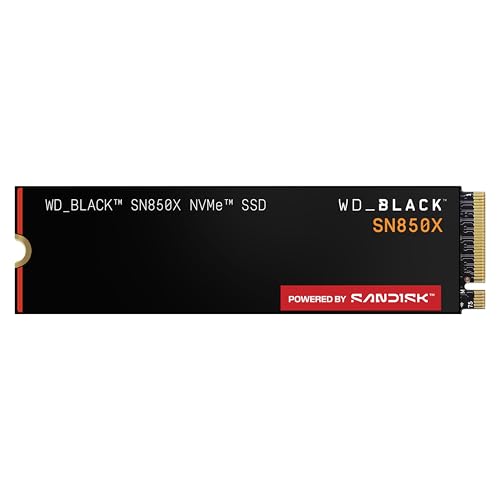
WD Black SN850X 1TB NVMe SSD
Excellent all-around PCIe 4.0 drive with great sustained performance and a built-in heatsink option
If you’re evaluating how much storage you actually need alongside lane performance, our 1TB vs 2TB SSD comparison can help you pick the right capacity.
Common Lane-Related Mistakes to Avoid
A few pitfalls trip up even experienced builders:
- Installing your boot SSD in a chipset slot when a CPU-direct slot is available. Always use the primary M.2 slot for your OS drive.
- Not checking for lane sharing before adding a second NVMe drive. That new SSD might disable your SATA ports or halve your GPU bandwidth.
- Assuming all M.2 slots support NVMe. Some M.2 slots on budget boards are SATA-only, meaning an NVMe drive won’t even be detected. Look for “M.2 (PCIe)” in the specs.
- Ignoring BIOS defaults. Some boards ship with certain M.2 slots disabled or set to PCIe 3.0 mode. A quick BIOS check can save you hours of troubleshooting.
Frequently Asked Questions
Can I use a PCIe 4.0 SSD in a PCIe 3.0 M.2 slot?
Yes. PCIe is backward compatible, so a Gen 4 drive will work perfectly in a Gen 3 slot. You’ll just be limited to PCIe 3.0 speeds (around 3,500 MB/s max for x4 instead of 7,000+ MB/s). The drive won’t be damaged, and you’ll still get performance far beyond any SATA SSD.
How do I know if my M.2 slot connects to the CPU or chipset?
Your motherboard manual is the definitive source. Look for the block diagram or the M.2 slot specifications section. Slots labeled “CPU” or “Direct” connect to the processor’s lanes. You can also check in HWiNFO64 after installation: it’ll show the PCIe root port, which tells you whether the connection goes through the chipset or directly to the CPU.
Will adding a second NVMe SSD slow down my graphics card?
James Kennedy is a writer and product researcher at Drives Hero with a background in IT administration and consulting. He has hands-on experience with storage, networking, and system performance, and regularly improves and optimizes his home networking setup.

James Kennedy is a writer and product researcher at Drives Hero with a background in IT administration and consulting. He has hands-on experience with storage, networking, and system performance, and regularly improves and optimizes his home networking setup.