Best External Drives Under $100 in 2026
Spending under a hundred bucks on an external drive in 2026 gets you a lot more than it used to. Portable SSDs have dropped in price enough that you can grab a solid 1TB model without breaking the bank, and traditional HDDs keep pushing capacity limits, with 4TB and even 5TB options sitting comfortably in this price range.
I’ve tested and researched the best options available right now, mixing portable SSDs for speed and ruggedness with high-capacity HDDs for bulk storage. Here’s what’s actually worth buying.
Best Portable SSDs Under competitively priced
If speed matters to you, a portable SSD is the way to go. Even budget models deliver read speeds of 500MB/s or higher, which makes file transfers, photo editing from the drive, and running applications noticeably snappier. And if you’re still on the fence about whether an SSD is right for your situation, our SSD vs HDD comparison guide breaks down the practical differences.
Samsung T7 Shield 1TB
The Samsung T7 Shield 1TB continues to be one of the most reliable portable SSDs you can buy. It delivers sequential read speeds up to 1,050MB/s over USB 3.2 Gen 2, and the rubberized outer shell gives it IP65 dust and water resistance. Samsung’s build quality is consistently excellent, and the included software for password protection and firmware updates is actually useful rather than bloatware.
The 1TB model frequently sits within this budget range, making it one of the best values in portable storage right now. It works out of the box with both Windows and Mac, and the compact size (about the length of a credit card) means it disappears into any pocket or bag.

Samsung T7 Shield 1TB
Fast, durable, and water-resistant portable SSD with excellent reliability track record
SanDisk Extreme Portable SSD V2 1TB
The SanDisk Extreme Portable SSD V2 1TB is the Samsung T7 Shield’s closest competitor, and it’s a great alternative. You get read speeds up to 1,050MB/s, IP55 water and dust resistance, and a carabiner loop that’s genuinely handy for clipping to a camera bag or backpack. It runs a bit cooler than the Samsung during sustained transfers, which can matter if you’re moving large video files.
If you’re a Mac user, check out our guide on how to use the SanDisk Extreme Portable SSD with MacBook Pro to get the most out of it. For travel and outdoor use, we’ve also put together a list of the best portable SSDs for travel in 2026 with durability testing results.
Crucial X9 1TB
The Crucial X9 1TB is typically the most budget-friendly option among name-brand portable SSDs. It offers read speeds up to 1,050MB/s and a slim, lightweight aluminum design. It lacks the IP-rated water resistance of the Samsung and SanDisk options, so it’s better suited for desk and home use rather than rugged outdoor trips. But for everyday backups and file transfers, it performs admirably and often undercuts the competition on price.
Best High-Capacity HDDs Under competitively priced
When raw storage space is the priority, traditional hard drives still can’t be beat on a cost-per-gigabyte basis. A portable HDD won’t match SSD speeds, but it’ll give you two to five times the capacity for the same money. These are ideal for archiving photos, backing up entire systems, or storing large media libraries.
WD Elements Portable 5TB
The WD Elements Portable 5TB packs an impressive amount of storage into a bus-powered 2.5-inch form factor. It connects over USB 3.0, delivers decent sequential transfer speeds for an HDD (around 100-120MB/s in real-world use), and doesn’t need a separate power adapter. It’s the workhorse pick if you just need a massive amount of space for bulk storage. We’ve covered the best use cases for WD Elements drives in detail if you want more ideas on how to put all that space to work.
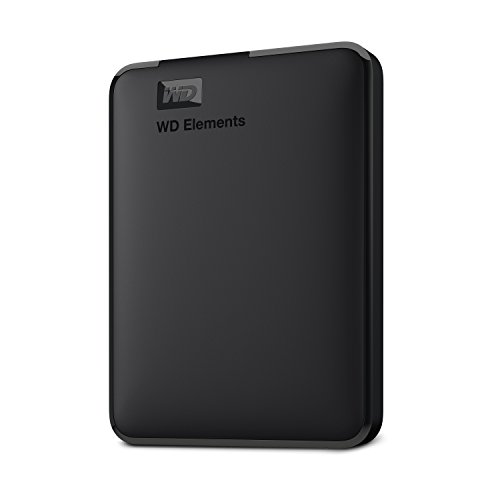
WD Elements Portable 5TB
Best capacity-per-dollar option for bulk storage and backups
Seagate Portable Drive 4TB
The Seagate Portable 4TB is another strong choice, and Seagate has improved its reliability significantly in recent product generations. It’s slim, lightweight, and works with both Windows and Mac out of the box (you’ll need to reformat to APFS or exFAT for Mac, of course). We reviewed the Seagate Portable 2TB model and found it dependable for everyday use. The 4TB version uses the same design philosophy with double the space.
Toshiba Canvio Advance 4TB
The Toshiba Canvio Advance 4TB often flies under the radar, but it’s a solid performer. It includes automatic backup software, comes in a few different colors, and offers the same USB 3.0 performance you’d expect from a 2.5-inch portable HDD. Toshiba’s drives tend to run quietly, which is a nice bonus if you keep the drive on your desk while working.
SSD vs HDD: Which Type Should You Pick?
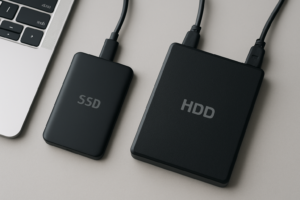
This really comes down to what you’re using the drive for. Here’s a quick breakdown:
- Choose a portable SSD if: You need fast file transfers, plan to edit files directly from the drive, travel frequently, or want something shock-resistant with no moving parts.
- Choose a portable HDD if: You need maximum storage capacity, primarily use the drive for backups or archiving, and don’t mind slower transfer speeds.
For most people doing general backups, a 4-5TB HDD is the smarter buy. You’ll get far more space, and backup tasks typically run in the background where speed is less noticeable. But if you’re a photographer, content creator, or someone who moves large files between machines regularly, the SSD is worth the capacity trade-off.
Keep in mind that SSDs do have finite write endurance, though modern drives last far longer than most people realize. Our deep dive into SSD lifespan data covers what you can realistically expect.
Tips for Getting the Most from Your New Drive
Once you’ve picked a drive, a few quick setup steps will save you headaches later:
- Format it for your operating system. Most drives ship formatted as NTFS (Windows). Mac users should reformat to APFS or exFAT. If you use both platforms, exFAT is your best universal option.
- Set up automatic backups. Don’t rely on remembering to drag files over manually. Windows has File History, Mac has Time Machine, and both work well with external drives.
- Don’t fill it past 80-90% capacity. This is especially important for SSDs, where performance degrades as the drive fills up. If you’ve noticed slowdowns on an existing SSD, our guide on why SSDs slow down over time explains what’s happening and how to fix it.
- Safely eject every time. It sounds basic, but yanking out a drive mid-transfer is one of the fastest ways to corrupt data. If your drive keeps disconnecting on its own, these seven fixes should help.

Crucial X9 1TB Portable SSD
Most affordable name-brand portable SSD with solid 1,050MB/s read speeds
Frequently Asked Questions
How long do external drives typically last?
Portable HDDs generally last 3-5 years with regular use, though some run much longer. Portable SSDs tend to outlast HDDs because they have no moving parts, with many rated for 5+ years of typical consumer use. In both cases, keeping the drive cool, ejecting it safely, and avoiding drops will extend its life significantly.
Can I use these drives with both Mac and Windows?
Yes, but you’ll likely need to reformat the drive. Most ship formatted as NTFS, which is read-only on Mac without extra software. Reformatting to exFAT gives you full read/write compatibility on both platforms with no file size limitations. If you’re primarily a Mac user, our roundup of the best external hard drives for Mac in 2026 has more specific recommendations.
Is it worth waiting for Black Friday to buy an external drive?
External drives do see meaningful discounts during major sales events. If you can wait and your need isn’t urgent, you’ll often find better deals in November. We track these closely in our Black Friday SSD deals guide each year. But if you need a drive now, the options on this list already offer strong value, and prices on storage rarely jump back up significantly.
This article contains affiliate links. We may earn a small commission at no extra cost to you.

James Kennedy is a writer and product researcher at Drives Hero with a background in IT administration and consulting. He has hands-on experience with storage, networking, and system performance, and regularly improves and optimizes his home networking setup.