NVMe Not Showing After Windows 11 Update
You installed the latest Windows 11 update, rebooted, and now your NVMe drive is nowhere to be found. Maybe it’s your boot drive and Windows won’t even start. Maybe it’s a secondary drive full of files that just vanished from File Explorer. Either way, don’t panic yet, this is one of the more common post-update issues, and in most cases the drive itself is fine.
The fix depends entirely on where the drive is missing from. A drive that’s invisible in BIOS needs a completely different fix than one that shows up in Disk Management but not in File Explorer. Let’s figure out exactly where things broke down.
Step 1: Identify Where the Drive Actually Disappeared
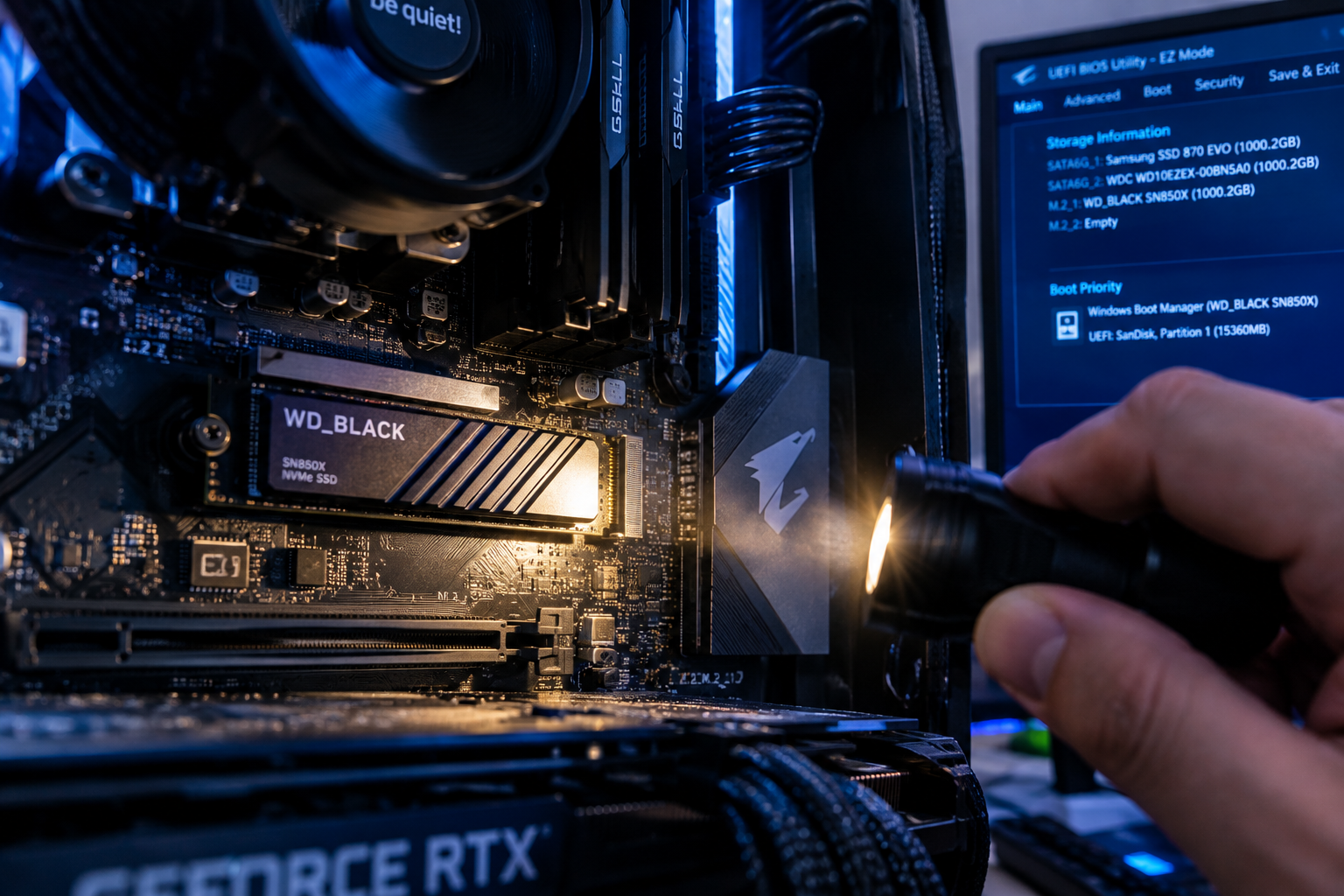
Before trying any fix, check these four places in order:
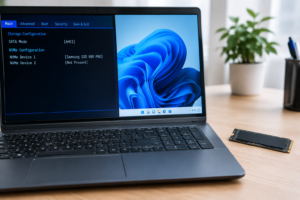
- BIOS/UEFI: Restart and enter your BIOS (usually Del, F2, or F10 during boot). Look under Storage or Boot menu for your NVMe model number.
- Windows installer or boot menu: If you’re trying to install Windows and the drive doesn’t appear in the drive selection screen, that’s a different problem than a missing drive on an already-running system.
- Device Manager: Press Windows key + X, select Device Manager, and expand “Disk drives.” Also check “Storage controllers” for anything with a yellow warning icon.
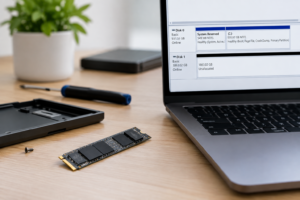
- Disk Management vs. File Explorer: Press Windows key + R, type diskmgmt.msc, and see if the drive shows up here even though it’s missing from File Explorer. This distinction matters a lot.
Fixes Based on Where the Problem Is
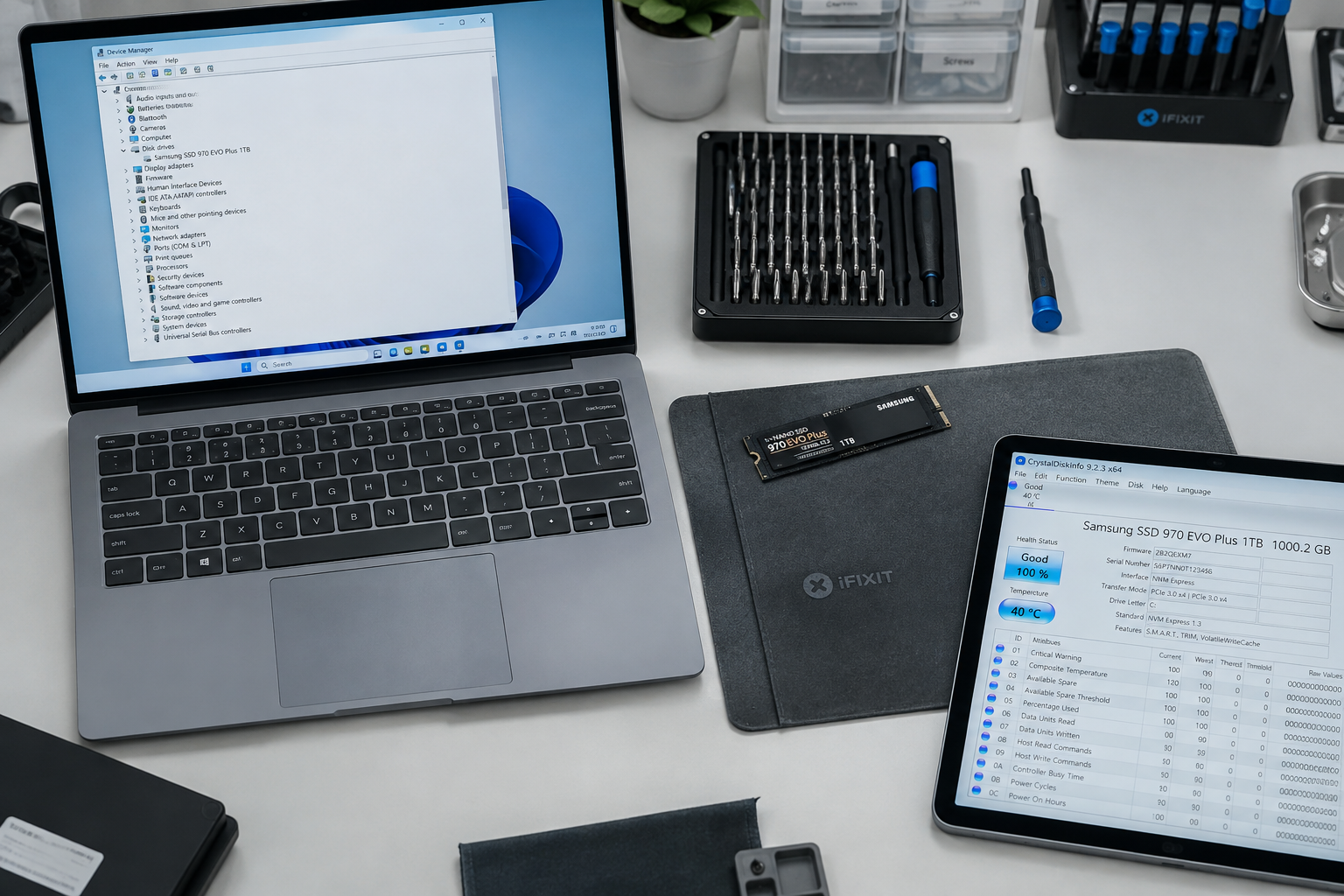
Missing From BIOS/UEFI Entirely
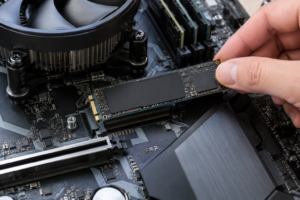
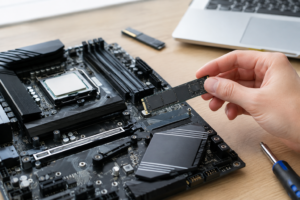
If the drive doesn’t show up in BIOS, Windows updates aren’t your issue, this points to a hardware or firmware-level problem. Check that the NVMe stick is fully seated in its M.2 slot and that the retention screw is tight.
Many motherboards share bandwidth between M.2 slots and SATA ports or PCIe slots. Check your motherboard manual for “slot sharing” rules, installing a second NVMe drive or GPU can disable another M.2 slot entirely.
Also check whether the BIOS was reset during the Windows update. Confirm the SATA/NVMe mode is set to AHCI or RAID/VMD (Intel systems) consistently with how the drive was originally configured. Switching this setting can make an otherwise-working drive disappear from Windows even though BIOS still sees it.
Visible in BIOS but Missing in Windows
This usually means a driver problem. Windows 11 updates sometimes overwrite or disable Intel RST (Rapid Storage Technology) or VMD drivers, which NVMe drives in RAID mode depend on.
Head to Device Manager, check under “Storage controllers,” and look for anything named Intel RST VMD Controller or similar. If it’s missing or shows an error, reinstall the driver directly from Intel’s or your motherboard manufacturer’s website rather than relying on Windows Update to fix it.
Visible in Disk Management but Not File Explorer
This is actually good news. It means Windows sees the drive, it just isn’t accessible. Usually one of three things is happening: the drive has no drive letter assigned, it’s unallocated space, or it’s marked offline.
In Disk Management, right-click the drive. If it says “Offline,” right-click and choose “Online.” If it has no drive letter, right-click and select “Change Drive Letter and Paths,” then add one.
If the drive shows as “Unallocated” and you know it previously had data on it, do not initialize it or create a new volume yet. Initializing, formatting, or running a clean command through diskpart will erase existing data. Try data recovery software first, or back up before making changes.
If the drive genuinely is new or was wiped intentionally, right-click and choose “Initialize Disk,” pick GPT (not MBR, GPT is standard for Windows 11), then create a new simple volume and format it.
External NVMe Enclosures Not Detected
If your NVMe drive is in a USB enclosure and it worked before the update but not after, check the enclosure’s USB controller chipset. Windows 11 updates have occasionally broken compatibility with certain ASMedia and JMicron USB-to-NVMe bridge chips.
Try a different USB cable and a different port, ideally a USB-C port with dedicated bandwidth rather than through a hub. If the enclosure uses an app or firmware for TRIM support, check the manufacturer’s site for an updated driver.
If you’re deciding whether an external NVMe setup is worth troubleshooting versus just running your NVMe internally, it helps to understand how much of a real speed difference NVMe actually makes in daily use.
FAQ
Will reinstalling Windows fix a missing NVMe drive?
Sometimes, but it’s not the first thing to try. If the drive is invisible in BIOS, reinstalling Windows won’t help since the operating system never sees the hardware in the first place. Reinstalling only helps when driver corruption is the cause, and even then, updating the storage driver manually is usually faster and safer than a full reinstall.
Is it safe to run “clean” in diskpart to fix a missing drive?
Only if you’re certain there’s no data on the drive you need. The clean command in diskpart wipes the partition table and all data instantly with no confirmation prompt and no way to undo it through Windows. If there’s any chance the drive has files you care about, back them up or attempt recovery first, and check out this guide on upgrading storage without losing data for safer practices around drive changes.

James Kennedy is a writer and product researcher at Drives Hero with a background in IT administration and consulting. He has hands-on experience with storage, networking, and system performance, and regularly improves and optimizes his home networking setup.