Toshiba Laptop Hdd Ssd is Failed
Toshiba laptop HDD/SSD failure can bring your productivity to a halt. Understanding the warning signs and taking immediate action to backup data and replace the drive can save your important files and get your laptop running smoothly again.
Hard disk drives (HDDs) and solid-state drives (SSDs) serve as the primary storage components in Toshiba laptops, housing everything from your operating system to personal documents and applications. When these drives fail, the consequences can be devastating. Not only does drive failure prevent your laptop from booting properly, but it also puts all your stored data at risk of permanent loss.
Drive failures in Toshiba laptops can occur due to various factors, including mechanical wear in HDDs, flash memory degradation in SSDs, power surges, overheating, physical damage, or malware infections. Understanding these failure modes and recognizing early warning signs can mean the difference between a minor inconvenience and a major data disaster.
Common Signs of Toshiba Laptop Drive Failure
Identifying drive failure early gives you the best chance to recover your data and minimize downtime. Toshiba laptops typically display several warning signs before complete drive failure occurs.
Performance-Related Symptoms
Your Toshiba laptop may experience significantly slower boot times, taking several minutes to reach the desktop instead of the usual 30-60 seconds. Applications might freeze frequently or take much longer to load than normal. File transfers that previously completed quickly now crawl at a snail’s pace, and your laptop may become unresponsive during routine tasks like opening documents or browsing files.
The system might also exhibit strange behavior such as programs crashing unexpectedly, error messages appearing when trying to save files, or the laptop randomly freezing during operation. These symptoms often indicate that the drive is struggling to read or write data properly.
Audio and Visual Warnings
Traditional HDDs in Toshiba laptops may produce unusual clicking, grinding, or whirring sounds when they begin to fail. These mechanical noises, often called the “click of death,” indicate that the drive’s read/write heads or motor are malfunctioning. SSDs, being silent by nature, won’t produce these audio warnings, making their failures harder to detect without monitoring software.
Blue screen errors (BSOD) appearing with messages related to disk or file system problems are serious indicators of drive issues. Windows may display error codes like “UNMOUNTABLE_BOOT_VOLUME” or “INACCESSIBLE_BOOT_DEVICE” when the drive can no longer be properly accessed.
File System Corruption
File corruption becomes increasingly common as drives fail. You might notice that recently saved documents won’t open properly, photos appear garbled or incomplete, or entire folders mysteriously disappear. The operating system may also trigger automatic disk check operations (CHKDSK) more frequently as it attempts to repair file system errors.
Immediate Steps When Drive Failure Occurs
When you suspect your Toshiba laptop’s drive is failing, taking quick action can help preserve your data and prevent further damage to the storage device.
Power Down and Assess
If your laptop is still functional but showing signs of drive failure, power it down immediately to prevent additional read/write operations that could worsen the damage. Continuing to use a failing drive often leads to complete data loss as damaged sectors multiply and file system corruption spreads.
Before attempting any recovery procedures, determine whether your Toshiba laptop uses an HDD or SSD. Most newer Toshiba models ship with SSDs, while older units typically contain traditional hard drives. This information affects your recovery options and replacement choices.
Create a Recovery Environment
If the laptop still boots, immediately create a bootable external drive with a Linux distribution or Windows PE environment. These tools allow you to access the failing drive from an external operating system, bypassing potential Windows corruption issues that might prevent normal file access.
Connect an external storage device with sufficient capacity to hold your important data. USB drives work for smaller amounts of data, but external hard drives or cloud storage services are better for backing up extensive file collections.
Data Recovery Strategies
The approach to data recovery depends on the severity of the drive failure and the type of storage device in your Toshiba laptop.
DIY Recovery Methods
For drives that are still partially functional, software-based recovery tools can often retrieve files before complete failure occurs. Programs like Recuva, PhotoRec, or TestDisk work well for recovering deleted or corrupted files from both HDDs and SSDs.
Boot from your recovery environment and run these tools to scan the failing drive. Focus on recovering your most critical files first, as the drive condition may deteriorate during the recovery process. Document files, photos, and personal projects should take priority over easily replaceable software installations.
If Windows still boots but runs slowly, use the built-in backup tools to copy important folders to external storage. Windows File History or manual copying through File Explorer may work even when other methods fail.
Professional Recovery Services
When DIY methods fail or the drive won’t power on at all, professional data recovery services offer the best chance of retrieving your files. These services use specialized equipment and cleanroom facilities to repair drives and extract data from severely damaged storage devices.
Professional recovery costs vary widely depending on the drive type and damage severity, ranging from a few hundred to several thousand dollars. However, for irreplaceable business data or family photos, this investment often proves worthwhile.
Choosing a Replacement Drive
Selecting the right replacement drive for your Toshiba laptop involves considering several factors including compatibility, performance, and budget.
Drive Interface and Form Factor
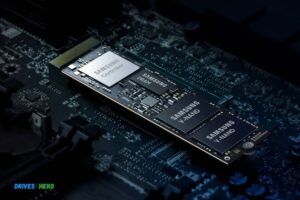
Most Toshiba laptops use standard 2.5-inch SATA drives, but newer models may include M.2 NVMe slots for modern SSDs. Check your laptop’s specifications or physically inspect the current drive to determine the correct interface type.
SATA drives connect via a standard L-shaped connector and are available in both HDD and SSD varieties. M.2 drives are much smaller, resembling a stick of RAM, and typically offer faster performance than SATA alternatives.
Capacity and Performance Considerations
Consider your storage needs when selecting drive capacity. A 500GB SSD provides adequate space for most users, while power users might prefer 1TB or larger drives. SSDs offer significantly better performance than HDDs but cost more per gigabyte of storage.
For performance-critical applications like video editing or gaming, choose an SSD with good random read/write speeds. For general office work and web browsing, even entry-level SSDs provide noticeable improvements over traditional hard drives.
Installation and Setup Process
Installing a replacement drive in most Toshiba laptops requires basic technical skills and standard tools.
Physical Installation
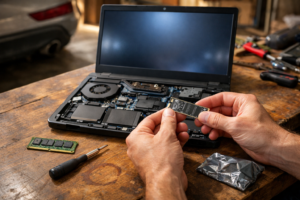
Power down your laptop completely and remove the battery if possible. Most Toshiba models provide access to the drive bay through a removable panel on the bottom of the laptop. Some models require removing the entire bottom cover to access internal components.
Carefully disconnect the SATA cable and power connector from the old drive, then remove any mounting screws securing it in place. Install the new drive by reversing this process, ensuring all connections are secure before reassembling the laptop.
Operating System Installation
With a new drive installed, you’ll need to install an operating system. If you have a recent backup image, restore it to the new drive using backup software. Otherwise, perform a fresh Windows installation using a USB installation drive or recovery disk.
During Windows setup, initialize and format the new drive. Choose the NTFS file system for maximum compatibility with Windows applications and features.
Preventing Future Drive Failures
Taking proactive measures can significantly extend your Toshiba laptop’s drive lifespan and prevent unexpected failures.
Regular Maintenance
Keep your laptop clean and ensure adequate ventilation to prevent overheating, which accelerates drive wear. Use compressed air to clear dust from vents and fans every few months, particularly if you use the laptop in dusty environments.
Run regular disk cleanup operations to remove temporary files and free up space. Both HDDs and SSDs perform better when they’re not completely full, so maintain at least 10-15% free space on your primary drive.
Monitoring and Backup Strategies
Install drive monitoring software that tracks SMART (Self-Monitoring, Analysis, and Reporting Technology) data to detect early warning signs of drive failure. Programs like CrystalDiskInfo provide real-time health status and can alert you to potential problems before they become critical.
Implement a comprehensive backup strategy using both local and cloud storage solutions. Automatic backup programs can copy important files to external drives or cloud services daily, ensuring you always have recent copies of critical data.
Frequently Asked Questions Of Toshiba Laptop Hdd Ssd Is Failed
Why Did My Toshiba Laptop Hdd/Ssd Fail?
Drive failures in Toshiba laptops typically result from physical damage, excessive heat exposure, power fluctuations, manufacturing defects, or natural wear over time. HDDs are particularly susceptible to mechanical failure due to their moving parts, while SSDs can fail due to flash memory cell degradation or controller malfunctions. Malware infections and sudden power losses can also corrupt drive data and lead to failure.
What Are The Signs Of A Failing Hdd/Ssd?
Common warning signs include frequent system crashes, slow boot times, error messages when accessing files, unusual clicking or grinding noises from HDDs, programs freezing unexpectedly, and blue screen errors. You might also notice missing files, corrupted documents, or Windows requesting frequent disk repairs. Performance degradation such as slow file transfers and application loading times often precedes complete drive failure.
Can I Recover Data From A Failed Toshiba Hdd/Ssd?
Data recovery success depends on the type and severity of the failure. Logical failures, such as file system corruption or accidental deletion, often respond well to software recovery tools. Physical failures, including mechanical damage in HDDs or controller failures in SSDs, typically require professional data recovery services with specialized equipment. Acting quickly and avoiding further use of the failed drive improves recovery chances significantly.
How Can I Prevent Hdd/Ssd Failure In The Future?
Prevention strategies include maintaining regular backups, keeping your laptop clean and well-ventilated, using a UPS to protect against power surges, running antivirus software, and monitoring drive health with SMART diagnostic tools. Handle your laptop carefully to avoid physical shock, avoid extreme temperatures, and don’t fill your drive to capacity. Regular system maintenance and updates also help prevent software-related drive issues.

Harold Williams is a senior writer and technical editor at Drives Hero with 20+ years of experience in IT administration. He specializes in storage systems, SSD reviews, and performance testing, bringing real-world insight to every guide.