SSD Not Detected After BIOS Update
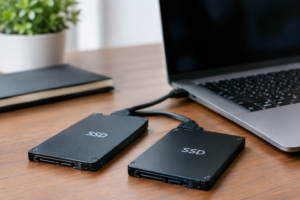
You updated your BIOS, restarted your PC, and now your SSD has vanished. Maybe it was a firmware update for stability, a fix for a compatibility issue, or just routine maintenance. Whatever the reason, a missing drive after a BIOS update is one of the more panic-inducing PC problems, but it’s usually fixable without losing your data.
The key to solving this fast is figuring out exactly where the drive is missing. A drive that’s invisible in BIOS points to a completely different fix than one that shows up in Disk Management but not in File Explorer. Let’s walk through each scenario.
Step 1: Find Out Where the Drive Actually Disappears
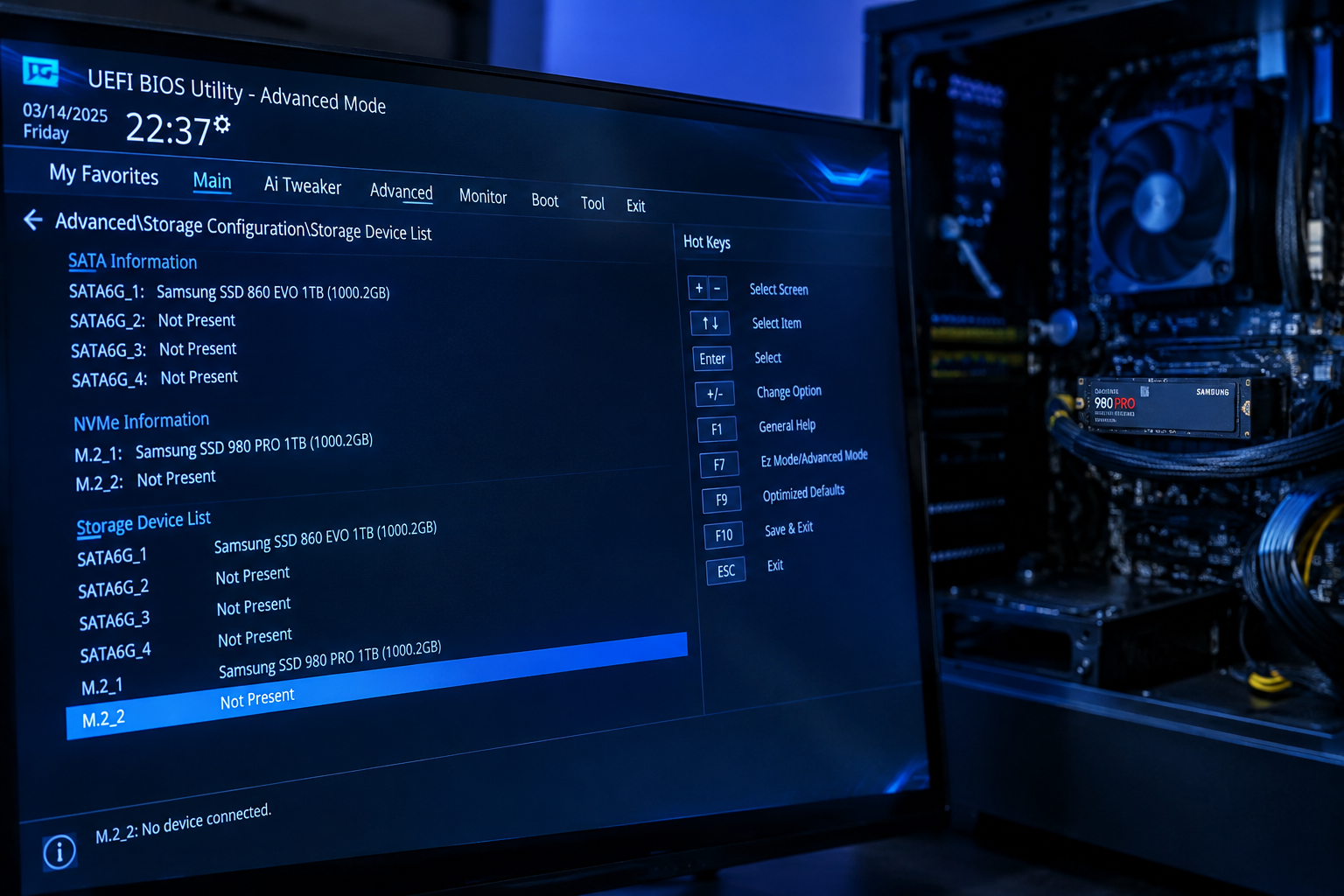
Before you touch any settings, check these four spots in order. Your answer here determines everything that follows.
- BIOS/UEFI: Boot into BIOS and check the storage or boot device list. Is the SSD listed at all, even by model number?
- Windows installer or boot menu: If you’re trying to install Windows or boot into an existing install, does the drive show up as a target or boot option?
- Device Manager: Inside Windows, check under “Disk drives.” Does the SSD appear, even with a warning icon?
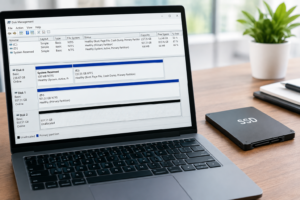
- Disk Management and File Explorer: Does the drive show up in Disk Management (diskmgmt.msc) but not with a drive letter in File Explorer?
Write down which one applies to you. That’s the only troubleshooting path you need to follow, so skip the sections that don’t match your situation.
Step 2: Fixes Based on Where the Drive Is Missing
Not Visible in BIOS at All
This is the most serious case, and it usually points to a settings change rather than hardware failure. Start here:
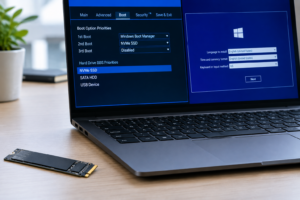
- Check AHCI vs RAID/VMD mode: BIOS updates sometimes reset your SATA or NVMe controller mode. If your drive was set up under AHCI and the update flipped it to RAID (or Intel VMD), Windows won’t even know the drive exists at boot. Go into BIOS storage settings and switch it back to match your original install.
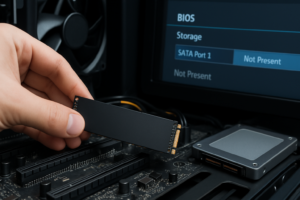
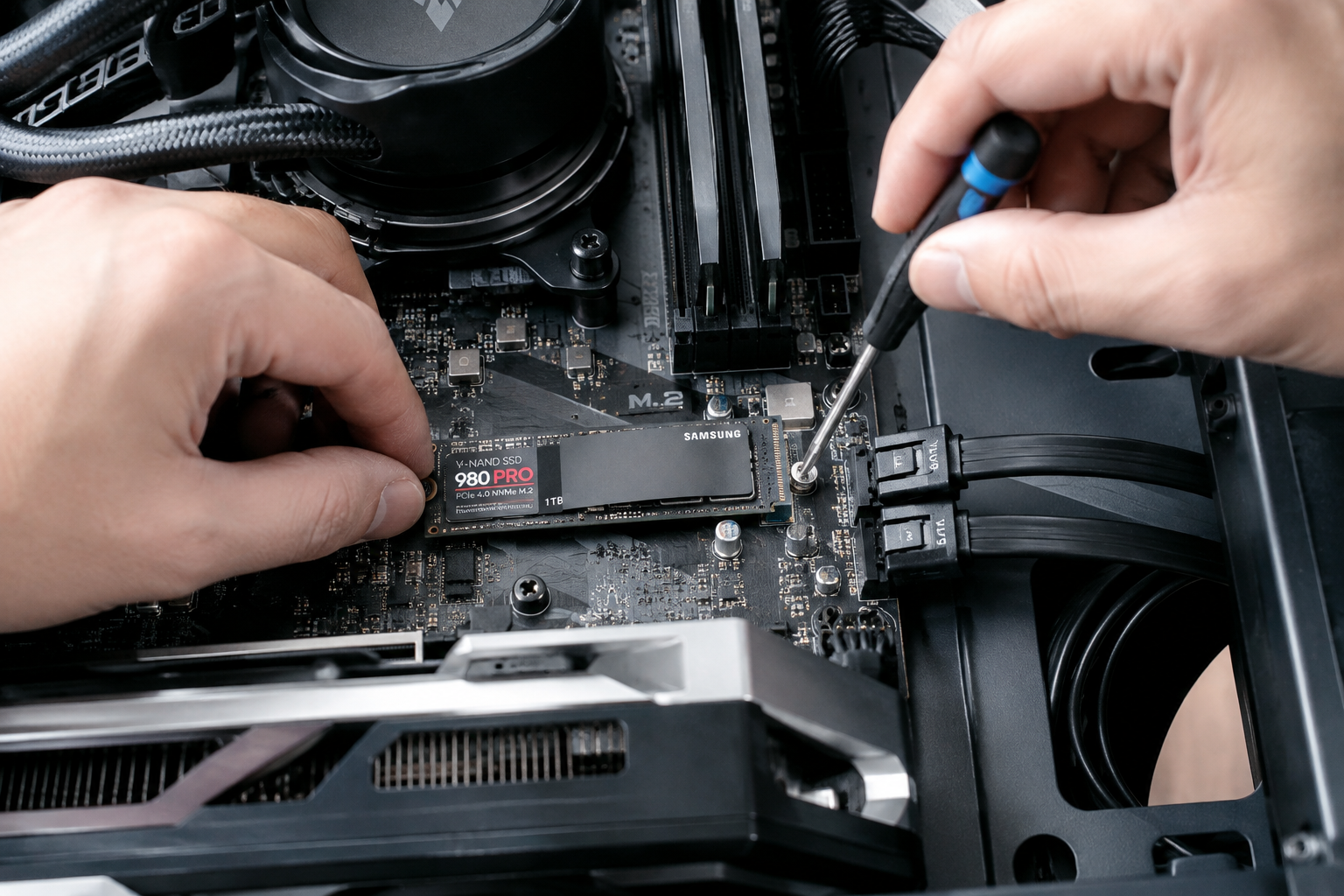
- Reseat the drive: For M.2 drives, power down completely, remove the SSD, check the connector for debris or misalignment, and reseat it firmly. For SATA drives, unplug and replug both the data and power cables.
- Check for slot sharing conflicts: Many motherboards disable a SATA port when a second M.2 slot is populated. If you added or moved drives around the same time as the BIOS update, check your motherboard manual for shared bandwidth lanes.
- Load BIOS defaults, then reapply your settings: A corrupted BIOS update can leave odd settings behind. Reset to defaults, then manually turn AHCI back on and re-enable any storage controllers you had active before.
- Try a different port or cable: If it’s a SATA SSD, swap the cable or move it to a different SATA port to rule out a damaged connection.
If none of that works and the drive still doesn’t appear, it may have failed during the update process due to a power interruption. That’s rare, but it happens, especially on older SSDs.
Visible in BIOS, Missing From Windows Installer or Boot Menu
If BIOS sees the drive but Windows setup doesn’t, you’re almost always missing a driver. This is extremely common with newer Intel systems running RAID or VMD mode.
- During Windows installation, click “Load driver” and load the Intel RST (Rapid Storage Technology) or VMD driver from a USB drive. You can download this directly from Intel’s site or your motherboard manufacturer’s support page.
- Alternatively, switch your BIOS storage mode to AHCI if you don’t need RAID, which often makes the drive visible without needing extra drivers.
Visible in Device Manager, but Not in File Explorer
If Windows detects the drive under Device Manager but you can’t see it in File Explorer, the drive itself is fine. It just needs a letter or a partition.
- Open Disk Management and check if the drive shows as “Unallocated” or “Not Initialized.”
- If it’s unallocated, right-click and create a new simple volume, then assign a drive letter.
- If it says “Not Initialized,” right-click the disk (not the partition) and choose “Initialize Disk.” Choose GPT unless you specifically need MBR for legacy boot compatibility.
- If the drive already has a partition but no letter, right-click it and select “Change Drive Letter and Paths” to assign one manually.
Before you initialize, format, or run a clean command on any drive, confirm it’s the correct disk number in Disk Management. These operations erase data permanently, and there’s no undo button once you confirm.
Drive Was Working Fine Before, Now Won’t Boot Into Windows
If your OS drive was working and now the system won’t boot after the BIOS update, you’re likely dealing with a boot record issue rather than a missing drive.
- Boot from Windows installation media and choose “Repair your computer,” then Advanced Options, then Command Prompt.
- Run
bootrec /fixmbr, thenbootrec /fixboot, thenbootrec /rebuildbcd. - If the drive uses GPT and your BIOS switched from UEFI to Legacy mode (or vice versa) during the update, switch it back. Windows installations are tied to one boot mode and won’t start under the other.
When It’s an External SSD or Enclosure
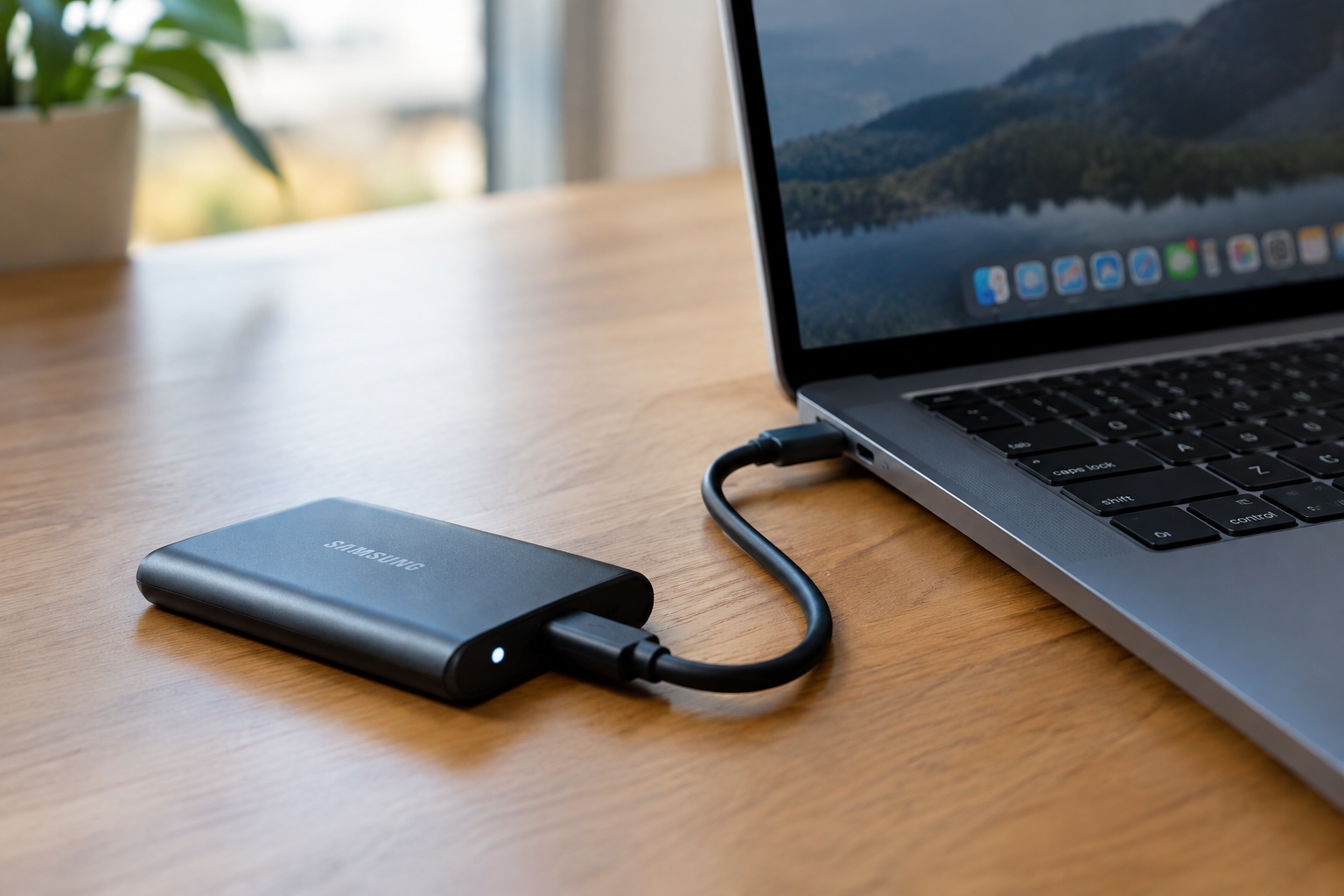
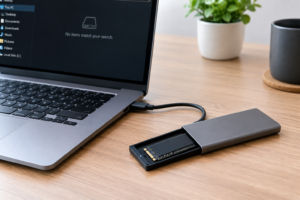
If the missing drive is an external SSD connected via USB enclosure, the BIOS update itself is rarely the cause. Instead, check if the enclosure’s chipset is compatible with the drive, try a different USB port or cable, and test the drive in another machine if possible. This matters more if you’re using it as extra storage rather than your main system drive, and if you’re weighing whether an external SSD is worth adding to your setup at all, this guide on whether an external SSD can make your laptop faster is worth a read.
Frequently Asked Questions
Can a BIOS update actually damage my SSD?
Directly, no. BIOS updates don’t write to your SSD’s firmware or data. What they can do is reset controller settings like AHCI/RAID mode or disable specific ports, which makes a perfectly healthy drive appear to be missing. Actual data loss from a BIOS update alone is very rare.
Should I just reinstall Windows if my SSD won’t show up?
Not as a first step. Reinstalling won’t fix a BIOS mode mismatch, a missing driver, or a loose connection, and you risk losing data if the drive does show up mid-install and you accidentally select the wrong disk. Work through the detection steps above first, and only consider a clean install once you’ve confirmed the drive is visible and healthy in Disk Management.

James Kennedy is a writer and product researcher at Drives Hero with a background in IT administration and consulting. He has hands-on experience with storage, networking, and system performance, and regularly improves and optimizes his home networking setup.