How to Update Seagate SSD Firmware
Firmware updates don’t get much attention until something goes wrong: a drive that randomly disconnects, a BIOS that won’t recognize your boot volume, or a compatibility issue with a new NVMe controller. For Seagate SSD owners, keeping firmware current is one of the easiest ways to avoid these headaches, but the update process itself makes people nervous, and rightfully so. Flash the wrong file or lose power mid-update, and you can turn a working drive into a paperweight.
This guide walks you through exactly how to check your current firmware version, find the right update, and apply it safely using Seagate’s official tools.
Why Firmware Updates Matter for Seagate SSDs
Firmware is the low-level software that controls how your SSD’s controller manages data, handles wear leveling, and communicates with your motherboard. Seagate releases updates to fix bugs, improve reliability, patch security vulnerabilities, and sometimes squeeze out better performance or lower power draw.
Some updates are cosmetic and you’ll never notice a difference. Others fix genuine problems, like drives that fail to wake from sleep states or ones that report incorrect SMART data. If you’re troubleshooting a drive that’s acting strange, checking for a firmware update should be one of your first steps before you assume the hardware itself is failing.
Before You Start: Prerequisites and Backups
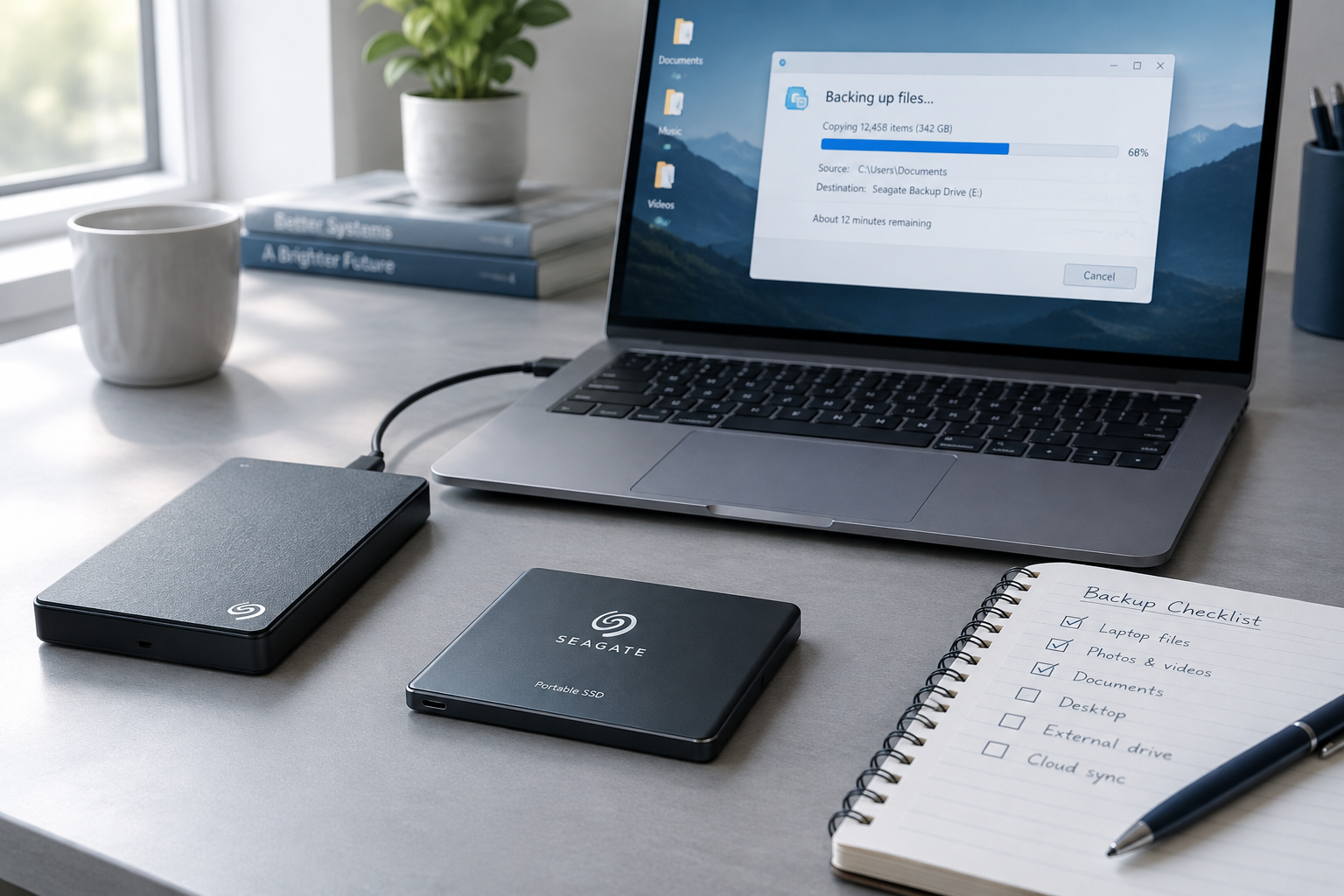
Firmware flashing carries real risk, so don’t skip the prep work. A few minutes here can save you a bricked drive later.
- Back up everything first. Firmware updates can, in rare cases, cause data loss or force a drive to be reformatted. Copy anything important to another drive or cloud storage before you touch the firmware.
- Confirm your exact model number. Seagate SSDs come in multiple families (BarraCuda, FireCuda, IronWolf Pro) with different firmware branches for each. Check the label on the drive or pull the model number from Windows Device Manager or a tool like CrystalDiskInfo.
- Use a stable power source. If you’re updating a laptop’s internal drive, plug the laptop into the wall. Don’t run this on battery power, and don’t do it during a storm if you’re not on a UPS.
- Close background applications. Anything that might touch the disk during the flash, backup software, antivirus scans, indexing services, should be paused or closed.
If you’re not sure whether your SSD is even the bottleneck in your system versus something like RAM, it’s worth reading about how RAM upgrades compare to SSD upgrades before you spend time chasing firmware fixes for a performance issue that might be elsewhere.
Supported Connection Types
How your Seagate SSD is connected affects whether firmware tools can even see it, so this matters more than people expect.
Internal SATA and NVMe drives connected directly to your motherboard almost always work fine with Seagate’s utility. This is the most reliable setup and what Seagate primarily designs its tools around.
External drives connected via USB enclosures are hit or miss. Many USB-to-SATA or USB-to-NVMe bridge chips don’t pass through the low-level commands firmware tools need, which means the utility either won’t detect the drive or won’t be able to write to it. If you have an external Seagate SSD and the update tool can’t see it, try connecting the bare drive internally (temporarily) or through a different, higher-quality enclosure that supports SMART and firmware passthrough.
Drives connected through RAID controllers or NAS enclosures are the trickiest. Most firmware utilities need direct, unmediated access to the drive, so you may need to pull the drive and connect it straight to a standard SATA or M.2 port on a desktop motherboard to complete the update.
How to Check Your Current Firmware Version
Before downloading anything, confirm what firmware you’re currently running so you know if an update is actually necessary.
- Download and install SeaTools or Seagate’s DiscWizard utility from Seagate’s official support site (avoid third-party download mirrors entirely).
- Launch the tool and let it scan for connected drives.
- Select your SSD from the list. The details panel will show the model number, serial number, and current firmware revision.
- Cross-reference that firmware revision against the latest version listed on Seagate’s support page for your exact model.
You can also check firmware version through third-party tools like CrystalDiskInfo on Windows, which is often faster if you just need a quick look without launching a full utility.
Step-by-Step: Updating Seagate SSD Firmware
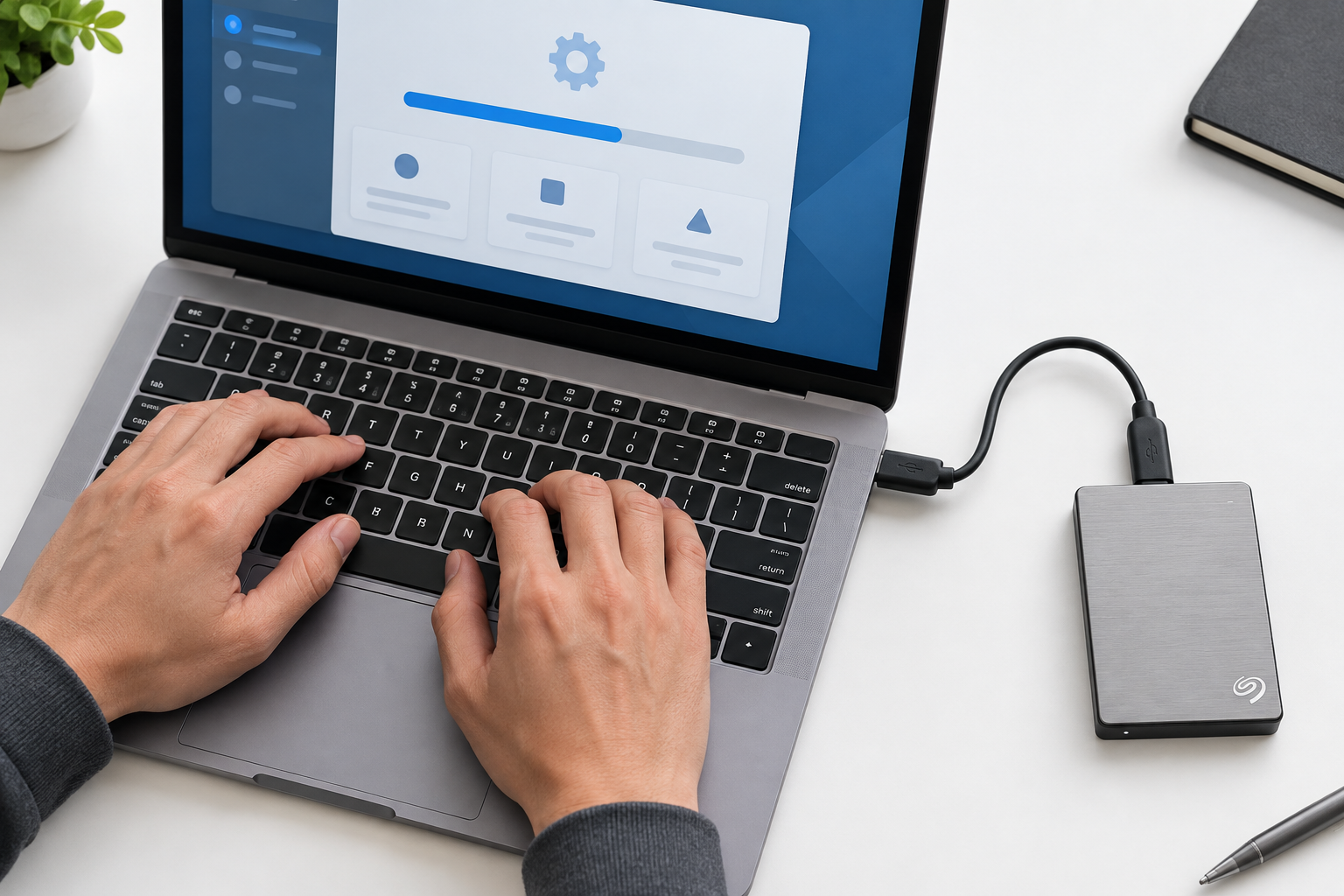
Once you’ve confirmed an update is available and matches your exact model, here’s how to apply it.
- Identify the exact model and current firmware version using the method above. Write it down. Seagate’s product lines have multiple sub-models (different capacities, different controller revisions) that each need their own firmware file.
- Download the correct firmware package from Seagate’s official support site only. Search by your drive’s exact model number, not just the product family name.
- Read the release notes that come with the update. These usually list what’s fixed and sometimes flag known issues or extra steps for specific configurations.
- Close all other software and disconnect any other external drives to reduce the chance of the wrong drive being selected during the flash.
- Run the firmware update utility (usually bundled with SeaTools or provided as a standalone flash tool). Select your drive carefully if multiple drives are listed.
- Start the update and do not touch anything until it reports completion. Most updates take anywhere from 30 seconds to a few minutes.
- Restart your system when prompted, then reopen the utility to confirm the firmware version has changed to the new release.
If you’re doing this as part of a broader system refresh, like adding a new drive alongside your existing one, you might also want to check our guide on upgrading an SSD without losing data, since the backup principles overlap quite a bit with firmware update prep.
Critical Warnings: What NOT to Do
This is the section to actually pay attention to, because the mistakes here are the ones that destroy drives.
Never interrupt power during a firmware flash. Not a reboot, not a shutdown, not even a sleep mode trigger. If the flash is interrupted mid-write, the drive’s controller can be left in a corrupted state that no longer boots or gets detected at all.
On a desktop, this means using a surge-protected outlet and ideally a UPS if you have frequent power blips in your area. On a laptop, keep it plugged in and don’t let the lid close and trigger sleep mode mid-update.
Never use firmware built for a different Seagate model, even if it’s in the same product family. A firmware file for a 1TB BarraCuda will not work correctly on a 2TB BarraCuda, and forcing it can render the drive unusable. Seagate’s tools generally block mismatched firmware automatically, but manual flashing tools found on forums or third-party sites don’t always have that safeguard, which is another reason to stick to official Seagate downloads.
Don’t run firmware updates over a flaky USB connection if you can avoid it. If the external enclosure drops the connection for even a second during the write, you’re looking at the same risk as a power interruption.
What to Do If Your Drive Isn’t Detected
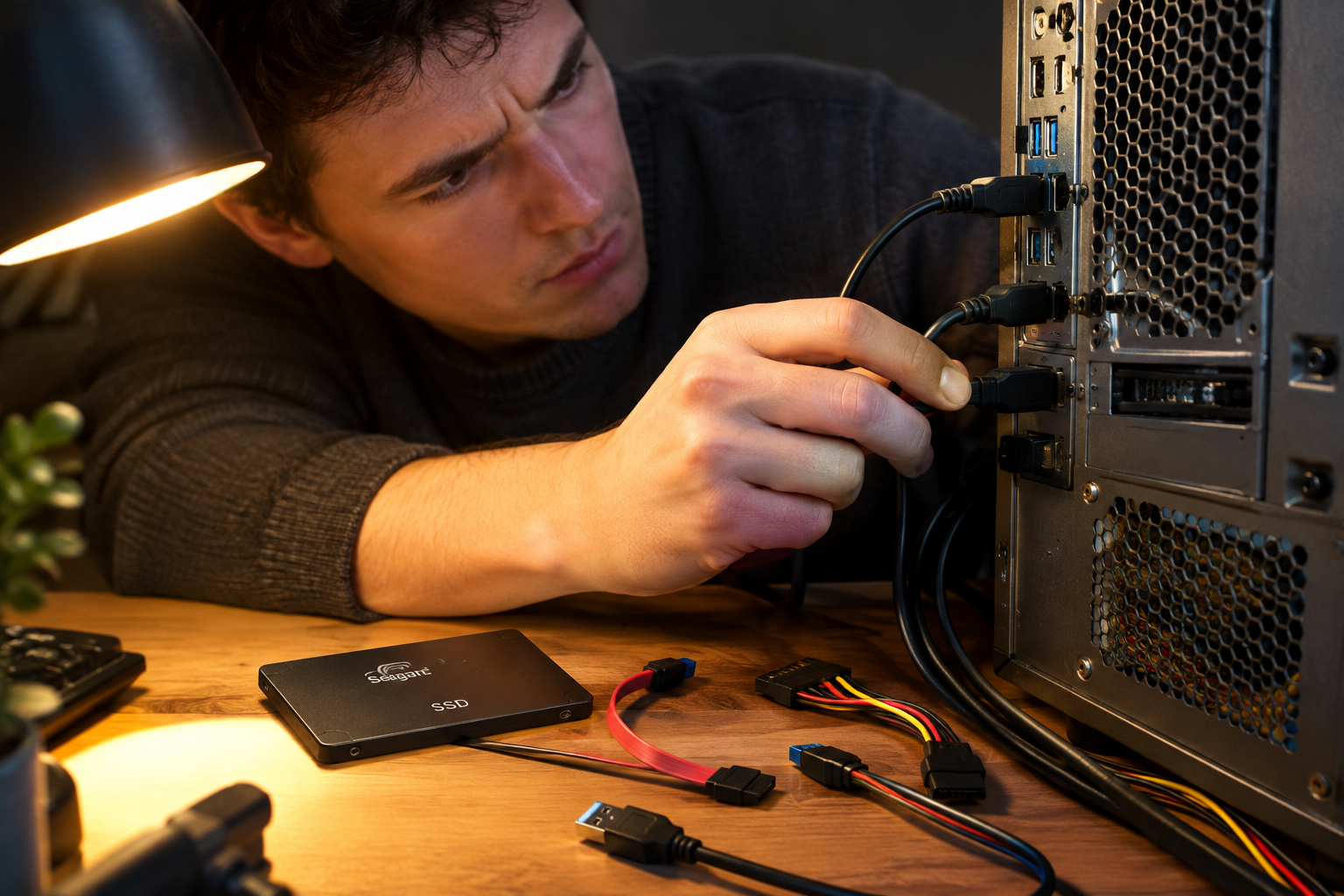
This is one of the most common snags people hit, and it’s usually fixable.
First, check the physical connection. Reseat the SATA or M.2 cable/connector, try a different SATA port on your motherboard, or try a different USB cable and port if it’s external. Loose connections are the most common reason a drive silently disappears from a utility’s scan.
If that doesn’t help, check whether the drive shows up in your BIOS/UEFI or in Windows Disk Management. If it’s visible there but not in the Seagate utility, the issue is likely with the utility’s drivers rather than the physical connection. Try running the utility as an administrator, or reinstalling it entirely.
For external drives specifically, remember the enclosure issue mentioned earlier. USB bridge chips (especially cheaper ASMedia or generic JMicron controllers) often block the SCSI/ATA passthrough commands that firmware tools rely on. Connecting the drive directly via SATA or M.2, even temporarily, solves this in most cases.
If none of that works and the drive is genuinely not spinning up or responding at all, that points to a hardware failure rather than a firmware or connection issue, and no amount of software troubleshooting will fix it.
Frequently Asked Questions
Will updating firmware erase data on my Seagate SSD?
Usually not, but it’s not guaranteed across every model and every update. Seagate’s official firmware updates are designed to preserve data, but there’s always a small risk with any low-level write operation. Back up your data before every firmware update regardless of what the release notes claim.
How do I know if my Seagate SSD actually needs a firmware update?
Check your current version against the latest one listed on Seagate’s official support page for your exact model number. If you’re not experiencing any issues and there’s no update addressing a known bug relevant to your use case, you don’t need to rush into flashing new firmware just because it exists.
Can I update firmware on an external Seagate SSD through USB?
Sometimes, but it depends entirely on the USB enclosure or adapter’s chipset. Many cheaper enclosures block the commands firmware tools need. If the utility doesn’t detect your external drive, try connecting it directly via SATA or M.2 instead.
What happens if the power goes out during a firmware update?
This is one of the few scenarios that can permanently brick an SSD. An interrupted flash can leave the controller with incomplete firmware, making the drive unreadable and, in most cases, unrecoverable without specialized data recovery equipment. Always use a stable, plugged-in power source and avoid updates during storms or unstable electrical conditions.
Final Thoughts
Updating Seagate SSD firmware isn’t something you need to do constantly, but staying on top of it can genuinely extend the useful life of your drive and fix quirks you might have chalked up to bad luck. The process itself is quick once you’ve confirmed the right model and firmware version, and the real work is in the preparation: backing up your data, using a stable power connection, and downloading only from Seagate’s official channels.
If your SSD troubleshooting journey started because you’re wondering whether the drive itself is the problem or something else in your system, our guide on how important an SSD really is for laptop performance is a good next read to put firmware issues in context against bigger hardware decisions.

James Kennedy is a writer and product researcher at Drives Hero with a background in IT administration and consulting. He has hands-on experience with storage, networking, and system performance, and regularly improves and optimizes his home networking setup.