Can You Upgrade Ssd on Surface Pro 9? Yes!
Yes, the SSD on the Microsoft Surface Pro 9 is user-replaceable, offering a level of future-proofing and repairability for owners looking to increase storage capacity or replace a faulty drive.
The Microsoft Surface Pro 9, unlike some of its predecessors, has been designed with a removable solid-state drive (SSD).
This feature offers several benefits to the user:
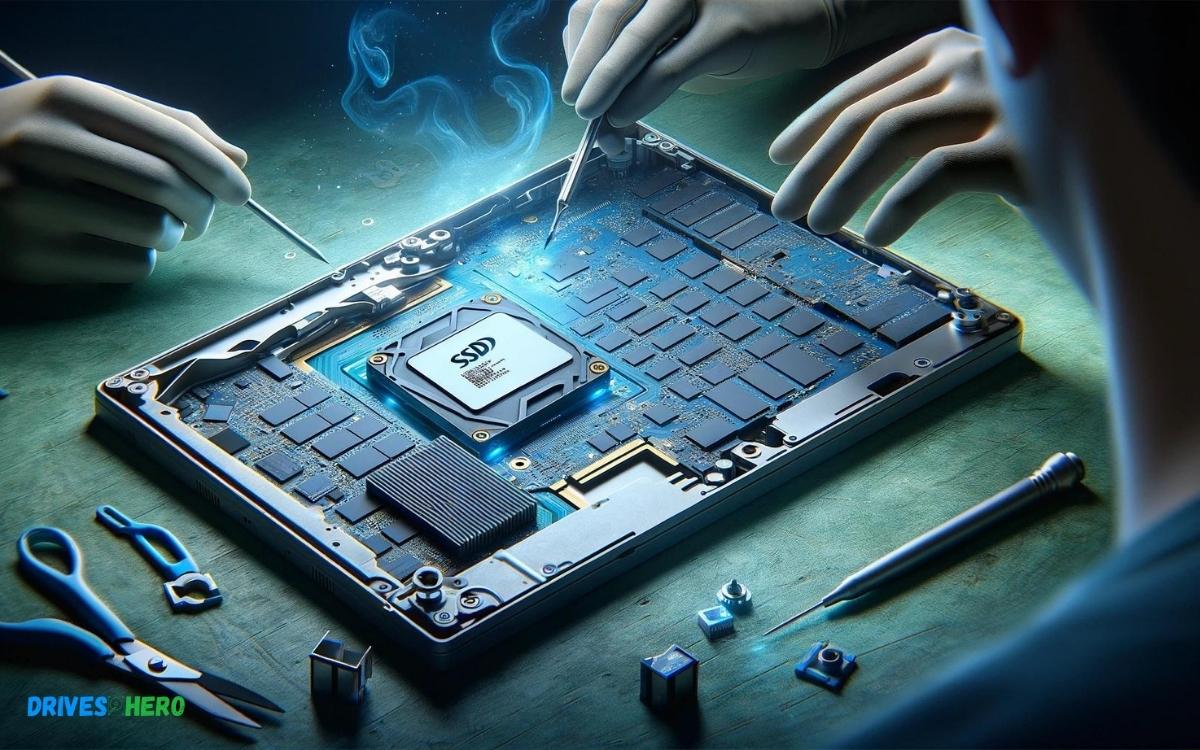
To replace or upgrade the SSD on the Surface Pro 9, you would typically follow these steps:
- Power off the device and disconnect all cables.
- Use a SIM card ejector tool or a similar object to pop open the SSD door.
- Unscrew and remove the old SSD.
- Insert the new SSD and secure it with the screw.
- Close the SSD door and power on the device.
It’s essential to use an SSD that is compatible with the Surface Pro 9 and to handle the components with care to avoid damage through static electricity or physical force.
Upgrading the SSD on the Surface Pro 9 can breathe new life into your device, ensuring that it keeps pace with your growing digital library and software needs.
Key Takeaway
Introduction To The Surface Pro 9
Microsoft’s Surface Pro 9 marks the latest evolution in the acclaimed Surface Pro line of 2-in-1 laptops.
Designed for professionals and creatives who need the power of a desktop and the mobility of a tablet, the Surface Pro 9 brings versatility to the forefront.
With a sleek form factor, updated hardware, and seamless integration with Windows 11, it’s crafted to offer peak performance without compromising portability.
Overview Of The Surface Pro 9 Features
The Surface Pro 9 boasts an array of impressive features:
- 13-inch PixelSense Flow touch display: A vibrant, high-resolution screen that adapts to different lighting conditions.
- Customizable configurations: Options ranging from efficient Intel Core processors to high-performance, custom-designed Microsoft SQ3 chips powered by ARM.
- Enhanced connectivity: Includes both Thunderbolt 4 and Wi-Fi 6E for faster data transfer and internet speeds.
- Long battery life: Engineered to last through a full day’s work with typical device usage.
- Windows 11 compatibility: Tuned to leverage the latest Windows operating system for the best user experience.
- Premium camera and audio: Equipped with a 1080p HD front-facing camera and Dolby Atmos speakers for crystal-clear video calls and multimedia.
The Evolution Of Storage Options In The Surface Pro Series
| Model | Storage Type | Upgradeability |
|---|---|---|
| Surface Pro 4 and earlier | SATA-based SSD | Limited – requires technical expertise |
| Surface Pro 5 to Surface Pro 7+ | Removable M.2 SSD | More accessible – designed with IT servicing in mind |
| Surface Pro 8 and Surface Pro 9 | Removable M.2 SSD | Improved access – user-replaceable with simplicity |
As users demand more flexibility and performance, Microsoft has progressively enhanced the Surface Pro’s storage capabilities.
The introduction of a user-replaceable SSD in the Surface Pro 9 reflects Microsoft’s commitment to offering devices that cater to evolving technology needs and the importance of data management.
Understanding Ssds And Their Upgrade Paths
When diving into the realm of Surface Pro 9 upgrades, it’s essential to get a grip on what Solid State Drives (SSDs) are and the impact they have on your device’s performance.
An SSD is a type of storage device with no moving parts, offering significant advantages in speed and reliability over traditional hard drives.
This brings us to the topic of upgrade paths. Not all devices offer the same leeway for upgrades, and understanding this landscape is crucial before moving forward.
Types Of Ssds And Their Compatibility With Devices
SSDs come in various shapes and sizes, each with a specific set of standards and interfaces.
Common types include SATA, mSATA, M.2, and PCIe NVMe, with M.2 and NVMe being the most prevalent in modern devices for their superior speeds and compact form factors.
The Surface Pro 9 leverages the M.2 SSD specification, which is key in determining compatible upgrade options.
Compatibility is determined by:
- The physical connector: Ensures the SSD can be connected to the device.
- The form factor: Refers to the size and shape of the SSD.
- The interface: Pertains to the communication protocol, with NVMe offering the best performance.
Why Upgrading An SSD Can Be Beneficial
There are several tangible benefits to upgrading the SSD on your Surface Pro 9. Improved storage capacity is the most obvious, but there are other advantages, including faster data transfer rates, reduced loading times, and a more responsive system overall.
A new SSD can breathe new life into your device, especially for tasks that demand quick access to large files, like video editing or gaming. The performance boosts can significantly enhance productivity and user experience.
Benefits of SSD upgrades include:
| Benefit | Description |
|---|---|
| Faster Boot Times | Quicker start-up and wake-from-sleep times. |
| Speedy File Access | Accelerated opening and saving of files. |
| Enhanced Durability | SSDs withstand shocks and drops better than HDDs. |
| Efficient Multitasking | Faster data access leads to smoother multitasking. |
| Energy Efficiency | Lower power consumption extends battery life. |
In summary, understanding SSDs and the available upgrade paths for your Surface Pro 9 is the first step toward a more powerful and efficient device.
Knowing the right type of SSD and the advantages that an upgrade can bring prepares you to make an informed decision that can transform your Surface Pro 9’s performance.
Step-by-step Guide To Upgrading Your Surface Pro 9 SSD
Required Tools And Safety Precautions
Before diving into the upgrade process, gathering the right tools is crucial. Ensure you have a T5 Torx screwdriver and a spudger or plastic pry tools at hand.
These tools will help you safely open the device without damaging it. To protect the Surface and yourself from static damage, working in a static-free environment or using an anti-static wristband is advisable.
Make sure to power down your device completely and disconnect any peripherals or power cables before attempting the upgrade.
Detailed Walk-through Of The Ssd Upgrade Process
Turn off your Surface Pro 9 and unplug all cables. Place the device screen down on a soft, clean surface.
Remove the stand’s rubber foot to expose the screws beneath. The rubber foot is glued in place, so carefully pry it up using a spudger.
- Use the T5 Torx screwdriver to unscrew the fasteners holding the SSD cover.
- Gently lift the SSD cover and locate the SSD slot. Note that it might be secured with a screw.
- Again using the T5 Torx screwdriver, unscrew and carefully remove the old SSD.
- Align your new SSD with the slot, and gently insert it. Ensure the SSD sits snugly in the slot before screwing it back into place.
- Replace the SSD cover and screw it back on. Reattach the stand’s rubber foot.
- Reconnect any cables, and you’re ready to move on to the next step.
Reinstalling The Operating System And Drivers After An Upgrade
With the hardware swap completed, the subsequent phase involves software restoration. Create a recovery drive from another Windows device or download a fresh install image from the Microsoft website.
Here’s how to get your system back up and running:
- Using the recovery drive or installation media, boot up your Surface Pro 9.
- Follow the on-screen prompts to install the Windows operating system. During installation, select the new SSD as the destination drive.
- After installation, log into Windows and install the necessary drivers. The Surface Pro 9 should automatically recognize the new SSD.
- Once the operating system is installed and the drivers are in place, ensure to update Windows to the latest version for optimal performance and security.
Performing an SSD upgrade on your Surface Pro 9 may seem daunting, but with the right tools and a bit of patience, it can lead to a substantial boost in performance and storage.
Remember to back up any important data before you begin the upgrade process, and you’ll enjoy your revitalized Surface Pro 9 in no time.
Risks And Considerations When Upgrading SSD
An upgrade to your Surface Pro 9 SSD might sound like a tantalizing prospect for boosting your device’s storage and performance.
Yet, venturing into a hardware upgrade, especially for a sleek and complex device such as the Surface Pro 9, comes with its own set of risks and considerations.
Understanding these can mean the difference between a smoother, more powerful device and a potentially frustrating, costly experience.
Potential Warranty Implications
Altering your Surface Pro 9 could have serious repercussions on its warranty status.
Microsoft typically covers defects and issues arising under normal use with its limited warranty, but upgrades or repairs not performed by authorized service providers might void this protection.
Keep in mind:
- Check the warranty terms to confirm if SSD upgrades are permissible without risking coverage.
- Avoid tampering with other components during the upgrade process.
- Consider professional services if uncertain about safely performing the upgrade.
The Risk Of Data Loss And How To Mitigate It
Data is precious and sometimes irreplaceable. Unintended mishaps during an SSD upgrade can lead to data loss, which can disrupt your workflow and lead to the loss of important files.
To effectively safeguard your data:
- Ensure a full backup is created before attempting any upgrades.
- Utilize reliable backup solutions, such as cloud services or an external drive.
- Consider using data migration tools to smoothly transition data to the new SSD.
Ensuring Compatibility And Performance Post-upgrade
Upgrading your SSD should not only be about increased storage but also about maintaining or enhancing your Surface Pro 9’s performance.
Maintain device integrity by:
| Action | Benefit |
|---|---|
| Choosing compatible SSDs | Prevents hardware mismatches and ensures smooth operation. |
| Verifying the upgrade process | Reduces the chance of installation errors and complications. |
| Testing performance post-upgrade | Confirms the upgrade’s success and identifies potential issues early. |
Alternatives To Upgrading The Internal SSD
The Surface Pro 9 comes with a speedy solid-state drive (SSD) that provides quick boot-up times and efficient data access. However, over time, you might need more space than what your current configuration offers.
While upgrading the internal SSD can be a technical challenge, there are alternative methods to expand your storage capacity without opening up your device.
Using External Storage Solutions
Expand your Surface Pro 9’s storage with a variety of external storage solutions. Portability and ease of use stand out as prime benefits.
Consider these options:
- USB Flash Drives: Compact and perfect for smaller files.
- External SSDs: For larger files, offers fast data transfer rates.
- Portable Hard Drives: A cost-effective option for voluminous storage needs.
With the integration of USB-C and Thunderbolt ports, connecting high-speed external drives is a breeze, allowing you to manage and transfer large amounts of data with minimal fuss.
Advantages Of Cloud Storage Services For Surface Pro 9 Users
Cloud storage services liberate you from hardware constraints.
By opting for cloud solutions, you access several key advantages:
| Advantage | Impact |
|---|---|
| Accessibility | Access your files anytime, anywhere, across all devices. |
| Security | Data encryption and cloud backup keep your files secure. |
| Collaboration | Share and manage files with others seamlessly. |
| Scalability | Adjust your storage plan based on your current needs. |
Services such as OneDrive, Dropbox, and Google Drive interface smoothly with Windows, making cloud storage a viable and efficient method for Surface Pro 9 users.
Optimizing Existing Internal Storage Without Hardware Changes
Even without adding new hardware, you can optimize the existing internal storage of your Surface Pro 9.
Follow these steps for optimization:
- Declutter: Uninstall unused apps and delete unnecessary files.
- System Cleanup: Utilize built-in disk cleanup tools to free up space.
- File Compression: Compress large files or folders.
- Data Offloading: Shift less frequently accessed files to an external storage solution or cloud service.
By keeping your system lean, you ensure that your Surface Pro 9 remains responsive while you manage your storage resources more efficiently.
Future Of Surface Devices And User Upgradability
As we venture into the realm of high-performance computing with the Surface Pro line, the future of Surface devices and user upgradability remains a hot topic.
With each iteration, tech enthusiasts eagerly anticipate to see if the trend of soldered components continues or a friendlier approach to upgrades emerge.
Trends In Upgradability For Premium Devices
High-end devices like the Surface Pro series have traditionally walked a fine line between sleek design and user serviceability.
Recent trends highlight a preference for:
- Slimmer profiles that often come at the expense of easy access to internal components.
- Integrated batteries and embedded SSDs that can be a hindrance to manual upgrades.
- Devices that prioritize thermal efficiency and portability, leading to more sealed units.
Despite these prevailing trends, there is a noticeable shift towards modularity in some premium laptop segments, driven by consumer demand for longevity and repairability.
Microsoft’s Design Philosophy And Potential Shifts
The Surface Pro series has exemplified Microsoft’s dedication to blending form with function, which often leads to compromises in user upgradability.
Microsoft has historically prioritized a seamless design, which typically implies:
- Sealed units with components that are not intended for end-user replacement.
- A focus on build quality and aesthetics that align with a premium brand image.
However, with changing industry dynamics and consumer feedback, there may be potential shifts toward more modular designs in future devices. The question remains whether this will translate to the high-performance Surface Pro line.
What Consumers Can Expect From Future Surface Pro Iterations
Fans and potential buyers are keen to understand what the Surface Pro’s future holds in terms of upgradability.
Observations suggest:
- Possibility of user-replaceable parts, such as SSDs, which could become a standard driven by consumer choice and environmental concerns.
- Models that offer a balance between serviceability and device integrity, potentially introducing easier access to certain components while maintaining a premium feel.
- A movement towards devices that support easy repairs and longer lifespans, in line with global sustainability efforts and the right-to-repair movement.
Surface Pro users can hold a cautious optimism for future models that might break the mold of their predecessors, gradually gravitating towards a paradigm where upgradability doesn’t remain an afterthought.
Conclusion
Upgrading the SSD on a Surface Pro 9 might seem daunting. Rest assured, with the right tools and some tech savvy, it’s possible. Explore the options and seize the opportunity to boost your device’s performance.
Remember, though, to always back up your data before attempting any hardware modifications. Empower your Surface to meet your growing storage needs.

Harold Williams is a senior writer and technical editor at Drives Hero with 20+ years of experience in IT administration. He specializes in storage systems, SSD reviews, and performance testing, bringing real-world insight to every guide.