Everything You Need to Know About Memory Cards
Memory cards are one of those things you don’t think about until you need one, and then you’re staring at a wall of options wondering what all those letters and numbers mean. UHS-I, V30, A2, SDXC. It can feel like alphabet soup, and picking the wrong card can mean dropped frames, slow transfers, or wasted money on specs you’ll never use.
This guide breaks down every major type of memory card, explains what all the speed ratings actually mean in practice, and helps you pick the right card for your specific device and workflow. Whether you’re shooting 4K video, expanding your phone’s storage, or loading up a Nintendo Switch, you’ll walk away knowing exactly what to buy.
Memory Card Types: Which Format Do You Need?
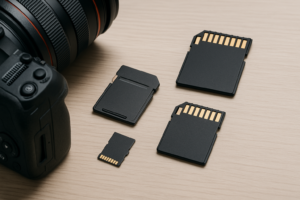
There are several memory card formats still in active use, but three dominate the market. Knowing which one your device takes is the first step, and it’s usually non-negotiable since each format has a different physical size and connector.
SD Cards (Full-Size)
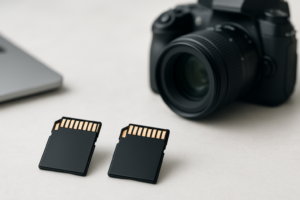
The standard SD card measures 32mm x 24mm and is the most common format for digital cameras, camcorders, and laptops with built-in card readers. You’ll see these labeled as SD, SDHC, or SDXC depending on their capacity. SD cards hold up to 2GB, SDHC covers 4GB to 32GB, and SDXC handles 64GB to 2TB. Most modern cameras use SDXC cards.
microSD Cards
These are physically smaller versions of SD cards (15mm x 11mm) and are used in smartphones, action cameras like the GoPro, drones, Nintendo Switch consoles, and dashcams. They almost always come with a full-size SD adapter, so a single microSD card can pull double duty across devices. Performance specs are identical to full-size SD cards.
CFexpress Cards
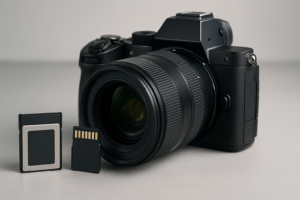
CFexpress is the professional-grade format found in high-end mirrorless cameras like the Sony A7S III, Canon R5, and Nikon Z9. These cards use the PCIe/NVMe interface (the same technology behind the fastest SSDs in your computer, as we cover in our M.2 vs 2.5-inch SSD comparison). CFexpress Type B cards can hit read speeds over 1,700 MB/s. They’re significantly more expensive than SD cards, but necessary for recording 8K video or high-bitrate RAW footage.
CompactFlash (CF) Cards
CompactFlash is the older, thicker format that’s been largely phased out of new devices. If you’re still using an older DSLR that requires CF cards, they’re still available, but don’t invest heavily in this format. It’s a dead end.
Understanding Speed Classes and Ratings
This is where most people get confused. Memory cards have multiple overlapping speed ratings printed on them, and manufacturers aren’t exactly trying to make it simple. Here’s what each rating means and which ones actually matter for your use case.
Speed Class (C2, C4, C6, C10)
The original speed class system, shown as a number inside a “C” symbol. Class 10 (C10) guarantees a minimum sustained write speed of 10 MB/s. Every card worth buying today is at least Class 10. If you see a C4 or C6 card, it’s ancient and should be avoided.
UHS Speed Class (U1, U3)
UHS (Ultra High Speed) speed class is a step up. U1 guarantees 10 MB/s minimum write speed (same as C10), while U3 guarantees 30 MB/s. For 4K video recording, you need at least U3. This rating is shown as a number inside a “U” symbol on the card.
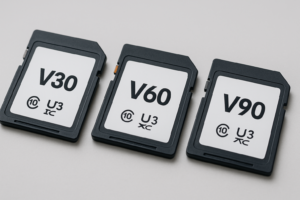
Video Speed Class (V6 through V90)
This is the newest and most useful rating for video work. The number after the “V” is the minimum sustained write speed in MB/s:
- V30: 30 MB/s minimum, good for 4K video
- V60: 60 MB/s minimum, suitable for 8K video and high-bitrate 4K
- V90: 90 MB/s minimum, required for professional 8K RAW recording
For most people shooting 4K on a mirrorless camera or action cam, V30 is the sweet spot. Videographers working in higher bitrates or 8K should target V60 or V90.
Application Performance Class (A1, A2)
This rating matters specifically for smartphones and tablets running apps from a microSD card. A1 guarantees 1,500 random read IOPS, while A2 guarantees 4,000 random read IOPS. If you’re using a microSD card in an Android phone and plan to install apps on it, get an A2 card. For cameras and drones, this rating is irrelevant.
UHS Bus Interface (UHS-I, UHS-II, UHS-III)
Don’t confuse this with UHS Speed Class. The bus interface determines the maximum theoretical speed the card can achieve. UHS-I tops out at 104 MB/s, while UHS-II can reach 312 MB/s. UHS-II cards have a second row of pins on the back. Your device also needs to support UHS-II to take advantage of the faster speeds. Pairing a UHS-II card with a UHS-I device will work, but you’ll be limited to UHS-I speeds.
Best Memory Cards for Common Use Cases
With all the specs out of the way, here are specific recommendations based on what you’re actually doing with the card.
Photography (Mirrorless and DSLR Cameras)
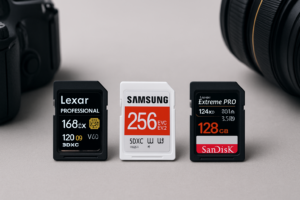
For general photography, a 128GB or 256GB UHS-II SD card with V30 or higher is ideal. The SanDisk Extreme PRO UHS-II is a popular choice among working photographers, offering read speeds up to 300 MB/s. If you shoot burst mode frequently, the faster write speeds of a UHS-II card will clear your camera’s buffer noticeably quicker.

SanDisk Extreme PRO 128GB SDXC UHS-II
Top-tier SD card for photographers who need fast burst shooting and reliable 4K video recording.
For hobbyist photographers who don’t need blazing transfer speeds, a UHS-I card with V30 will save you some money and still handle everything from landscape shots to casual video clips without issue.
4K Video and Action Cameras
GoPro cameras, DJI drones, and similar devices typically use microSD cards. You’ll want at least V30/U3 for stable 4K recording. The Samsung PRO Plus microSD is an excellent pick with consistent write performance and strong durability ratings. GoPro maintains a recommended card list on their website, and the Samsung PRO Plus and SanDisk Extreme microSD are always on it.
If you’re generating a lot of 4K footage, you’ll also want a solid backup strategy. Our guide on cloud backup vs. local NAS storage can help you figure out where to offload all that video.

Samsung PRO Plus 256GB microSD
Reliable and fast microSD for GoPro, DJI drones, and 4K action cameras with V30 rating.
Smartphones and Tablets
For Android phones that support expandable storage, a 128GB or 256GB A2-rated microSD card is the best choice. The A2 rating ensures smooth app performance when running software directly from the card. A 512GB card is available if you store a lot of media locally, but most people find 256GB to be more than enough alongside cloud storage.
Nintendo Switch
The Switch’s internal storage fills up fast, especially if you buy digital games. A 256GB or 512GB microSD card with decent read speeds (at least 100 MB/s) is all you need. Games load from the card, so write speed matters less than read speed here. You don’t need the fastest card on the market for a Switch. A basic SanDisk 256GB microSD works perfectly.
Dashcams and Security Cameras
These devices write continuously, which wears out memory cards faster than typical use. Look for cards specifically marketed as “High Endurance.” The Samsung PRO Endurance and SanDisk High Endurance are designed for exactly this scenario, rated for tens of thousands of hours of continuous recording. Using a standard card in a dashcam is a recipe for early failure and lost footage.

Samsung PRO Endurance 128GB microSD
Built for continuous recording in dashcams and security cameras with up to 140,160 hours of endurance.
Caring for Your Memory Cards
Memory cards are surprisingly durable, but they’re not invincible. A few habits will extend their life and protect your data.
Always eject the card properly before removing it from your computer. Format cards in the device they’ll be used in rather than on your computer. This ensures the correct file system and reduces compatibility issues. If your camera offers the option, use the camera’s format function before each important shoot.
Don’t fill a card to 100% capacity. Leaving 10-15% free helps maintain write performance and reduces the risk of file corruption. And keep a spare card in your bag at all times. Cards can and do fail, and having a backup means you won’t miss the shot.
When you eventually retire a card or sell a camera that came with one, make sure to properly erase it. A quick format doesn’t actually remove your files. Our guide on how to securely wipe storage devices before selling covers the best methods for making sure your data is truly gone.
If a card starts giving you read errors or corrupted files, stop using it immediately. You may be able to recover data from a failing drive or card using recovery software, but prevention is always better than rescue.

James Kennedy is a writer and product researcher at Drives Hero with a background in IT administration and consulting. He has hands-on experience with storage, networking, and system performance, and regularly improves and optimizes his home networking setup.