How to Check SSD Health in Windows 11
Your SSD doesn’t fail like an old hard drive does. There’s no clicking noise, no gradual slowdown you can feel building for months. Most SSDs run fine until they don’t, which is exactly why checking their health regularly actually matters instead of just being a nice habit.
Windows 11 doesn’t give you a dedicated SSD health dashboard out of the box, but the data is there if you know where to look. This guide walks you through the actual SMART and NVMe fields worth watching, what those health percentages really mean, and when a number should push you toward backing up your data or replacing the drive entirely.
How to Pull SSD Health Data on Windows 11
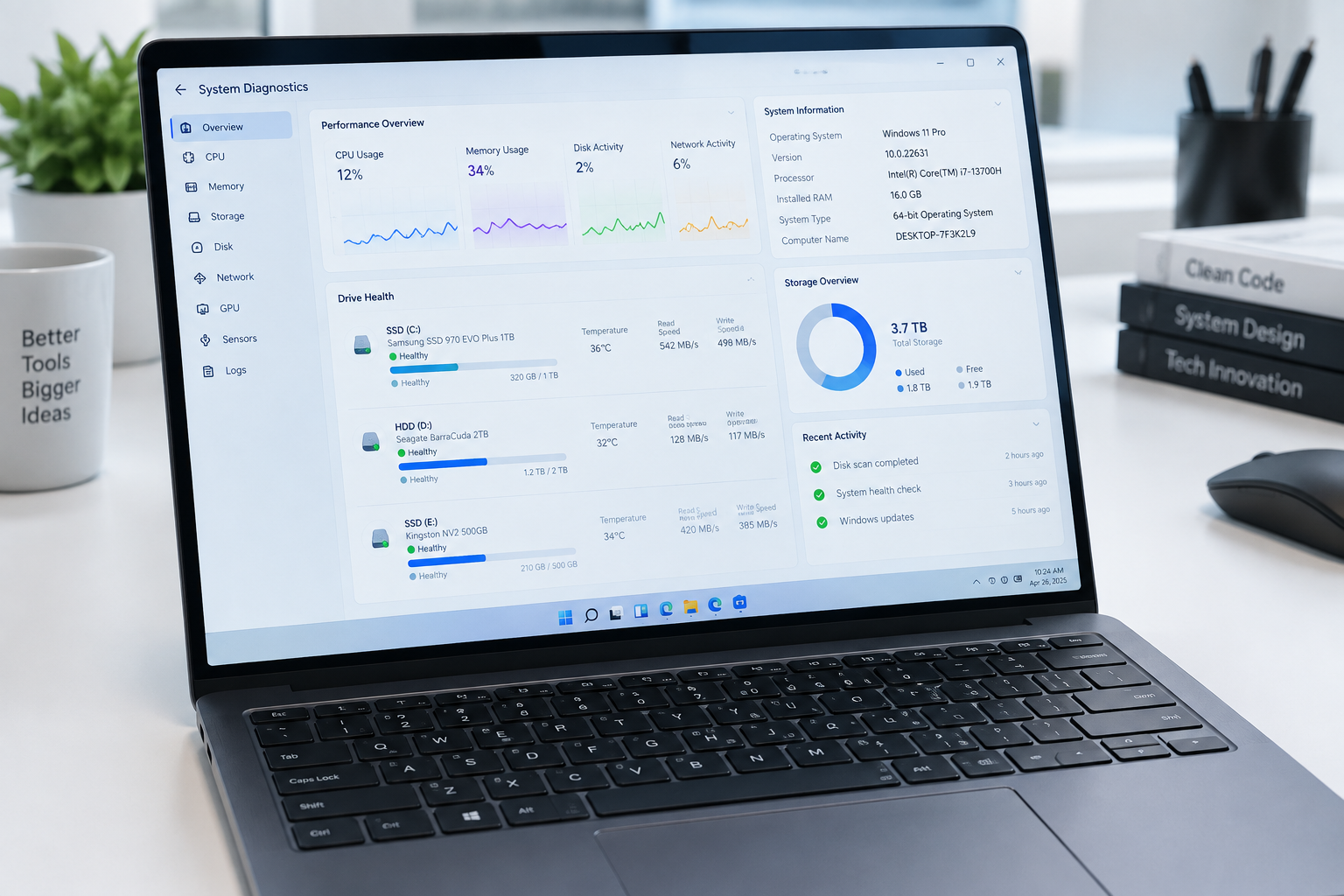
Windows 11 has a built-in command that gives you a quick pass/fail reading. Open Command Prompt and type wmic diskdrive get status. It’ll tell you if the drive reports “OK,” but that’s a very blunt instrument. It won’t catch a drive that’s degrading but hasn’t crossed a failure threshold yet.
For real diagnostic detail, you need third-party software that reads SMART and NVMe attributes directly from the controller. Two tools cover almost every use case:
- CrystalDiskInfo is the standard for SATA SSDs and works well with most NVMe drives too. It shows a color-coded health status (blue for good, yellow for caution, red for bad) along with raw attribute data.
- Manufacturer utilities like Samsung Magician, WD Dashboard, or Crucial Storage Executive often read proprietary attributes that generic tools miss, especially on NVMe drives.
If you’re running a Samsung drive, it’s worth pairing this check with a firmware update, since older firmware versions sometimes misreport wear data. Our guide on how to upgrade Samsung SSD firmware walks through that process.
Which SMART and NVMe Fields Actually Matter

Not every attribute in a SMART report is worth your attention. Most of them are irrelevant to drive health and only matter to engineers debugging manufacturing issues. Focus on these instead.
Percentage Used / Media Wear Indicator
This is the closest thing to a single “health score” for NVMe drives. It’s calculated against the drive’s rated Terabytes Written (TBW), not against calendar time. A drive at 20% used with three years of heavy use is behaving exactly as expected.
Reallocated Sector Count
On SATA SSDs, this tracks cells that have failed and been swapped for spares. A handful of reallocated sectors over years of use is normal wear. A number that’s climbing steadily month over month is not.
Available Spare
NVMe drives reserve extra flash blocks to replace failing ones over time. This value starts at 100% and drops as spare blocks get consumed. Most drives trigger a warning once available spare falls below a manufacturer-set threshold, typically around 10%.
Critical Warning / Media Errors
This NVMe field flags actual read/write errors the controller couldn’t correct. Even a small nonzero count here deserves attention, since it means data integrity was at risk during that operation.
Power-On Hours and Power Cycle Count
These aren’t health indicators by themselves, but they give you context. A drive with 40,000 power-on hours and low wear numbers is aging gracefully. The same drive with high wear numbers is telling a very different story.
What the Health Percentage Actually Represents
This is where most people get confused, and honestly, most SSD tools don’t explain it well. A “90% health” reading doesn’t mean the drive has 90% of its life left in some linear countdown. It’s an estimate based on how much of the drive’s endurance rating has been consumed, and that endurance rating varies wildly by manufacturer and model.
A Samsung 970 EVO Plus rated for 600TBW calculates its percentage differently than a WD Black SN850X rated for 1200TBW at the same capacity. Write the exact same amount of data to both drives and you’ll see different percentages, because they’re measuring against different total budgets. This matters if you’re comparing drives across brands, something we cover in more detail in WD Black vs Samsung SSD.
Some manufacturers also fold in additional factors like temperature history or error counts into their proprietary health score, not just raw bytes written. That’s why Samsung Magician might show a different number than CrystalDiskInfo for the exact same drive. Neither is wrong, they’re just weighting things differently.
A single health percentage is a useful signal, not a verdict. Treat it as one data point among several, not a countdown timer to failure.
Normal Readings vs. Warning Signs
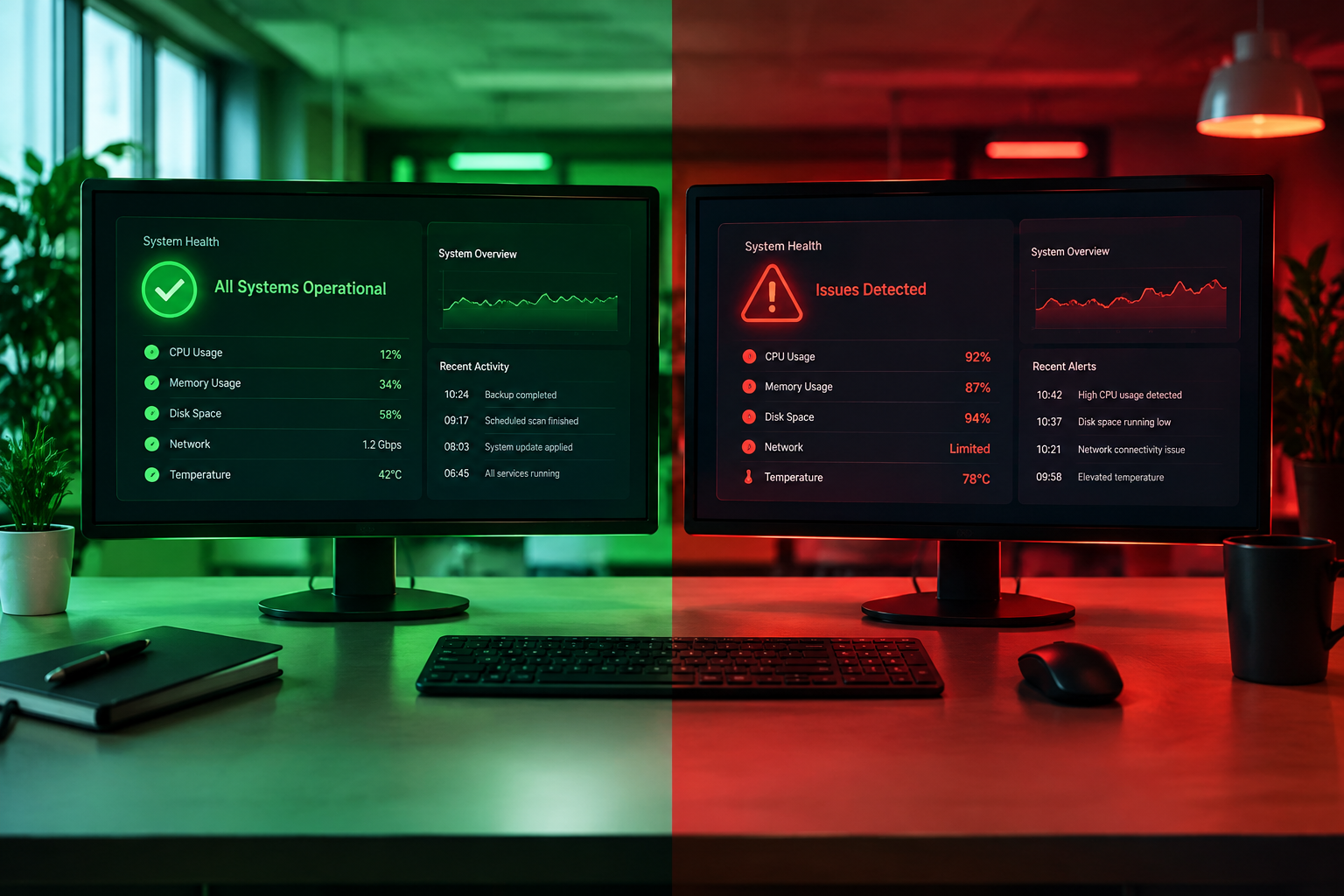
A drive in normal, healthy condition typically shows:
- Percentage used under 50% for drives less than three years old under typical use
- Zero or a very small, stable number of reallocated sectors
- Available spare at 100% or only slightly reduced
- No critical warnings or media errors logged
You should start paying closer attention, and back up your data, when you see any of the following:
- Percentage used above 80-90%. The drive isn’t dead, but it’s approaching the point where write endurance was rated to end.
- Available spare dropping quickly over a short period. A sudden drop, rather than a slow decline over years, suggests a batch of cells failed at once.
- Reallocated sector count climbing between successive checks. One check showing 5, the next showing 40, is a trend worth acting on.
- Any critical warning flags in NVMe status. These exist specifically to flag conditions the drive firmware considers serious.
- Unexplained file corruption or failed writes. If Windows starts throwing disk errors during normal use, don’t wait for the health percentage to confirm it.
If you’re seeing two or more of these together, treat it as a genuine warning rather than a coincidence. Back up everything immediately, then start planning a replacement. Our guide on how to upgrade an SSD without losing data covers the cloning process so you don’t have to reinstall Windows from scratch.
Why This Matters More Than You Might Think
SSDs have made storage failures rarer and less predictable at the same time. Older mechanical drives gave you audible warnings. SSDs tend to fail suddenly once they cross a critical threshold, which is exactly why monitoring these numbers periodically, not just when something already feels wrong, is worth the five minutes it takes.
If your current drive is aging out and you’re shopping for a replacement, it’s also a good moment to reconsider capacity and interface. If you’re still on a small SATA drive, moving up to NVMe brings real performance gains, something we break down in how important is an SSD in a laptop. And if storage space has been tight for a while, this is a natural point to jump to a larger SSD rather than just replacing like for like.
Frequently Asked Questions
Does Windows 11 have a built-in SSD health checker?
Not a dedicated one. Windows 11 can report basic drive status through Command Prompt or Optimize Drives, but it doesn’t expose detailed SMART or NVMe attributes. For real diagnostic detail, you need a tool like CrystalDiskInfo or your manufacturer’s own utility.
Is a 90% health rating something to worry about?
Not by itself. It usually means the drive still has significant endurance left relative to its rated TBW. Pair it with other signs like reallocated sectors, available spare percentage, and any error flags before deciding it’s a problem.
Can a healthy SMART reading still miss a failing drive?
Yes. SMART and NVMe health data are predictive, not guaranteed. Some failures happen from sudden physical or electrical issues that don’t show up gradually in wear attributes. That’s exactly why regular backups matter regardless of what the health percentage says.

James Kennedy is a writer and product researcher at Drives Hero with a background in IT administration and consulting. He has hands-on experience with storage, networking, and system performance, and regularly improves and optimizes his home networking setup.