NVMe Not Showing With Intel VMD Enabled
You just installed a brand new NVMe drive, Intel VMD is enabled in your BIOS, and Windows or your BIOS setup screen is acting like the drive doesn’t exist. It’s one of the more frustrating tech puzzles out there because VMD (Volume Management Device) changes how your system talks to NVMe drives at a fairly low level, and when it’s misconfigured, the drive can vanish from one screen while still being technically present in another.
Before you touch anything, the first job is figuring out exactly where the drive is missing. That single detail determines whether you need a driver, a BIOS setting, a new cable, or nothing destructive at all. This guide walks through each scenario so you fix the actual problem instead of guessing.
Start by Pinpointing Where the Drive Disappears
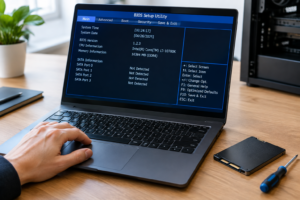
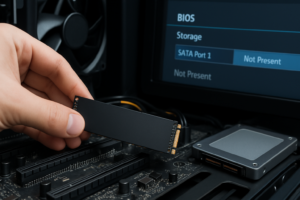
Boot into your BIOS/UEFI setup and check the storage or NVMe configuration page first. If the drive shows up there, VMD is at least detecting the hardware, and your problem is likely on the software or OS side.
If it’s not visible in BIOS at all, you’re dealing with a hardware, slot, or firmware issue rather than a Windows problem. Write down exactly which of these describe your situation, because the fix is different for each one:
- Missing in BIOS/UEFI entirely
- Visible in BIOS but missing during Windows installation
- Visible in Device Manager but missing in Disk Management
- Visible in Disk Management but missing in File Explorer
- Missing only from the boot menu (but visible everywhere else)
NVMe Missing in BIOS/UEFI
If your BIOS doesn’t see the drive under any storage menu, VMD driver issues aren’t the cause, since this is happening before Windows even loads. Check these first:
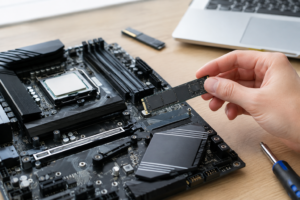
- Reseat the drive. M.2 connections are notoriously sensitive. Power down, remove the drive, blow out the slot, and reinsert it fully before screwing it back down.
- Try a different M.2 slot. Many motherboards share PCIe lanes between M.2 slots and SATA ports or PCIe expansion slots. Check your motherboard manual for a lane-sharing chart.
- Update your motherboard BIOS. Older BIOS versions sometimes don’t fully support certain NVMe controllers, especially on newer Gen4 or Gen5 drives.
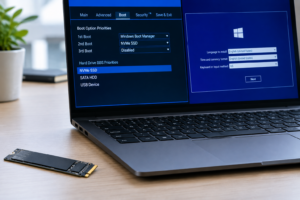
- Confirm VMD is actually enabled for that specific slot. Some boards let you toggle VMD per-slot rather than globally, and it’s easy to enable it for the wrong port.
If the drive still doesn’t appear after reseating and slot swapping, test it in another machine or an NVMe enclosure if you have one. That tells you immediately whether the drive itself has failed.
Drive Shows in BIOS but Not in Windows Installer
This is the classic VMD symptom. Your BIOS sees the SSD just fine, but the Windows installer shows no drives at all, or it shows a generic “no compatible drives found” message.
The Windows installer doesn’t include a native VMD driver, so it can’t see anything behind the VMD controller. You have two real options:
- Load the Intel RST/VMD driver during install. Download the Intel Rapid Storage Technology driver (the VMD variant, not the standard AHCI/RAID one) onto a USB drive, then click “Load Driver” on the Windows installer screen and point it to the folder.
- Disable VMD temporarily. If you don’t actually need VMD (it’s mainly useful for RAID setups or hot-swap NVMe support), turning it off in BIOS lets Windows install using its built-in NVMe driver. You can always re-enable it later if you specifically need the feature.
If you’re not sure whether VMD is even necessary for your setup, it’s worth reading up on how NVMe drives compare to Intel’s own SSD lineup, since not every system benefits from running VMD at all.
Drive Visible in Device Manager but Missing in Disk Management or File Explorer
This is a different problem entirely, and it has nothing to do with VMD. If Windows already sees the drive in Device Manager (usually under “Storage controllers” or “Disk drives”), the hardware and driver layer are working. The issue now is at the partition level.
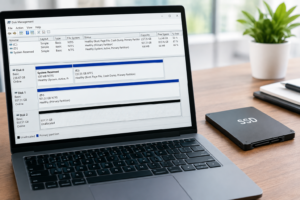
Open Disk Management (right-click the Start menu and select it). If the drive shows as “Not Initialized,” you’ll need to initialize it before Windows can use it.
Before you initialize, partition, or format a drive, make sure it doesn’t contain data you need. Initializing a drive that already has partitions can make existing data much harder to recover. If you’re unsure, stop and clone or back up the drive first.
Common fixes at this stage include:
- Initialize the disk (choose GPT for modern systems, MBR only for legacy BIOS compatibility).
- Create a new volume if the disk shows as initialized but has unallocated space.
- Assign a drive letter if the volume exists but simply isn’t showing in File Explorer. Right-click the volume in Disk Management and choose “Change Drive Letter and Paths.”
If you’re setting up a new drive as extra storage rather than a boot drive, this is also a good time to think about capacity. Our guide on what 512GB actually means in real-world storage can help you plan partition sizes if you’re splitting the drive.
VMD and RST Driver Problems (The Usual Suspect)
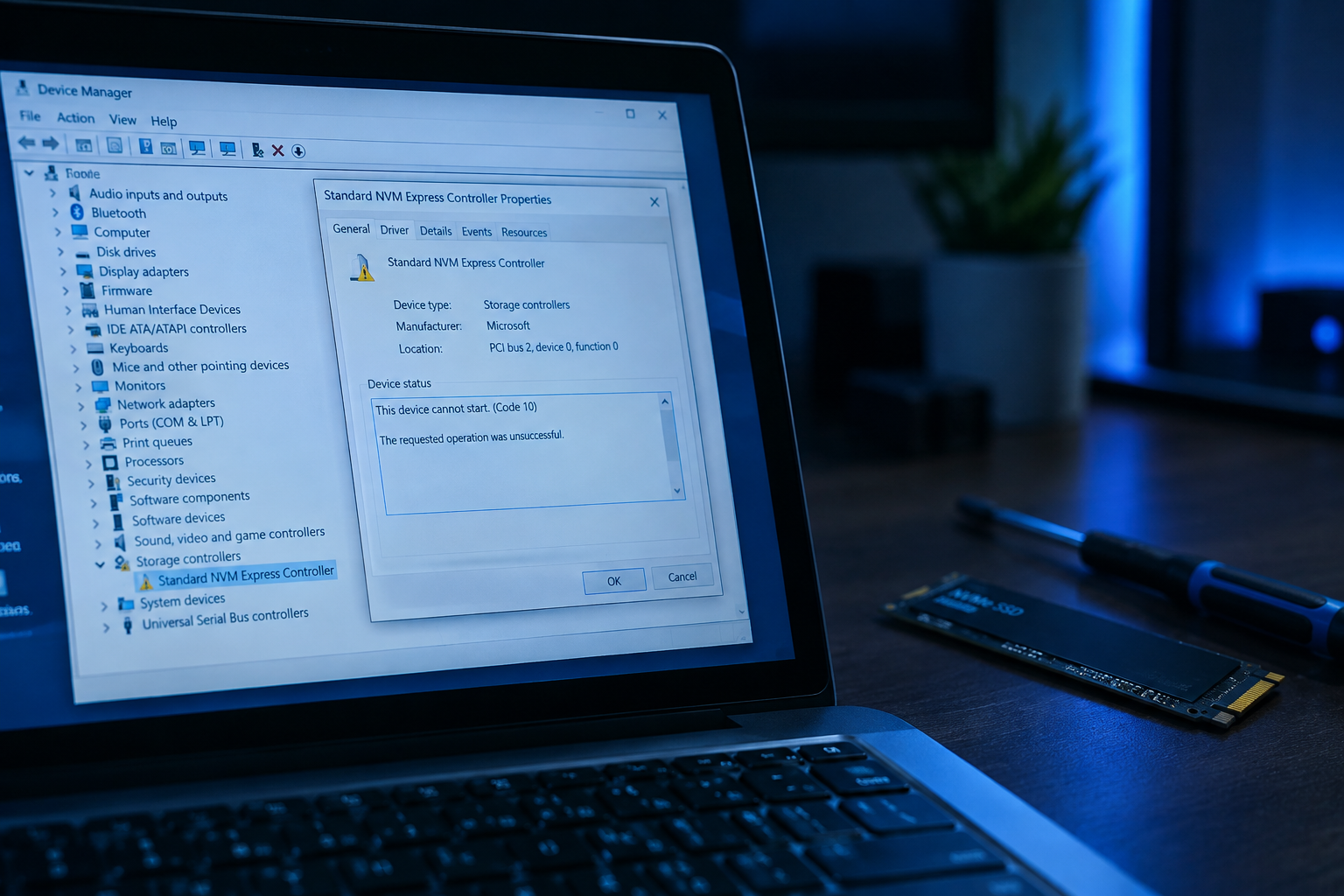
A huge share of “NVMe not showing” cases trace back to a driver mismatch. VMD requires a specific Intel RST driver version that matches your chipset generation, and installing the wrong one can make a perfectly good drive disappear from Device Manager entirely.
- Check Device Manager for a yellow warning icon next to any storage controller. That’s a driver conflict, not a hardware failure.
- Download the driver directly from Intel or your motherboard manufacturer’s support page, not a generic driver-update tool. Intel’s site lets you filter by chipset (Z790, Z690, H770, etc.) to get the exact match.
- Uninstall conflicting storage drivers before installing the correct VMD/RST version. Having two versions installed side by side is a common cause of drives silently dropping out.
- Restart after driver installation rather than relying on Windows to hot-load it. VMD driver changes almost always need a full reboot to take effect properly.
If you’re building out a system with multiple NVMe drives for speed, it also helps to understand what VMD is actually buying you performance-wise. Our breakdown of whether NVMe is really faster than standard SSDs covers where the real-world gains show up and where they don’t.
Other Culprits: Slot Sharing, Cables, and Enclosures
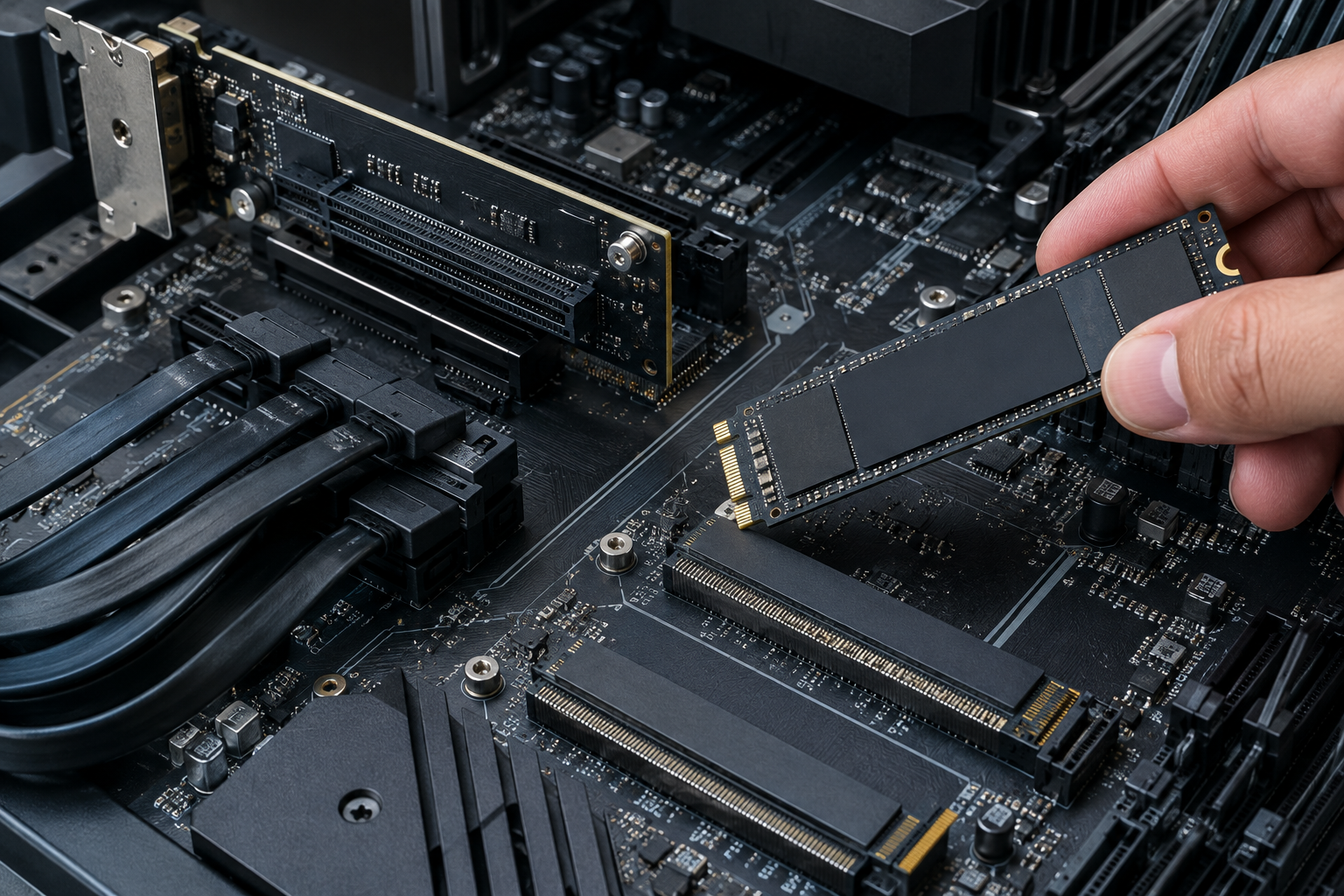
If you’ve ruled out drivers and partitioning, a few less obvious issues might be at play:
- Slot sharing conflicts. Installing a drive in one M.2 slot can automatically disable a SATA port or a second M.2 slot on many consumer boards. Check your manual’s block diagram.
- RAID vs AHCI mode mismatches. If you switch between RAID and AHCI mode after Windows is already installed, the OS can fail to boot or fail to see other drives. Don’t change this setting on a working system without a specific reason.
- External NVMe enclosures. Not every enclosure supports every NVMe controller chip, and some don’t play well with VMD-managed systems at all. If the drive works fine internally but not through USB, the enclosure’s bridge chip is the likely suspect.
- Damaged or loose cables. For U.2 or add-in-card NVMe setups, a bad cable or loose PCIe connection causes the exact same “invisible drive” symptom as a driver problem.
If you’re comparing NVMe against other storage types while troubleshooting a build, it’s also worth checking whether NVMe makes sense for your use case in the first place, especially for gaming rigs where SATA vs NVMe performance differences are smaller than most people expect.
Frequently Asked Questions
Does enabling Intel VMD affect drive performance?
VMD itself adds negligible overhead once configured correctly. Most performance complaints trace back to using the wrong driver version or running in RAID mode unnecessarily, not VMD itself.
Can I disable VMD after Windows is already installed on it?
No, not safely. If Windows was installed with VMD enabled, disabling it afterward will typically cause a boot failure because the boot drive relies on that driver path. Only disable VMD before a fresh install, or if you’re certain your current install doesn’t depend on it.
Why does my NVMe drive disappear only after a Windows update?
Windows updates occasionally roll back or replace storage drivers with generic Microsoft versions instead of the Intel RST/VMD driver you had installed. Check Device Manager after any major update and reinstall the correct Intel driver if needed.

James Kennedy is a writer and product researcher at Drives Hero with a background in IT administration and consulting. He has hands-on experience with storage, networking, and system performance, and regularly improves and optimizes his home networking setup.