Cloned SSD Detected but Won’t Boot
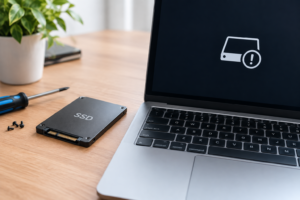
You cloned your old drive to a shiny new SSD, plugged it in, and expected a quick boot into your familiar desktop. Instead, you’re staring at a black screen, an error message, or worse, nothing at all. The drive shows up somewhere, maybe in BIOS, maybe in Disk Management, but Windows just refuses to start from it.
This is one of the most common headaches after a drive swap, and it almost always comes down to a handful of specific causes. The fix depends entirely on where the drive is actually visible and where it’s missing. Before you start clicking buttons randomly, you need to figure out exactly which “layer” of your system can see the drive and which one can’t.
Step One: Find Out Where the Drive Is Actually Visible
Don’t jump into fixes yet. Check each of these locations one at a time and write down what you find:
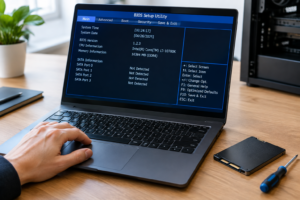
- Does the drive appear in BIOS/UEFI as a connected storage device?
- Does it show up in the Windows installer’s “where do you want to install Windows” screen?
- Does it appear in Device Manager under Disk drives?
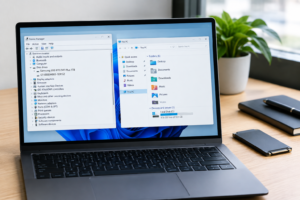
- Does it show in Disk Management (diskmgmt.msc), even as unallocated space?
- Does it appear in File Explorer with a drive letter?
- Does it show up as a boot option in your BIOS boot menu (usually F12, F10, or Esc at startup)?
The answers here point you straight to the fix. A drive that’s invisible in BIOS is a hardware or firmware problem. A drive that’s visible in BIOS but missing from the boot menu is almost always a boot record issue. A drive visible in Disk Management but not File Explorer is a drive letter or partition problem. Match your situation to the sections below.
Drive Is Missing From BIOS/UEFI Entirely
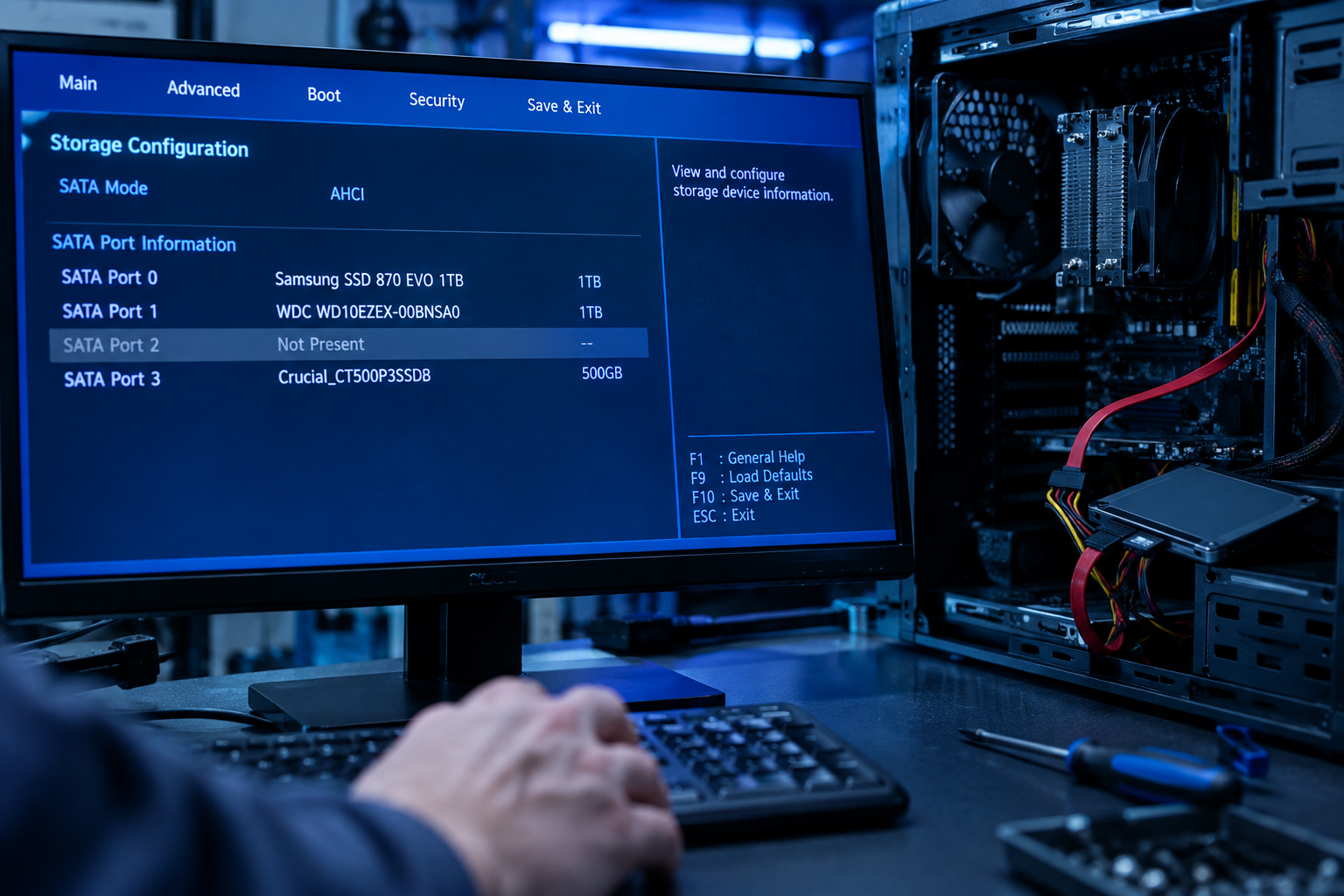
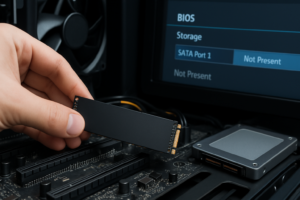
If your cloned SSD doesn’t show up in BIOS at all, Windows never even gets a chance to see it, so nothing past this point will help until you solve it here.
Check the Physical Connection First
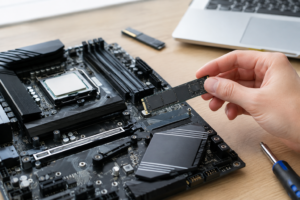
For SATA drives, reseat the SATA data cable and try a different SATA port on the motherboard, ideally one running off a different controller. For M.2 NVMe drives, remove and reseat the drive in its slot, and double check you’ve used the correct screw standoff position.
Cheap or damaged SATA cables cause more “phantom missing drive” issues than people expect. If you have a spare cable lying around, swap it before assuming the SSD itself is faulty.
M.2 Slot Sharing Can Silently Disable Ports
A lot of motherboards disable a SATA port or a second M.2 slot when another M.2 slot is populated. This is called lane sharing, and it’s buried in almost every motherboard manual but rarely mentioned anywhere else. If you added a second M.2 SSD and your original drive vanished, this is very likely the cause. Check your motherboard manual for a slot sharing diagram before you assume the new SSD is defective.
Enable AHCI or Check RAID/VMD Mode
If your BIOS is set to RAID or Intel VMD mode and your cloned SSD was imaged from a system running plain AHCI (or vice versa), the drive may not initialize correctly, or Windows may blue screen instead of booting. You’ll need to match the controller mode to whatever mode existed on the source drive, or install the correct Intel RST/VMD drivers into the Windows installation before switching modes. Switching this setting blind on a working install can make it unbootable, so if you’re not sure which mode your source system used, check documentation or search your exact motherboard model first.
Drive Appears in BIOS but Not in the Windows Installer
If BIOS sees the drive but the Windows installer doesn’t show it as an install target, this is a driver issue, not a hardware issue.
Newer NVMe SSDs, especially on systems using Intel RST or VMD controllers, often need a driver loaded during setup. Look for a “Load driver” button on the install screen, and load the appropriate Intel RST/VMD driver from a USB stick. This is a known snag with many newer Intel platforms and RAID-enabled chipsets, and it trips up a lot of people doing clean installs, not just clones.
Drive Shows in Disk Management but Won’t Boot
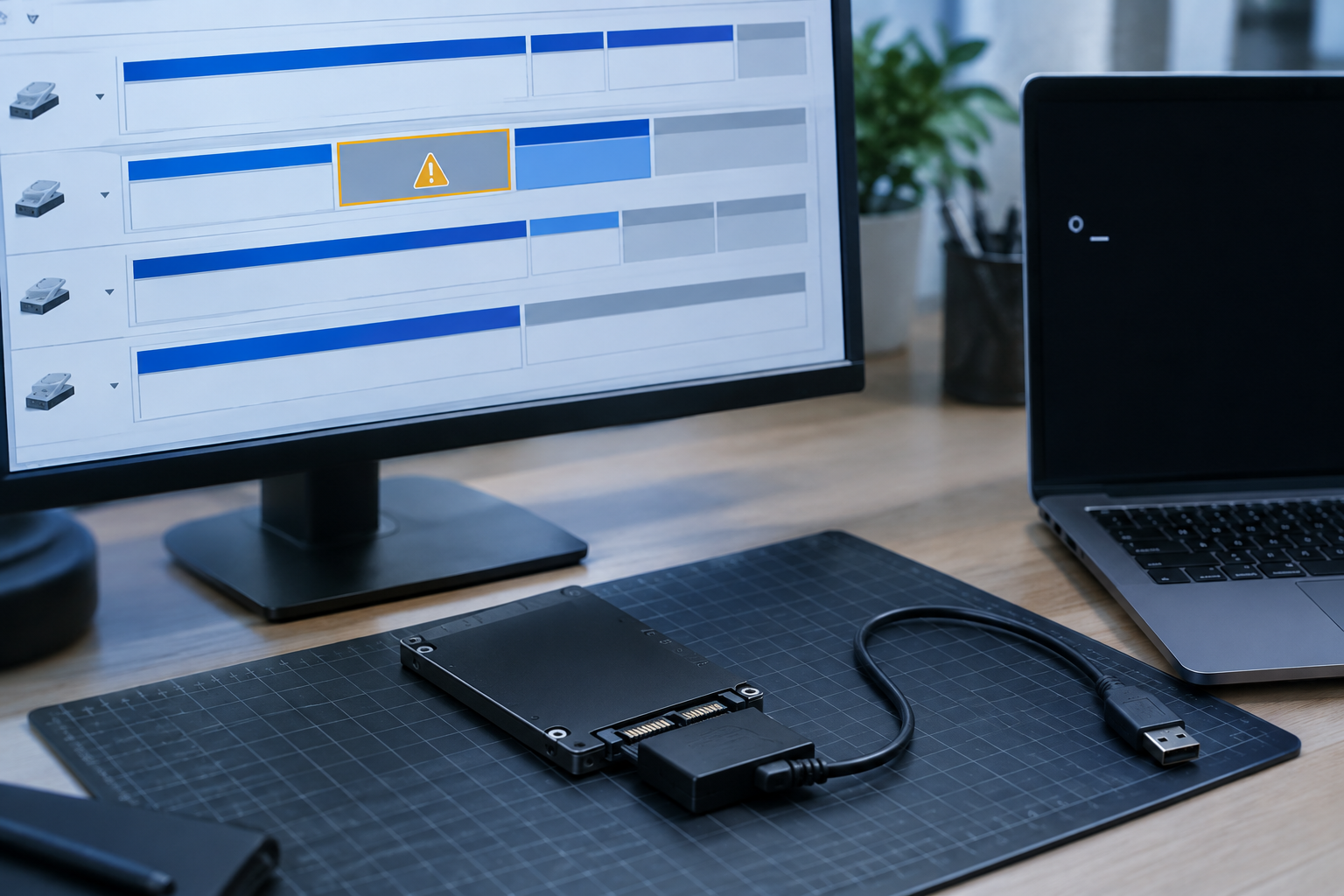
This is the classic “cloned SSD” scenario. The drive is detected, Windows can read it, but it won’t appear in the boot menu or the system just loops back to BIOS.
Check the Partition Style Matches
If your original drive used MBR partitioning and your new SSD was cloned as GPT (or vice versa), and your BIOS boot mode doesn’t match, Windows won’t boot even though the data is intact. Open Disk Management, right click the cloned drive, and check whether it’s listed as MBR or GPT. Then confirm your BIOS is set to the matching boot mode, Legacy/CSM for MBR, UEFI for GPT.
Is the Partition Marked as Active or Set as System?
For MBR drives, the boot partition needs to be flagged “Active.” Cloning software sometimes fails to carry this flag over correctly. You can fix this using diskpart in a Command Prompt (select disk, select partition, then the “active” command), but be precise about which disk and partition you select, since running this against the wrong drive can make it unbootable.
Rebuild the Boot Files
Boot into Windows Recovery Environment (hold Shift while clicking Restart, or boot from install media and choose Repair) and run these commands from Command Prompt:
- bootrec /fixmbr
- bootrec /fixboot
- bootrec /scanos
- bootrec /rebuildbcd
This rebuilds the boot configuration data without touching your files, and it solves the majority of “detected but won’t boot” cases where cloning software didn’t properly transfer the boot sector.
Drive Shows in Disk Management but Not in File Explorer
If the drive appears in Disk Management but you don’t see it in File Explorer, it’s usually missing a drive letter or the partition wasn’t initialized properly.
Right click the volume in Disk Management and choose “Change Drive Letter and Paths.” If there’s no letter assigned, add one. If the space shows as unallocated, the clone didn’t complete properly and you’ll likely need to reclone rather than trying to patch it.
Never run “Initialize Disk,” “Clean,” or a quick/full format on a cloned drive unless you’re absolutely certain you don’t need the data on it anymore. These operations are destructive and will wipe partition information that might otherwise be recoverable.
Drive Doesn’t Show Up as a Boot Option at All
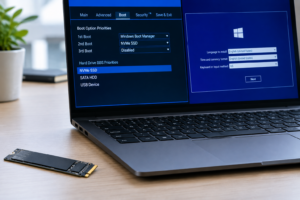
If BIOS and Windows both see the drive but it never appears as a boot choice, check your BIOS boot order list directly rather than relying on the one-time boot menu. Some BIOS versions only populate the boot list after a full reboot following any change to drive configuration, so save your settings, power off completely (not just restart), and boot again.
Also confirm Secure Boot and Fast Boot settings match what your source system used. A cloned Windows install that expects Secure Boot disabled will sometimes refuse to appear as a boot target if you enabled it during the swap.
Using an External Enclosure? Check These First
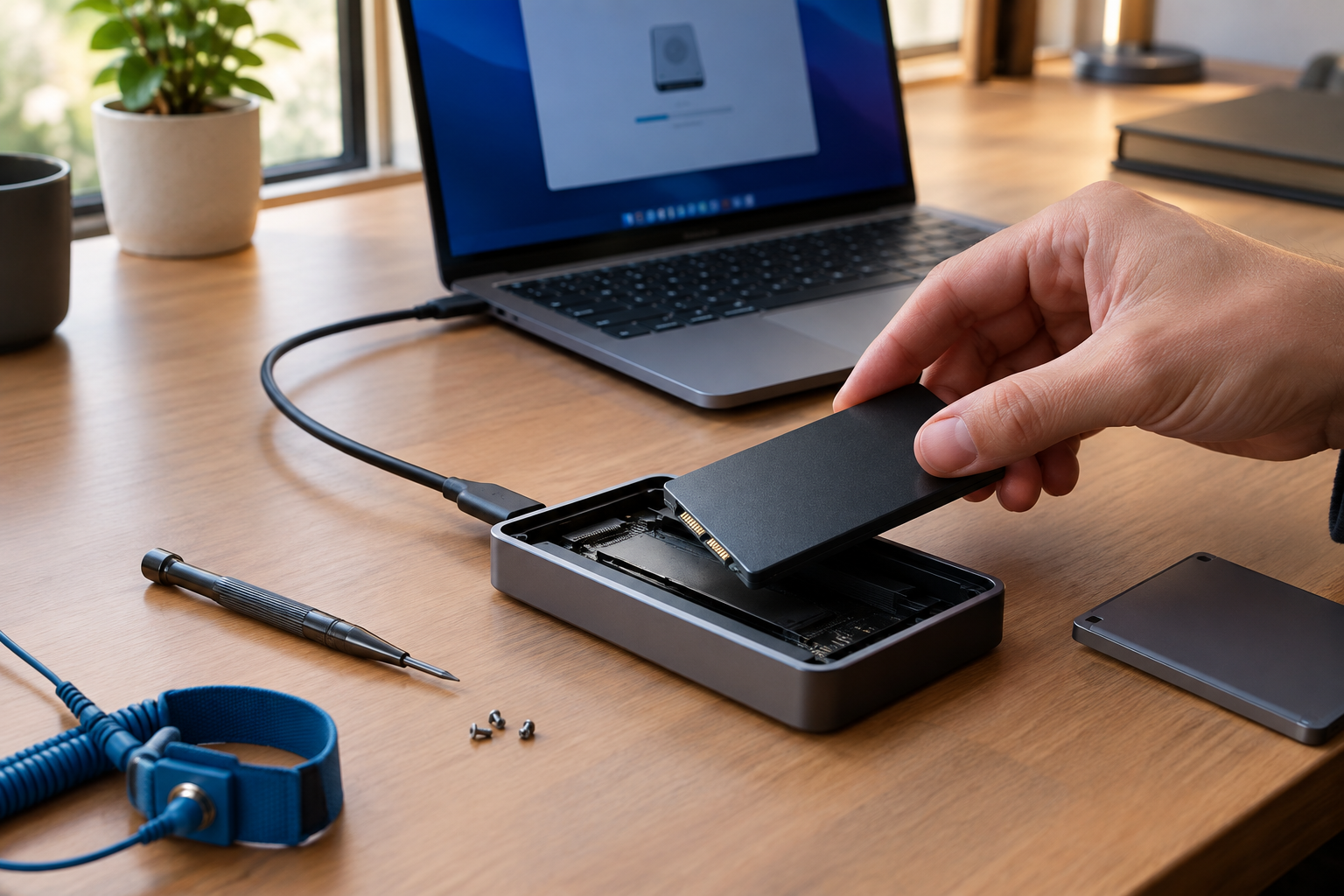
If you cloned to the SSD while it was in a USB enclosure and now you’re trying to boot from it internally (or vice versa), compatibility issues are common. Not all enclosures properly support NVMe drives, and some cheap USB to M.2 adapters don’t pass through the correct commands for Windows to install boot files correctly.
If your cloned drive works fine as external storage but won’t boot from an enclosure, try installing it directly into an internal M.2 or SATA slot to test. This isolates whether the enclosure itself is the problem. If you’re shopping for a reliable enclosure or considering whether an external SSD setup makes sense for your laptop long term, it’s worth reading up on whether an external SSD will actually make your laptop faster before you invest more time troubleshooting a marginal adapter.
When It’s Faster to Just Start Over
If you’ve gone through every step above and you’re still stuck, sometimes the cloning software itself is the culprit, especially with free tools that don’t handle GPT/MBR conversion or boot sector cloning reliably. Rather than keep patching a broken clone, consider redoing the whole process with a tool built specifically for system migrations.
Before you reclone, it’s worth understanding what you’re actually upgrading. If you’re moving to a larger drive, check out this guide on how to upgrade to a larger SSD for the correct cloning sequence, and if you want to avoid a full Windows reinstall entirely, this walkthrough on upgrading your SSD without reinstalling Windows covers the process end to end. And if data preservation is your main worry, this piece on upgrading your SSD without losing data walks through safer backup steps before you touch partitions again.
Frequently Asked Questions
Why does my cloned SSD show the correct size but won’t boot?
This almost always points to a boot record problem rather than a data problem. The files are there, but the system either can’t find the boot loader or the partition style doesn’t match your BIOS boot mode. Run the bootrec commands covered above before assuming the clone itself failed.
Can a bad SATA cable really cause a cloned SSD to disappear from BIOS?
Yes, and it’s more common than most people expect. A worn or loose SATA cable can cause a drive to be detected intermittently or not at all, even though the SSD itself is completely healthy. Always test with a different cable and a different port before troubleshooting software settings.
Should I clone again instead of trying to fix a broken boot?
If you’ve tried rebuilding the boot files and checked partition style and drive letters without success, recloning with a dedicated migration tool is often faster than continuing to troubleshoot. Just make sure your original drive is untouched and still bootable before you start over, so you have a fallback.
Does it matter if my cloned SSD is NVMe and my old drive was SATA?
It can. Moving from SATA to NVMe sometimes requires different storage drivers to be present in the Windows installation, particularly on systems using Intel RST or VMD. If you’re weighing this kind of upgrade, it helps to understand the practical differences covered in this comparison of SATA versus NVMe SSDs before you clone, since it affects both performance expectations and driver requirements.

James Kennedy is a writer and product researcher at Drives Hero with a background in IT administration and consulting. He has hands-on experience with storage, networking, and system performance, and regularly improves and optimizes his home networking setup.