NVMe Enclosure Overheating: Is It Normal?
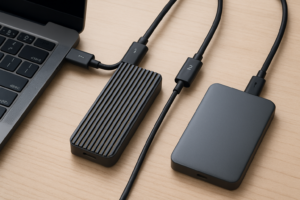
If your NVMe enclosure feels hot enough to fry an egg during a large file transfer, you’re not imagining things. Some heat is completely normal for these little bridges cramming PCIe speeds into a USB or Thunderbolt cable. But there’s a difference between “warm to the touch” and “throttling so hard your transfer speed craters.” Figuring out which one you’re dealing with means looking past the enclosure itself and understanding every link in the chain that’s actually limiting your speed.
Where the Bottleneck Actually Lives
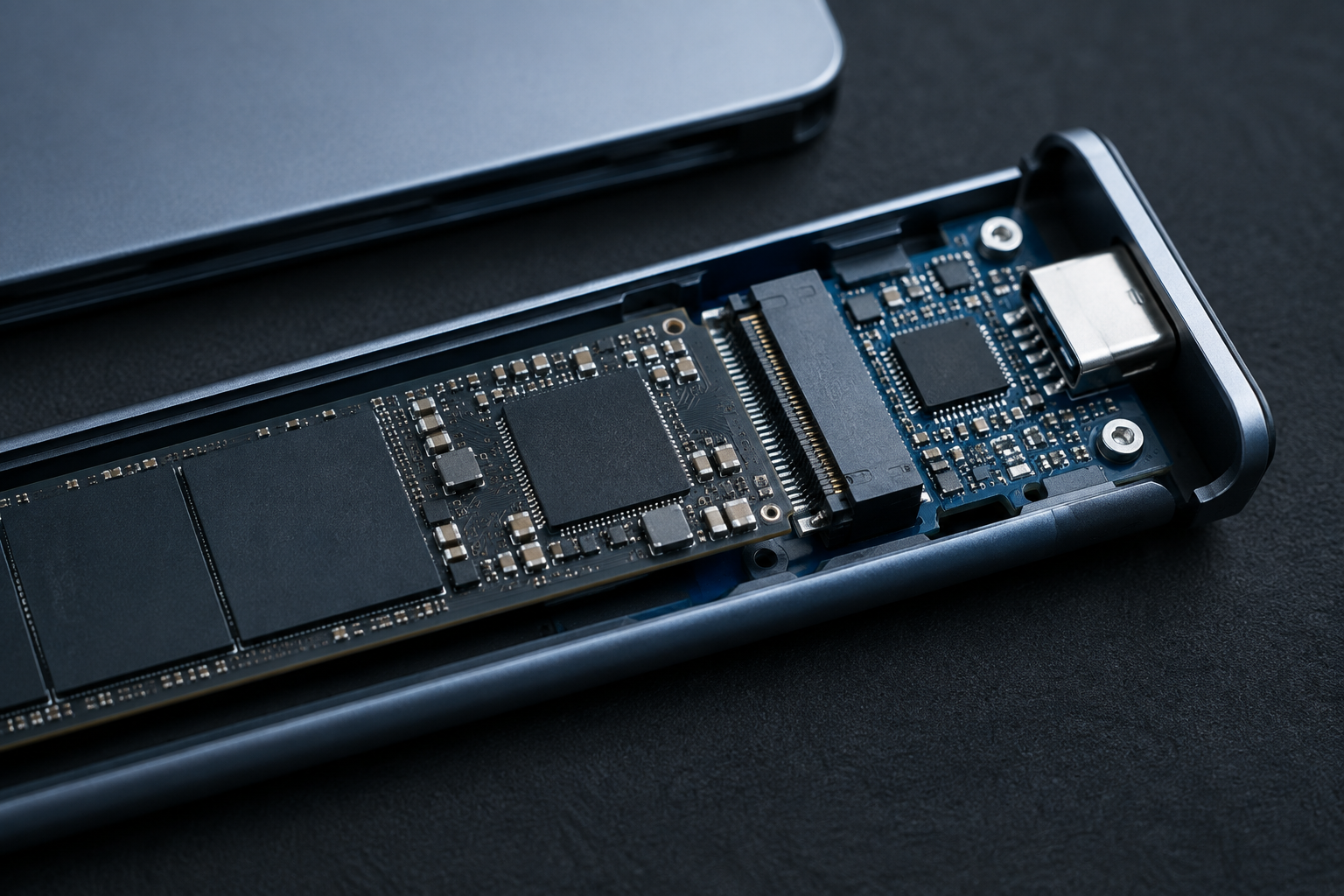
An NVMe enclosure is a chain of parts, and the slowest link decides your real-world speed, not the fastest one. Heat almost always shows up at that weak link first.
- The drive itself. Not all NVMe SSDs are created equal. A DRAM-less budget drive will thermal throttle faster than something like the WD Black SN850X, and once its internal cache fills up during a large transfer, both speed and heat get worse.
- The bridge chip (controller). This tiny chip translates NVMe commands into USB or Thunderbolt signals, and it runs hotter than most people expect. Cheap enclosures often use older, less efficient bridge chips like the ASMedia ASM2362 instead of newer, cooler-running silicon.
- The USB or Thunderbolt standard. USB 3.2 Gen 2 tops out around 10Gbps, USB 3.2 Gen 2×2 around 20Gbps, and Thunderbolt 3/4 around 40Gbps. None of these hit their theoretical max in real use.
- The host port and cable. Plugging a 20Gbps enclosure into a 10Gbps port silently downgrades everything, and a cheap or overly long cable can do the same thing without any error message telling you why.
- File size and filesystem. Copying one massive video file behaves nothing like copying thousands of small ones. Small files add filesystem overhead (NTFS, exFAT, APFS all handle this differently) that tanks throughput regardless of how fast your drive is rated.
- Protocol overhead. USB and Thunderbolt both add packaging overhead on top of raw NVMe throughput, which is why you never see full PCIe speeds through an external enclosure no matter how good the parts are.
Sustained heat is usually a combination of a fast drive stuffed into a poorly ventilated shell, paired with a bridge chip that wasn’t designed to handle continuous full-speed transfers.
SATA M.2 vs NVMe M.2: Same Slot, Different Rules
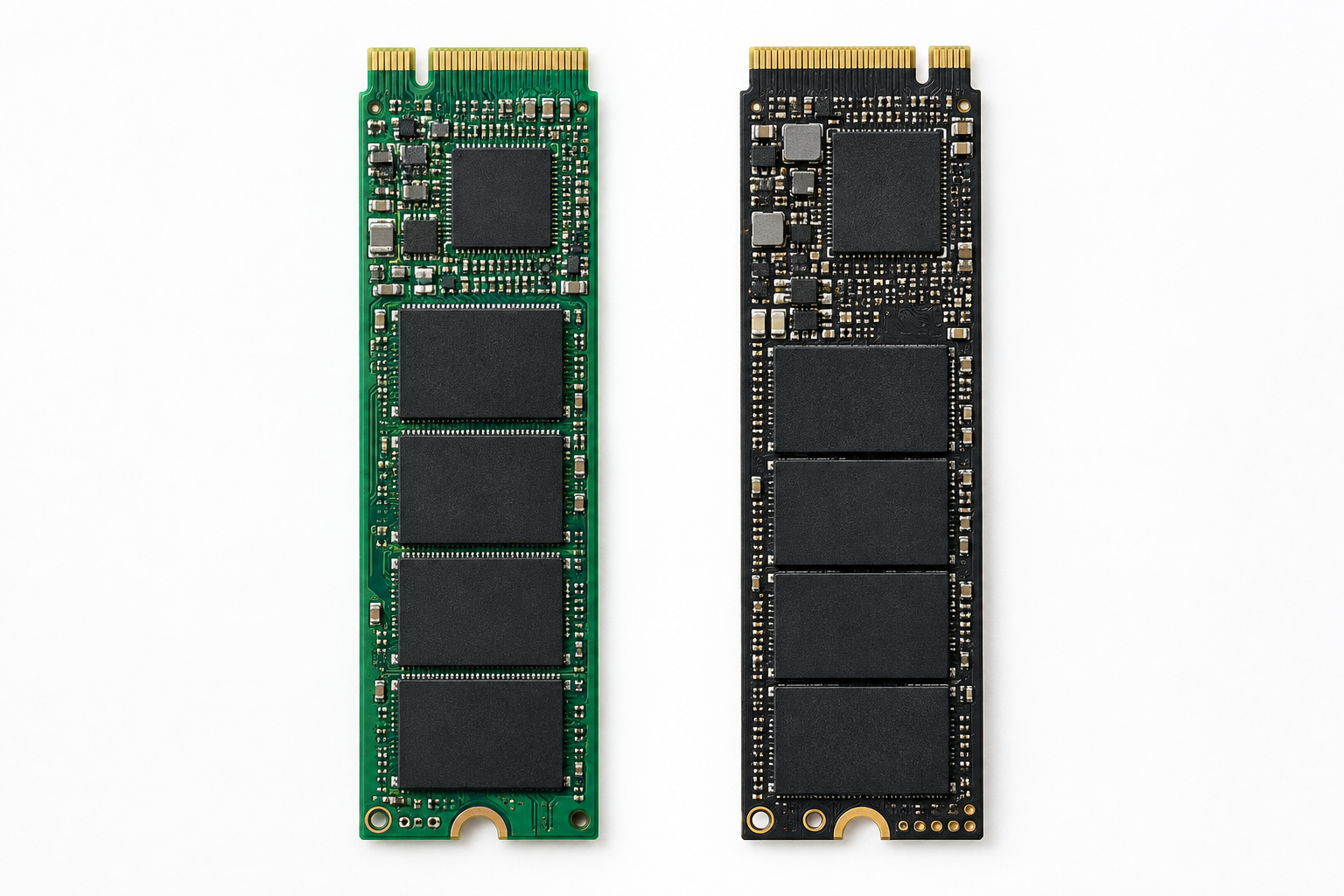
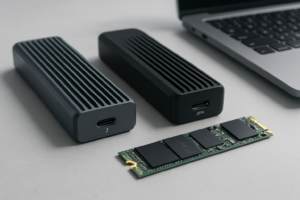
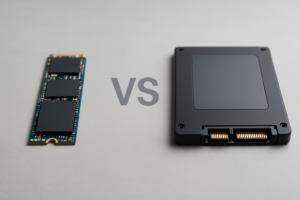
Here’s where a lot of people get burned before the enclosure even heats up. M.2 is a physical connector shape, not a guarantee of protocol. A SATA M.2 SSD and an NVMe M.2 SSD can look identical side by side, but they speak completely different languages electrically.
If you drop an NVMe drive into a SATA-only enclosure, it simply won’t work. Drop a SATA M.2 drive into an NVMe-only enclosure, and same result. Some enclosures advertise “dual protocol” support and actually handle both, but plenty of budget models only support one or the other despite the M.2 slot looking universal.
Before buying anything, check your drive’s actual interface. If you’re unsure what’s inside your laptop or desktop already, our guide on NVMe SSD vs Intel SSD breaks down how to identify what you’re working with, and is NVMe really faster than SSDs covers why that protocol difference matters so much for speed.
Sabrent NVMe Enclosure with Heatsink
A solid all-metal design with an actual heatsink built in, not just a plastic shell that traps heat.
Realistic Throughput, Not Marketing Numbers
Manufacturers advertise link speeds, not real transfer speeds, and the gap between the two catches people off guard constantly.
- USB 3.2 Gen 2 (10Gbps): expect roughly 800 to 1000 MB/s sustained, well short of NVMe’s potential but still faster than any SATA drive.
- USB 3.2 Gen 2×2 (20Gbps): realistically 1500 to 1900 MB/s, assuming a capable drive and controller.
- Thunderbolt 3/4 (40Gbps): often 2000 to 2800 MB/s in sustained real-world transfers, far below the theoretical ceiling once overhead and thermals are factored in.
Those numbers assume a large sequential file transfer under good thermal conditions. Copy a folder full of small files or let the enclosure sit in a warm room without airflow, and you’ll see numbers drop noticeably, sometimes by half.
How to Keep Temperatures (and Speeds) in Check
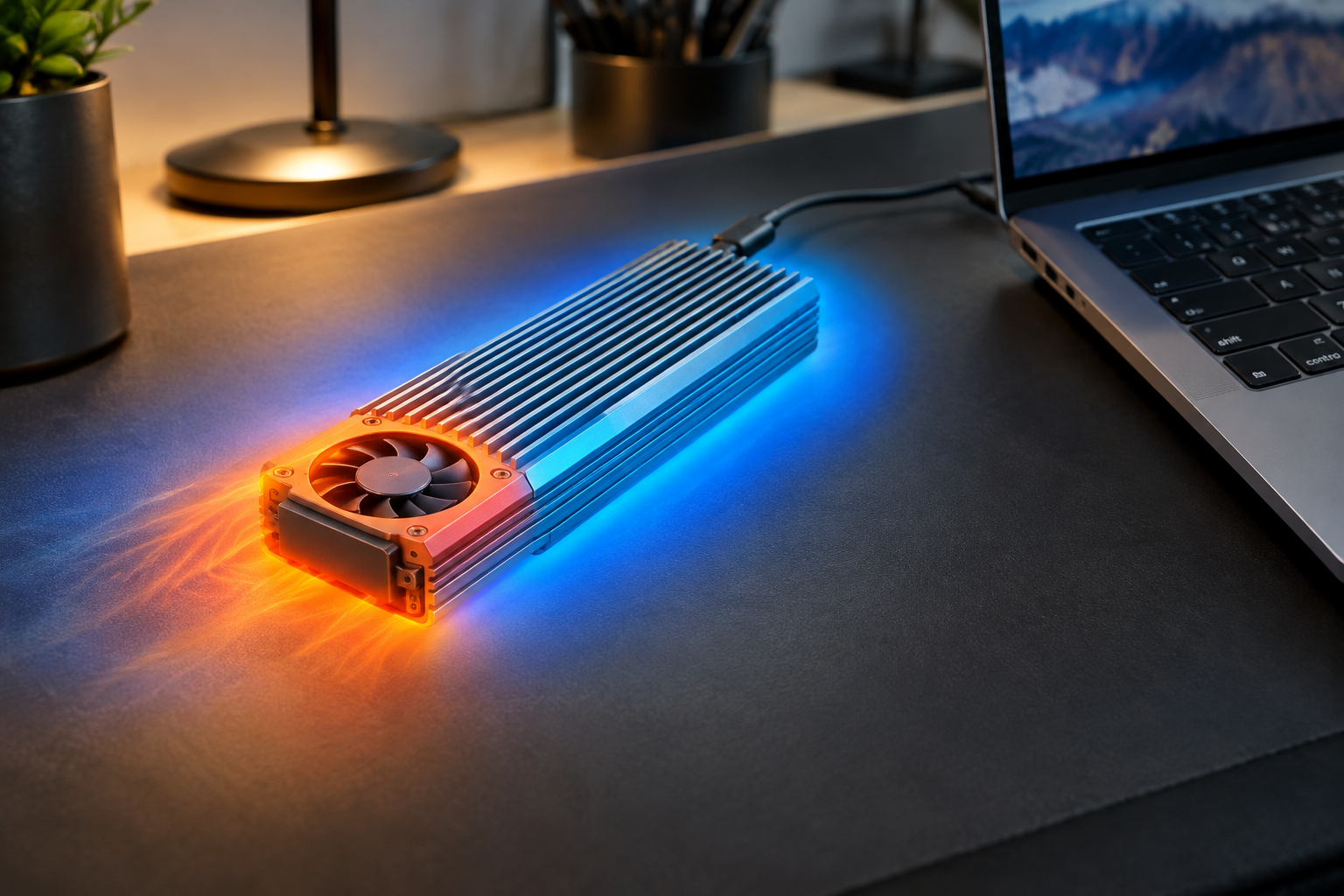
A few practical changes fix most overheating complaints without buying a new drive.
Add thermal pads or a dedicated heatsink if your enclosure doesn’t already have one built in. A search for NVMe enclosure heatsink thermal pads turns up inexpensive kits that make a real difference on plastic-shelled enclosures. Metal enclosures dissipate heat far better than plastic ones, so if you’re shopping for a new one, prioritize aluminum builds.
ORICO Aluminum NVMe Enclosure
Full aluminum body acts as a passive heatsink, ideal for sustained large file transfers.
Give the enclosure physical space during long transfers instead of letting it sit flat against a laptop or under a stack of cables. Avoid direct sunlight and enclosed spaces like a backpack pocket during active use. If you’re regularly moving large files for editing or backups, pairing a well-cooled external NVMe drive with your main machine can genuinely speed up your workflow, similar to the benefits covered in will an external SSD make your laptop faster.
Frequently Asked Questions
Is it normal for an NVMe enclosure to get hot during transfers?
Yes, some warmth is expected because you’re running PCIe-speed data through a small bridge chip in a compact shell. It becomes a problem when the enclosure gets hot enough to noticeably slow down, or if it shuts down or disconnects mid-transfer, which points to thermal throttling or a design that can’t dissipate heat fast enough.
Can an NVMe enclosure permanently damage my drive from overheating?
Modern NVMe drives have built-in thermal throttling that slows performance to protect themselves before real damage occurs, so permanent harm is rare in casual use. That said, running consistently hot over months or years can shorten a drive’s lifespan, which is why a decent heatsink is a cheap investment compared to replacing a drive early.
This article contains affiliate links. We may earn a small commission at no extra cost to you.

James Kennedy is a writer and product researcher at Drives Hero with a background in IT administration and consulting. He has hands-on experience with storage, networking, and system performance, and regularly improves and optimizes his home networking setup.