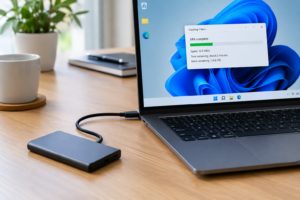
SATA vs NVMe Speed Chart
If you’ve ever tried to compare drive speeds by reading spec sheets, you’ve probably run into a wall of confusing numbers. One listing says “6 Gbps,” another says “3500 MB/s,” and somehow they’re supposed to describe the same category of hardware. The confusion isn’t your fault. Manufacturers mix interface bandwidth, encoding overhead, and real-world throughput into the same conversation without ever explaining the difference.
This article breaks down SATA and NVMe speeds the way they actually work, starting with the theoretical ceiling of each interface, then moving into what you’ll realistically see in day-to-day use. By the end, you’ll know exactly why an NVMe drive rated at “up to 7000 MB/s” doesn’t always feel ten times faster than a SATA SSD rated at 550 MB/s, and what actually matters when you’re picking storage for a build or upgrade.
Theoretical Interface Bandwidth: SATA vs PCIe

Before comparing drives, you need to separate the interface from the drive itself. SATA III and PCIe are physical connection standards with fixed bandwidth ceilings. NVMe is a protocol that rides on top of PCIe. A drive can only go as fast as the interface and protocol allow, no matter how good the flash memory inside it is.
| Interface | Raw Signaling Rate | Encoding Overhead | Theoretical Max Throughput |
|---|---|---|---|
| SATA III | 6 Gbps | 8b/10b (20% loss) | ~600 MB/s |
| PCIe 3.0 x4 (NVMe) | 8 GT/s per lane | 128b/130b (~1.5% loss) | ~3,940 MB/s |
| PCIe 4.0 x4 (NVMe) | 16 GT/s per lane | 128b/130b (~1.5% loss) | ~7,880 MB/s |
| PCIe 5.0 x4 (NVMe) | 32 GT/s per lane | 128b/130b (~1.5% loss) | ~15,750 MB/s |
Notice the units carefully here. Interface speeds are typically quoted in Gbps (gigabits per second), while drive throughput is quoted in MB/s (megabytes per second). To convert bits to bytes, you divide by 8, which is why a “6 Gbps” SATA link doesn’t translate to 750 MB/s of usable throughput. Encoding overhead eats into it further.
Why Encoding Overhead Matters
SATA III uses 8b/10b encoding, which means for every 8 bits of actual data, the interface transmits 10 bits total. That’s a 20% tax on raw bandwidth before you even account for protocol commands and error checking. This is why SATA’s “6 Gbps” link tops out around 600 MB/s in theory and closer to 550 MB/s in real testing.
PCIe 3.0 and later generations use a much more efficient 128b/130b encoding scheme, losing only about 1.5% of raw bandwidth. That efficiency gain is a big part of why NVMe drives punch so much closer to their theoretical ceiling than SATA drives do.
Real-World Throughput: What You’ll Actually See
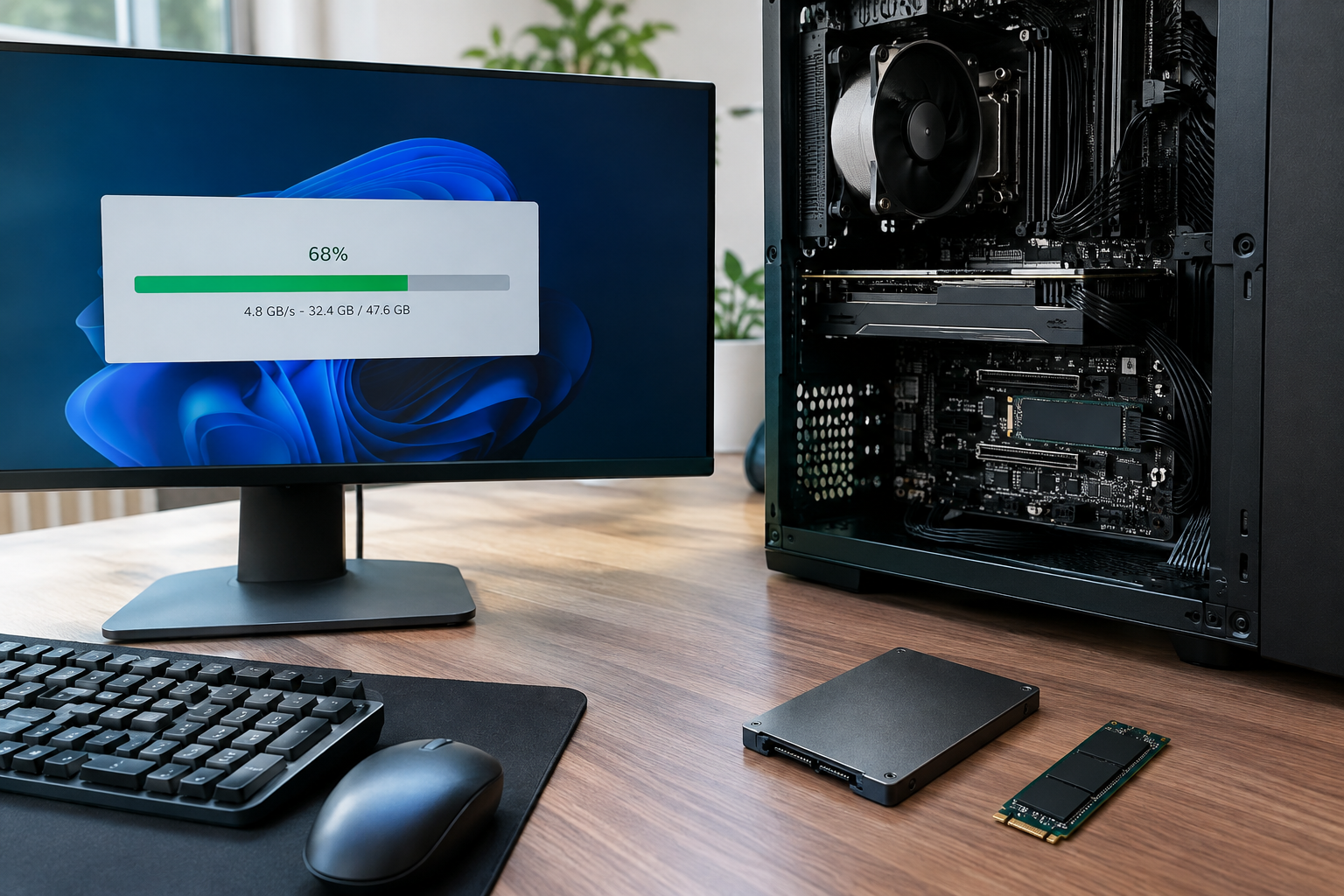
Theoretical bandwidth tells you the ceiling, but actual drive performance depends on the NAND flash, controller, firmware, and workload. Sequential read/write numbers on the box are best-case scenarios, usually measured with large file transfers and high queue depths that don’t reflect normal use.
| Drive Type | Typical Sequential Read | Typical Sequential Write | Typical Random 4K Read (QD1) |
|---|---|---|---|
| SATA III SSD | 450-550 MB/s | 400-520 MB/s | 25-45 MB/s |
| NVMe PCIe 3.0 | 2,500-3,500 MB/s | 1,500-3,000 MB/s | 40-60 MB/s |
| NVMe PCIe 4.0 | 5,000-7,000 MB/s | 3,500-6,500 MB/s | 50-70 MB/s |
| NVMe PCIe 5.0 | 9,000-12,000+ MB/s | 8,000-11,000 MB/s | 55-75 MB/s |
The sequential numbers show a massive gap between SATA and NVMe. But look at that random 4K read column. This is where a lot of people get surprised, because everyday tasks like booting an OS, opening apps, and loading game levels depend far more on random access speed and queue depth than on peak sequential throughput.
That’s also why the jump from PCIe 3.0 to 4.0 to 5.0 feels less dramatic in daily use than the spec sheet suggests. Once you’re past the SATA to NVMe threshold, you’ve already solved the bottleneck that affects most real tasks. If you want a deeper breakdown of whether that extra NVMe headroom actually matters for gaming specifically, our SATA vs NVMe SSD gaming comparison covers frame times and load screens in more detail.
Why NVMe Pulls Ahead Even Beyond Raw Speed
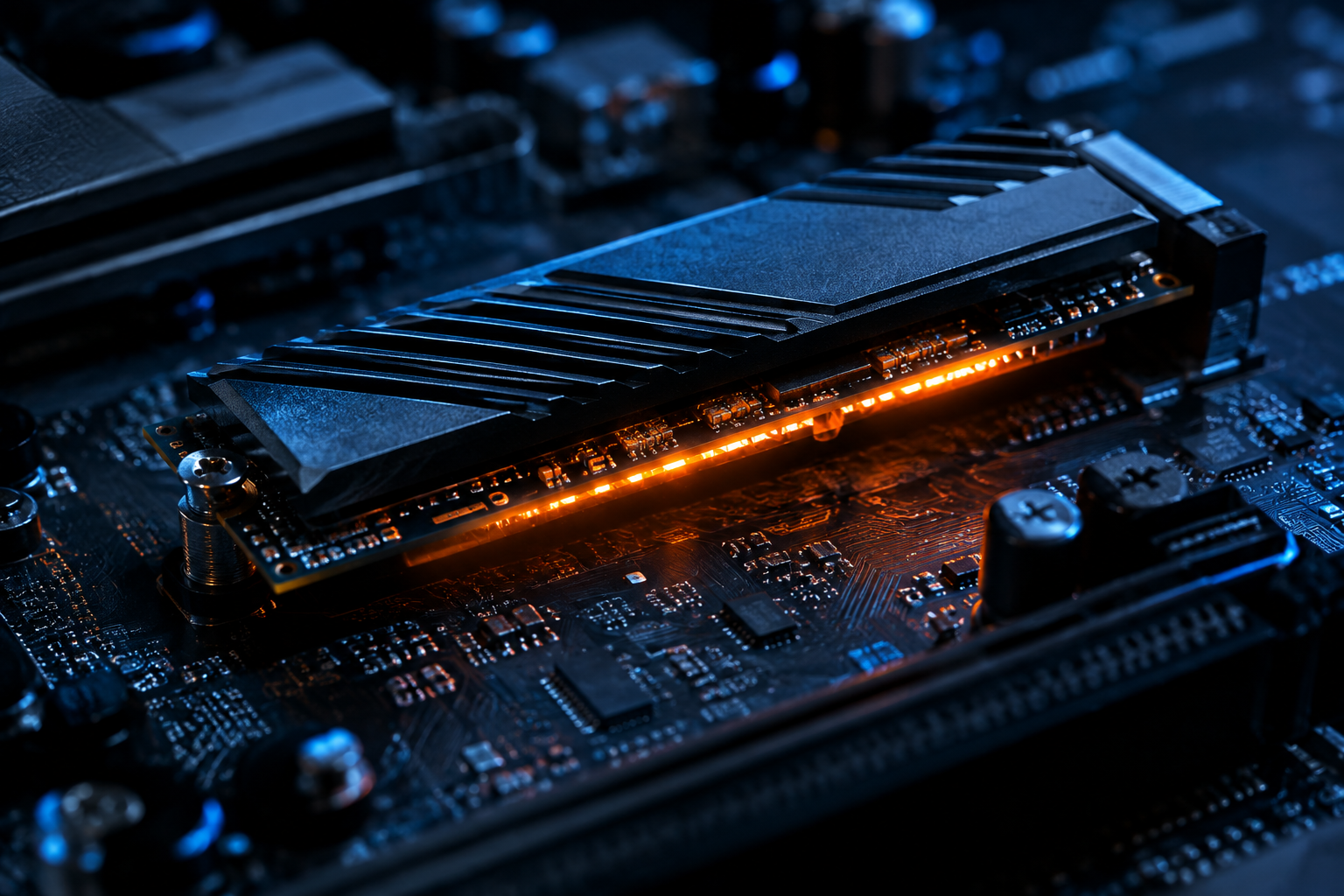
Sequential throughput gets all the attention, but the real architectural advantage of NVMe is queue depth and parallelism. SATA’s AHCI protocol was designed for spinning hard drives and supports a single command queue with 32 commands. NVMe supports up to 65,536 queues with 65,536 commands each.
In practice, this means an NVMe drive can handle far more simultaneous read/write requests without stalling, which matters for multitasking, virtual machines, video editing, and any workload that hits storage from multiple directions at once. This is a core reason NVMe SSDs feel more responsive, not just faster in a single benchmark number.
Latency is the other piece. NVMe drives typically respond to commands in under 100 microseconds, while SATA SSDs often sit in the 200-500 microsecond range due to the older AHCI stack. Lower latency means snappier file access even when the raw transfer speed isn’t the bottleneck. For a more general look at whether this translates to a meaningfully faster machine, check out Is NVMe Really Faster Than SSDs?
Mbps, Gbps, and MB/s: Keeping Units Straight
A lot of confusion around drive speed comes down to mixing up units, so it helps to nail this down clearly:
- Gbps (gigabits per second): Used for interface signaling rates, like SATA III’s “6 Gbps” or PCIe’s “8 GT/s per lane.”
- MB/s (megabytes per second): Used for actual data throughput, like a drive’s “550 MB/s” rating.
- Conversion: Divide Gbps by 8 to get a rough GB/s figure, then subtract encoding overhead to estimate real usable throughput.
Networking gear almost always uses Gbps (a 1 Gbps Ethernet port), while storage drives almost always use MB/s or GB/s. Keeping these separate in your head prevents a lot of “why isn’t my drive as fast as advertised” confusion.
Form Factor Doesn’t Always Mean Protocol
One trap buyers fall into is assuming that M.2 automatically means NVMe. It doesn’t. M.2 is just a physical slot shape, and it can carry either SATA or NVMe signaling depending on how the drive and motherboard are wired.
A SATA M.2 SSD looks identical to an NVMe M.2 SSD but performs like a standard SATA drive, capped around 550 MB/s. Always check the drive’s listed protocol, not just its form factor, before assuming you’re getting NVMe-level speed. This distinction comes up a lot when people are shopping for specific capacities, like in our breakdown of 512GB NVMe SSD vs 512GB SSD options.
When SATA Speed Is Still Good Enough
None of this means SATA drives are obsolete. If your laptop only supports SATA, or you’re adding bulk storage for photos, documents, and backups, a SATA SSD is still dramatically better than a spinning hard drive and costs less per gigabyte in many cases.
The real-world difference between SATA and NVMe shows up most in large file transfers, video editing with big project files, and heavy multitasking. For basic web browsing, office work, and general use, you likely won’t notice the gap in daily responsiveness. Our guide on how important SSD is in a laptop goes deeper into where that upgrade actually pays off.
If you’re deciding between a SATA and NVMe upgrade for an aging machine, check your motherboard or laptop’s manual first. Not every system with an M.2 slot supports NVMe, and forcing the comparison without confirming compatibility is a common mistake.
FAQ
Is NVMe always faster than SATA in real use?
For sequential transfers, yes, by a wide margin. For everyday tasks like opening apps or browsing files, the difference is smaller because those operations depend more on random access latency than peak bandwidth, and even entry-level NVMe drives handle that well.
Why doesn’t my NVMe drive hit its rated speed?
Rated speeds are best-case sequential numbers, usually tested with large files and high queue depths. Thermal throttling, a full drive, an older PCIe slot on your motherboard, or a smaller SLC cache running dry can all bring real-world numbers below the advertised peak.
Does PCIe 5.0 NVMe make a noticeable difference over PCIe 4.0?
For most users, not much. The jump from SATA to NVMe changes how a system feels. The jump from PCIe 4.0 to 5.0 mostly shows up in large sequential transfers and specific professional workloads like video editing with huge files, not general responsiveness.
Can I mix SATA and NVMe drives in the same computer?
Yes, and it’s a common setup. Many people run NVMe for their operating system and frequently used apps, then add a SATA SSD or hard drive for bulk storage. Just confirm your motherboard has enough M.2 slots and SATA ports to support both.
When comparing storage specs, always check whether a number describes the interface (Gbps) or the drive’s actual throughput (MB/s). Confusing the two is the single biggest source of misleading speed claims in storage marketing.
Once you separate interface bandwidth from real throughput, the SATA vs NVMe decision gets a lot simpler. SATA is capped hard around 550 MB/s no matter what drive you buy, while NVMe scales from roughly 3,000 MB/s on PCIe 3.0 up past 10,000 MB/s on PCIe 5.0. For most upgrades, jumping from SATA to any NVMe drive, even an older PCIe 3.0 model, delivers the biggest felt improvement in your system’s responsiveness.

James Kennedy is a writer and product researcher at Drives Hero with a background in IT administration and consulting. He has hands-on experience with storage, networking, and system performance, and regularly improves and optimizes his home networking setup.