How to Check Crucial SSD Warranty by Serial Number
If your Crucial SSD is acting up, or you’re just buying a used drive and want to know how much warranty is left on it, checking the warranty status is quicker than you’d think. Crucial ties every drive’s coverage to its serial number, and the company has an official lookup tool that tells you exactly where you stand in about thirty seconds. The tricky part is finding the right number on the drive itself and knowing which official channel to trust.
This guide walks you through locating your serial number, running an official warranty check, and understanding what actually affects your coverage (region, seller, purchase date, and proof of purchase all matter more than people realize).
Finding the Serial Number on Your Crucial SSD
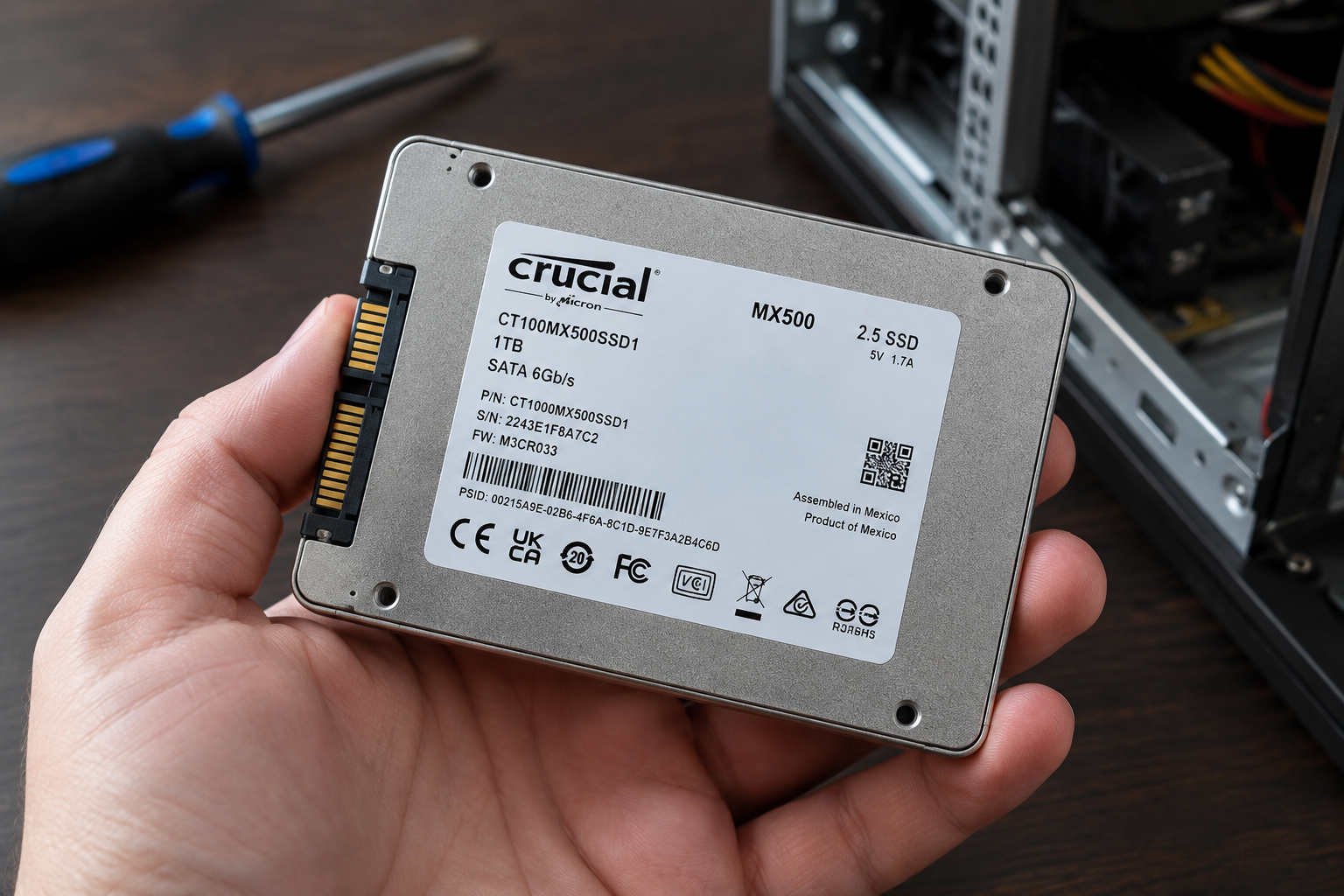
Every Crucial SSD has a label on the drive itself with several strings of numbers and letters. It’s easy to grab the wrong one, so let’s break down what you’re actually looking at.
Physical Label on the Drive
If your SSD isn’t installed yet, or you’ve pulled it out of a laptop or desktop, flip it over and look at the sticker on the top or bottom of the drive. You’ll typically see the model number printed in larger text near the top of the label, with the serial number below it, often labeled “S/N” or “SN.”
On 2.5-inch SATA drives like the MX500, the label wraps around the case, so check both sides if you don’t see it right away. On M.2 NVMe drives like the P3 Plus or T500, the label is smaller and sits flush against the circuit board, so you may need a flashlight or your phone’s camera zoom to read it clearly.
Using Crucial’s Storage Executive Software
If the drive is already installed and running in your system, you don’t need to open the case at all. Crucial’s own Storage Executive software (free download from Crucial’s site) reads the drive’s serial number, model number, and firmware version directly and displays them in a clean dashboard.
This is the method I’d recommend if your SSD is your boot drive or already mounted in a laptop you’d rather not disassemble. It also happens to be the same tool you’d use later if you ever need to check or update firmware on a drive, so it’s worth having installed anyway.
Serial Number vs Model Number vs Firmware Version
These three terms get mixed up constantly, and mixing them up is the most common reason people can’t complete a warranty check on the first try.
- Serial number: A unique identifier for that one specific physical drive. No two Crucial SSDs share the same serial number, and this is what Crucial’s warranty tool actually needs.
- Model number: Identifies the product line and capacity, like CT1000MX500SSD1 for a 1TB MX500. Thousands of drives share this same model number.
- Firmware version: The internal software running on the drive’s controller, something like M3CR046. This has nothing to do with warranty status but matters for performance and stability.
When you’re checking warranty eligibility, the serial number is the only one that matters. The model number is useful context if you’re comparing your drive to others, similar to how you’d compare specs when deciding between something like an NVMe drive and an Intel SSD, but it won’t tell Crucial anything about your specific unit’s coverage.
Checking Your Warranty on Crucial’s Official Site

Once you’ve got the serial number copied down correctly, checking warranty status only takes a few steps.
- Go to Crucial’s official support and warranty page (search “Crucial warranty status” or navigate through crucial.com’s support section).
- Enter your drive’s serial number exactly as it appears on the label or in Storage Executive. Avoid adding spaces or mixing up the letter O with the number 0.
- Submit the form and review the results, which will show whether the drive is under warranty, the coverage end date, and sometimes the original warranty length for that model.
Stick to Crucial’s own domain for this. There are third-party “SSD warranty checker” sites floating around that ask for serial numbers, and there’s no good reason to hand that information to a site that isn’t the manufacturer. Crucial’s own tool is free, fast, and doesn’t require you to create an account.
What Actually Affects Your Warranty Eligibility
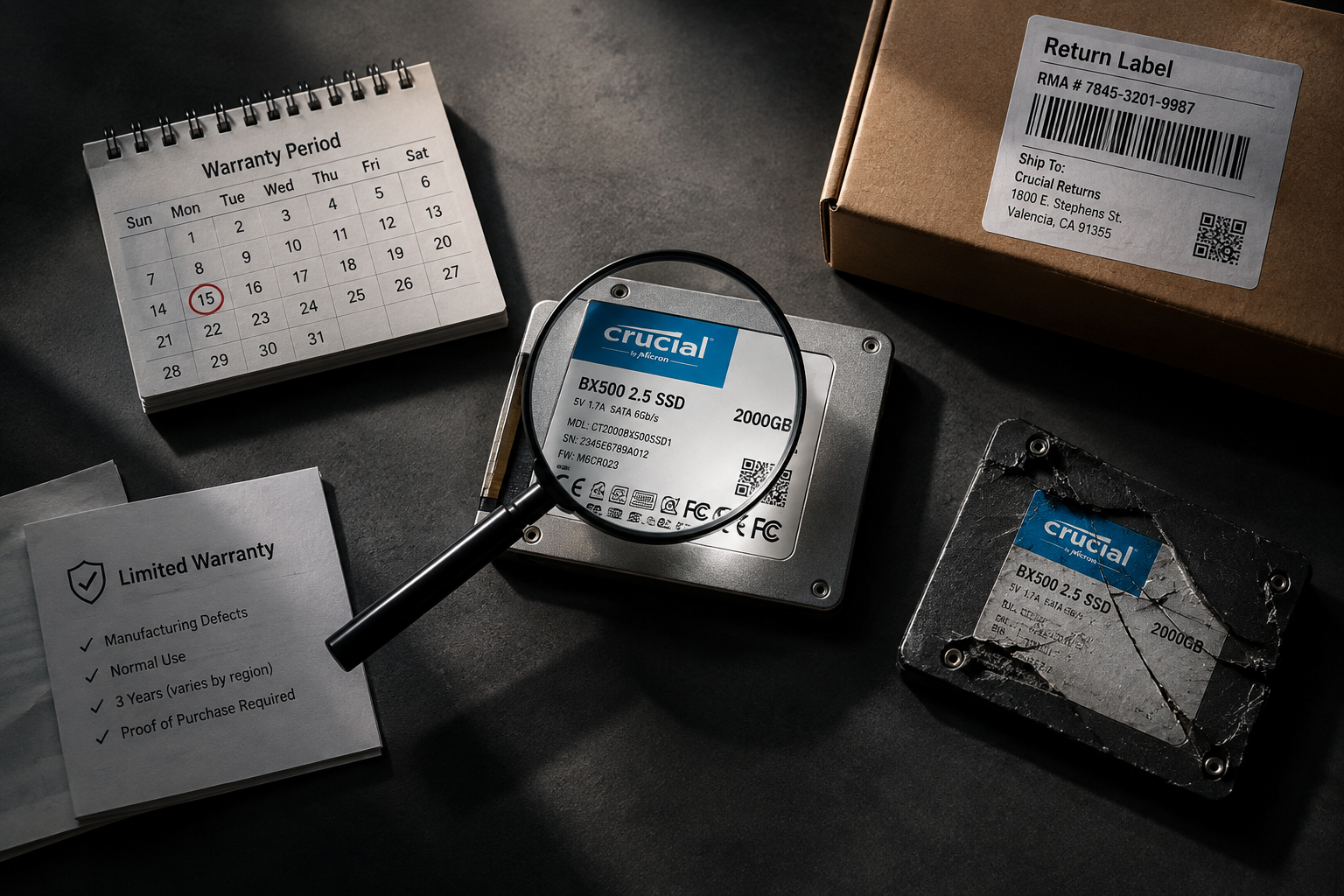
A warranty lookup telling you a drive is “in warranty” isn’t always the final word. A few real-world factors can complicate an actual claim.
Region and Retailer
Crucial sells through authorized retailers in specific regions, and warranty terms can vary depending on where the drive was originally sold. A drive purchased through an authorized reseller in your country is going to have a much smoother claims process than one imported from overseas or bought through an unauthorized third-party marketplace seller.
Purchase Date and Proof of Purchase
The warranty check tool estimates coverage based on manufacture date and typical warranty length for that model (usually three or five years depending on the drive), but Crucial may still ask for a receipt or invoice if you file an actual claim. Keep your order confirmation email or receipt somewhere you can find it, because “I bought it a while ago” won’t cut it if support asks for documentation.
Used or Refurbished Drives
If you bought your SSD secondhand, the warranty typically follows the drive and not the original owner, but it started counting down from the original purchase date, not from when you bought it. This means a “like new” drive from a marketplace listing might have far less coverage left than the listing implies. Always run the serial number check yourself before trusting a seller’s claim about remaining warranty.
What to Do If Your Drive Is Out of Warranty
If the check comes back showing expired coverage, you’re not necessarily out of luck, but you are on your own for replacement costs. At that point it’s worth weighing whether to buy a new drive outright.
If you’re due for an upgrade anyway, it’s a good moment to think about capacity too. A lot of people are still running 256GB or 512GB drives that feel cramped fast, and it helps to understand what 512GB actually gets you in daily use before deciding on a replacement size. If you’re moving from a SATA drive to NVMe as part of the upgrade, it’s also worth reading up on whether NVMe is really faster in practice, since the real-world difference depends a lot on your workload.
Frequently Asked Questions
Can I check Crucial SSD warranty without the physical drive in hand?
Yes, as long as you wrote down or photographed the serial number before removing the drive, or if it’s still installed and readable through Storage Executive software. Without the serial number, though, there’s no reliable way to look up warranty status.
Does cloning data or using the SSD in a different computer affect the warranty?
No. Warranty coverage is tied to the physical drive’s serial number, not the system it’s installed in or how you’re using it. Moving a drive between machines, or performing an upgrade like the ones covered in guides for Lenovo laptops or MSI laptops, won’t void coverage on its own.
Why does Crucial’s warranty tool say my drive isn’t found?
This usually means the serial number was entered incorrectly, often due to mixing up similar-looking characters like 0 and O, or 1 and I. Double check the label under good lighting, or pull the serial number from Storage Executive instead, since it eliminates the guesswork of reading a small printed label.

James Kennedy is a writer and product researcher at Drives Hero with a background in IT administration and consulting. He has hands-on experience with storage, networking, and system performance, and regularly improves and optimizes his home networking setup.