Second M.2 SSD Not Detected
You installed a second M.2 SSD, booted up expecting a smooth setup, and instead you got nothing. No new drive letter, no prompt to initialize, just silence. It’s one of the more annoying PC building problems because the drive itself is usually fine. The issue almost always comes down to where in the chain things break down, and once you find that spot, the fix is usually quick.
This guide walks through the most common failure points step by step, starting with the most important question: where exactly is the drive missing from?
Step 1: Figure Out Where the Drive Is Actually Missing
Before you touch any settings, you need to narrow down where the drive disappears. This determines everything else you do, so don’t skip it.
- Not in BIOS/UEFI at all: This points to a hardware, slot, or firmware setting problem.
- Visible in BIOS but not in Windows: This is almost always a software or driver issue, not hardware.
- Visible in Disk Management but not File Explorer: The drive is fine, it just needs a letter or a partition.
- Missing from the Windows installer: You’re likely dealing with a RAID/VMD driver issue.
- Missing only from an external enclosure: That’s a compatibility or power issue specific to the enclosure.
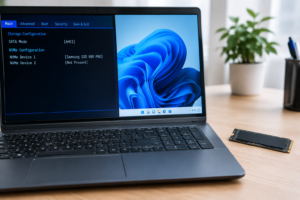
Reboot into your BIOS/UEFI setup (usually Del or F2 on most motherboards) and check the storage or boot menu page first. If the drive shows up there with its correct model number, your hardware is working and you’re dealing with a Windows-side issue. If it’s not there, skip ahead to the BIOS section below.
Case 1: The Drive Is Missing From BIOS/UEFI
If the BIOS itself can’t see the drive, Windows never will either. Start with the physical stuff before touching any settings.
Check the Physical Installation
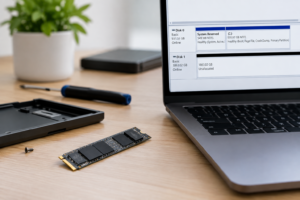
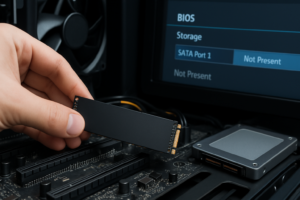
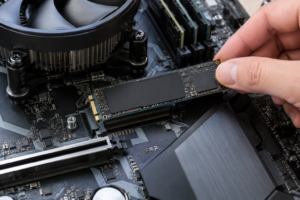
Reseat the SSD completely. M.2 drives need to sit in the slot at roughly a 30 degree angle before you screw them down flat, and if they’re not fully inserted you’ll get exactly this symptom. Also check that the standoff screw is in the correct position for your drive’s length (2280, 2260, 2242) since a missing or misaligned standoff can prevent proper contact.
If you’re using an NVMe drive, confirm the slot you’re using actually supports NVMe and not just SATA-based M.2. Some motherboards have one slot that’s PCIe-only and a second that’s SATA-only, and plugging an NVMe drive into a SATA-only M.2 slot will never work no matter what you do in software.
Look for Slot Sharing (Lane Conflicts)
This is one of the most overlooked causes. Many motherboards share PCIe lanes between the second M.2 slot and either a SATA port, a PCIe x16 slot, or even the primary M.2 slot. Check your motherboard manual for a lane-sharing diagram. If your second M.2 slot shares bandwidth with SATA port 5 and 6, for example, populating that M.2 slot will disable those SATA ports, or in some cases the reverse happens depending on which device was installed first.
The fix here isn’t a setting, it’s usually moving a drive to a different slot or accepting the tradeoff described in your manual.
Check BIOS Settings
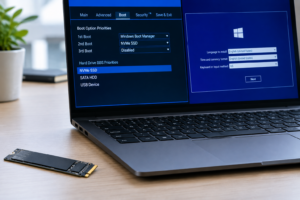
Look for an M.2 configuration menu in BIOS and confirm the slot is enabled. Some boards disable unused M.2 slots by default or toggle them off automatically when certain PCIe slots are populated. Also check whether your storage mode is set to RAID/Intel VMD instead of AHCI, since this can sometimes cause drives to not show up correctly even at the BIOS level on certain firmware versions. Updating to the latest BIOS version can also resolve detection bugs, especially on newer boards that added M.2 support after launch.
Case 2: The Drive Shows in BIOS But Not in Windows
This is good news, honestly. It means the hardware connection is solid and you’re dealing with a software problem, which is much easier to fix.
Initialize the Disk
Brand new drives need to be initialized before Windows will recognize them. Open Disk Management (right-click the Start button and select it), and if you see your new drive listed as “Not Initialized,” right-click it and choose Initialize Disk. Pick GPT unless you have a specific reason to use MBR (GPT is standard for drives over 2TB and modern systems).
Create a Partition and Assign a Drive Letter
After initializing, the drive space will show as “Unallocated.” Right-click that unallocated space and choose New Simple Volume, then follow the wizard to format it and assign a drive letter. Once that’s done it should appear in File Explorer immediately.
If the drive already has data on it from a previous system and it’s just missing a letter, right-click it in Disk Management and choose “Change Drive Letter and Paths” instead of creating a new volume. Creating a new volume on a drive with existing data will wipe it.
Check VMD and RST Drivers
If you’re running an Intel system with VMD (Volume Management Device) enabled in BIOS, Windows needs the Intel Rapid Storage Technology (RST) driver to see NVMe drives at all. Without it, the drive can be completely invisible in Windows and Device Manager even though BIOS sees it fine. Download the correct RST driver from Intel’s site or your motherboard manufacturer’s support page and install it, then reboot.
If you don’t actually need VMD (most home users don’t unless they’re running RAID), it’s often simpler to disable VMD in BIOS and switch to standard AHCI/NVMe mode instead.
Check Device Manager for Errors
Open Device Manager and look under “Disk drives.” If your SSD shows up with a yellow warning icon, right-click it and check Properties for the specific error code. A code 10 or code 43 usually points to a driver problem, which you can often fix by uninstalling the device and letting Windows redetect it on reboot.
Case 3: The Drive Is Missing During Windows Installation
If you’re doing a fresh Windows install and the second (or even first) M.2 drive doesn’t appear in the installer’s drive selection screen, this is almost always the VMD/RAID driver issue described above, just happening earlier in the process.
The Windows installer doesn’t come with VMD or RST drivers built in. You’ll need to load them manually using the “Load Driver” option during setup, pointing it to a USB drive containing the driver files downloaded from Intel or your motherboard maker. Alternatively, switch your BIOS storage mode from RAID/VMD to AHCI before installing Windows if you don’t need RAID functionality. This sidesteps the whole problem for most single-drive setups.
Case 4: The Drive Only Fails in an External Enclosure
If you pulled the M.2 SSD from a laptop or old build and put it in a USB enclosure, and it’s not showing up on any computer, check that the enclosure actually matches your drive’s interface. NVMe drives need NVMe-compatible enclosures (using a PCIe to USB bridge chip), and plugging an NVMe drive into a SATA-only M.2 enclosure simply won’t work, regardless of the cable or port you use. Also try a different USB cable and port, ideally USB-C directly on your motherboard’s rear I/O rather than through a front panel header or hub, since M.2 enclosures can be picky about power delivery.
Before running any fix that involves formatting, running “clean” in Diskpart, secure erasing, or repartitioning, double check you’re selecting the correct disk number. These operations are destructive and irreversible, and it’s easy to accidentally target your primary drive instead of the new one if you’re not paying close attention to disk numbers and sizes in Disk Management.
When It’s Genuinely a Hardware Failure
If you’ve reseated the drive, tried a different M.2 slot, updated BIOS, and confirmed there’s no lane sharing conflict, and it still doesn’t appear anywhere, the drive itself may be defective. Test it in another system or another slot if you have access to one. If it’s still under warranty, most manufacturers will replace it once you’ve ruled out the installation issues covered here.
It’s also worth double checking that your new SSD is actually a good fit for your system in the first place. If you’re deciding between drive types for an upgrade, it helps to understand the practical differences covered in our comparison of SATA vs NVMe SSDs for gaming or our breakdown of NVMe SSD vs Intel SSD before you buy a replacement.
Frequently Asked Questions
Why does my second M.2 SSD disable my SATA ports?
This happens because of PCIe lane sharing on your motherboard. Many boards route the second M.2 slot through the same lanes as certain SATA ports, so populating one disables the other. Check your motherboard’s manual for a lane allocation table to confirm which ports are affected before you assume it’s a fault.
Do I need to enable AHCI or RAID mode for a second NVMe SSD?
For most single-drive setups without RAID, AHCI (or standard NVMe mode) is simpler and avoids needing extra drivers during installation. Only switch to RAID/VMD if you’re specifically setting up a RAID array across multiple drives, since it adds a driver dependency that can cause detection issues if not installed correctly.
Can a bad M.2 screw or standoff really stop a drive from being detected?
Yes, absolutely. If the drive isn’t seated flat and secured properly, it can lose contact with the connector’s pins even if it looks plugged in. Always confirm the standoff is positioned for your drive’s exact length and that the screw is snug, not just resting in place.

James Kennedy is a writer and product researcher at Drives Hero with a background in IT administration and consulting. He has hands-on experience with storage, networking, and system performance, and regularly improves and optimizes his home networking setup.