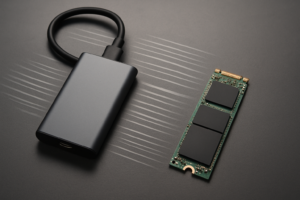
USB 2.0 vs 3.0 vs 3.1 vs 3.2 vs USB4 Speed Chart
USB naming has gotten so confusing that even tech-savvy shoppers end up guessing which cable or port they actually need. “USB 3.2 Gen 2×2” sounds like a typo, not a spec, and marketing labels rarely match what you’ll see in real transfer speeds. This chart breaks down every major USB generation, what it promises on paper, and what you’ll actually get when moving files to an external drive.
USB Speed Chart: Theoretical vs Real-World
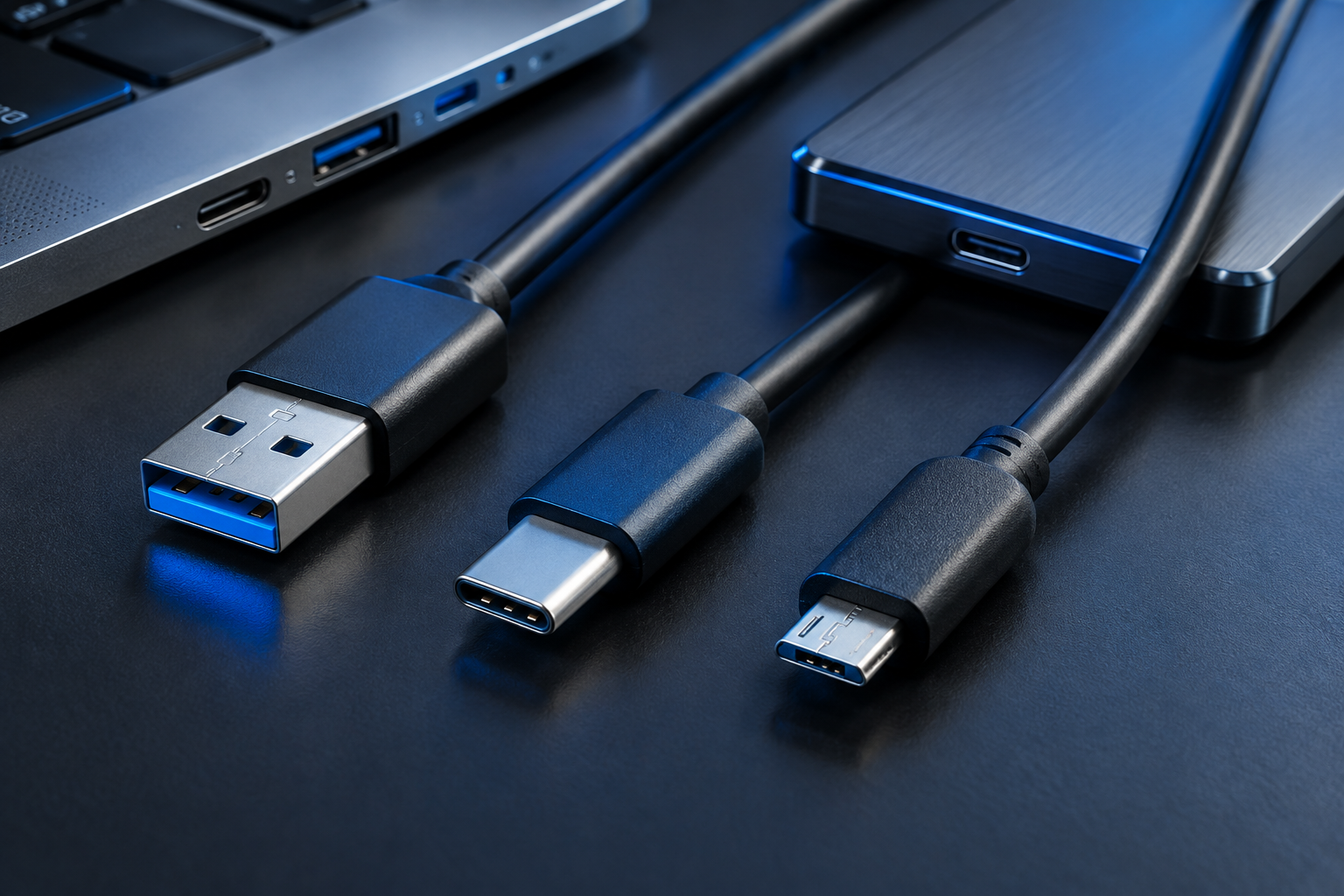
The number on the box is the theoretical link speed, measured in bits per second (Gbps or Mbps). Actual file transfers happen in bytes per second (MB/s or GB/s), and encoding overhead, controller efficiency, and drive limitations all eat into that theoretical number. As a rule of thumb, expect real-world throughput to land somewhere between 60% and 85% of the rated interface speed, and that’s assuming your storage device is fast enough to saturate the bus in the first place.
- USB 2.0: 480 Mbps theoretical, about 30 to 40 MB/s real-world
- USB 3.0 (USB 3.2 Gen 1): 5 Gbps theoretical, about 350 to 450 MB/s real-world
- USB 3.1 (USB 3.2 Gen 2): 10 Gbps theoretical, about 700 to 1,000 MB/s real-world
- USB 3.2 Gen 2×2: 20 Gbps theoretical, about 1,700 to 2,000 MB/s real-world
- USB4 (Gen 2 / 20 Gbps): 20 Gbps theoretical, about 1,800 to 2,000 MB/s real-world
- USB4 (Gen 3 / 40 Gbps): 40 Gbps theoretical, about 3,000 to 3,600 MB/s real-world
Notice the gap between USB 2.0 and everything after it. That jump from 480 Mbps to 5 Gbps is why USB 3.0 felt like such a leap when it launched, and it’s also why plugging a modern external SSD into an old USB 2.0 port turns a fast drive into a slow one instantly.
Why USB 3.0 Naming Is So Messy
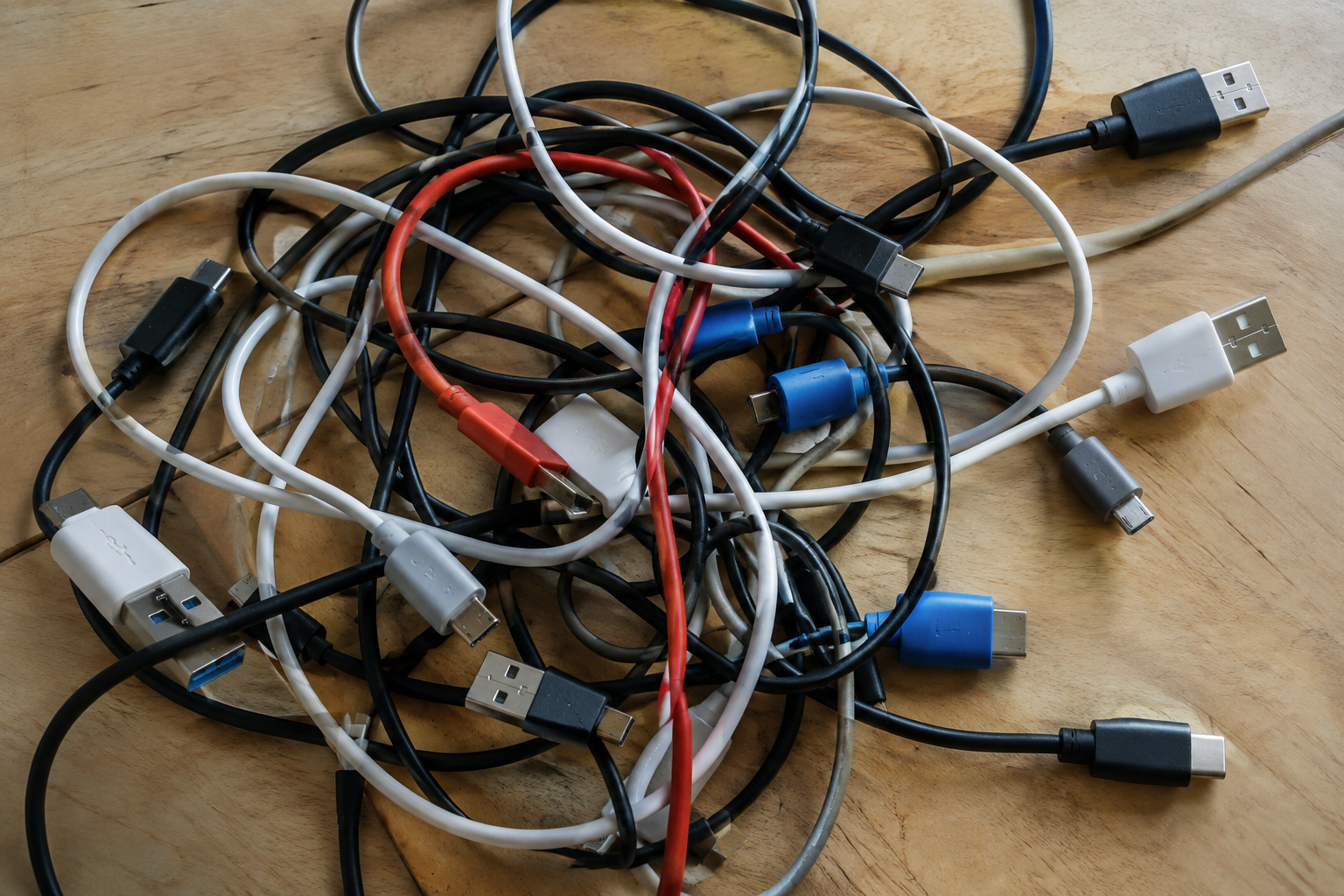
USB-IF renamed USB 3.0 and USB 3.1 retroactively into confusing “USB 3.2 Gen 1/2/2×2” tiers, which is why you’ll see the same 5 Gbps port called both “USB 3.0” and “USB 3.2 Gen 1” depending on when the product was labeled. Here’s the simplest way to translate old and new names:
- USB 3.0 = USB 3.1 Gen 1 = USB 3.2 Gen 1 (5 Gbps)
- USB 3.1 = USB 3.1 Gen 2 = USB 3.2 Gen 2 (10 Gbps)
- USB 3.2 = USB 3.2 Gen 2×2 (20 Gbps, requires a USB-C connector on both ends)
USB4 cleans this up somewhat by unifying around Thunderbolt-style tunneling, but you’ll still see USB4 20 Gbps and USB4 40 Gbps devices sold side by side, so always check the actual Gbps rating rather than assuming “USB4” means the fastest option.
What This Means for Choosing an External Drive
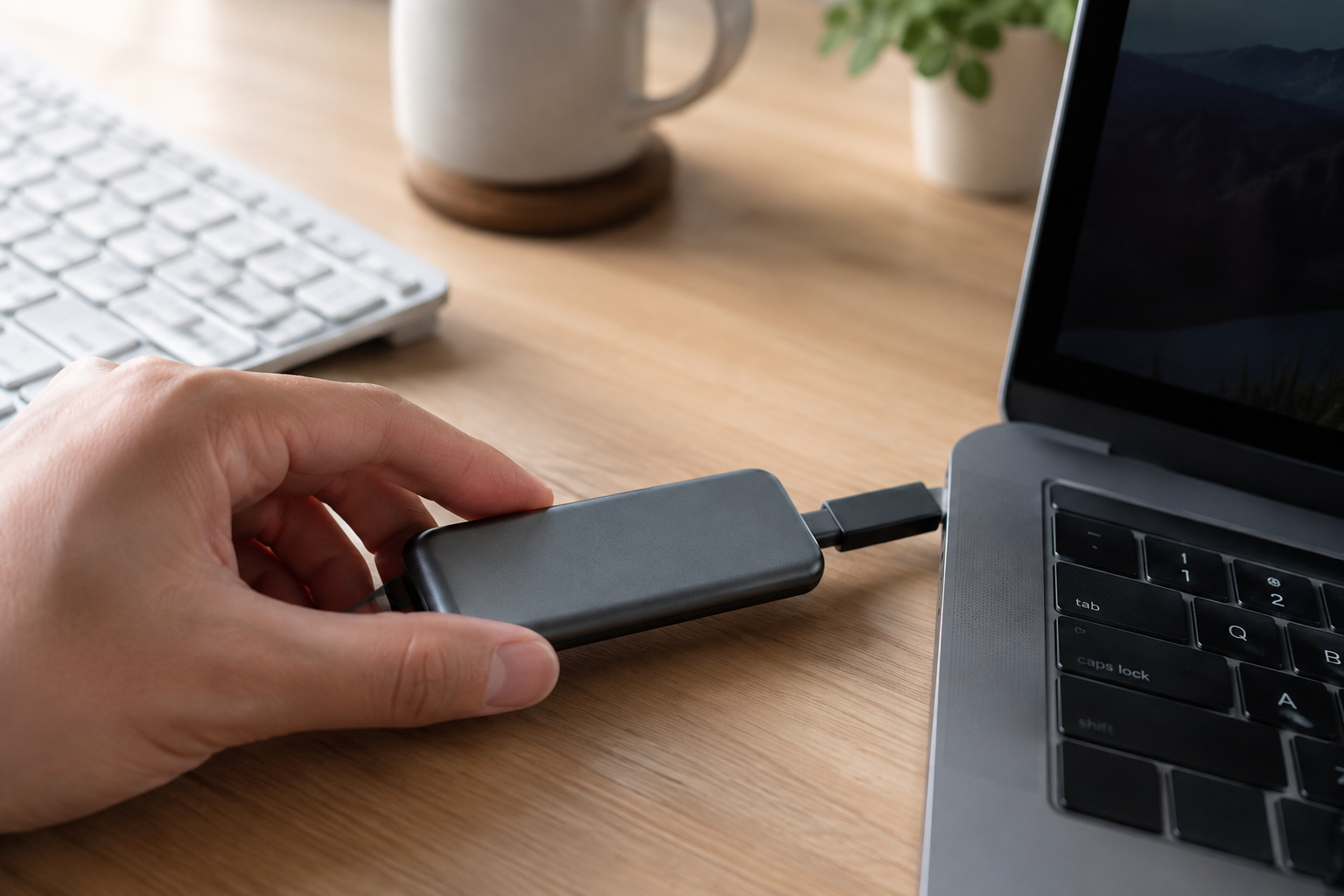
If you’re shopping for external storage, match the drive’s interface to your port, not the other way around. A 40 Gbps USB4 SSD plugged into a laptop with only USB 3.0 ports will run at 5 Gbps, no faster than a much cheaper drive. Check your laptop’s actual port specs before paying extra for a higher-tier enclosure.
For most people, a USB 3.1 (10 Gbps) external SSD hits the sweet spot of price and speed, comfortably pushing 900 MB/s or more for large file transfers and game library backups. If you’re editing 4K video or working with huge datasets, stepping up to a 20 Gbps or 40 Gbps drive actually pays off, since an external SSD can noticeably speed up a laptop that’s otherwise bottlenecked by internal storage.
It’s also worth remembering that the interface is only half the equation. The drive itself needs a controller and NAND fast enough to fill that bus, which is one reason NVMe drives outperform standard SATA-based SSDs even when both are stuffed into similarly rated USB enclosures.
FAQ
Is USB 3.2 always faster than USB 3.1?
Not necessarily. “USB 3.2” is used both as the umbrella name for the whole 3.2 generation and as shorthand for the fastest 20 Gbps tier (Gen 2×2). If a product just says “USB 3.2” without specifying Gen 1, Gen 2, or Gen 2×2, check the Gbps number directly, since it could be running at the same 5 Gbps as basic USB 3.0.
Will a USB4 cable work on a USB 3.0 port?
Physically, yes, as long as both ends use USB-C connectors, but the connection will drop down to whatever the slower device or port supports. Cables and devices negotiate to the lowest common speed, so a USB4 cable plugged into a USB 3.0 port gives you USB 3.0 speeds, not USB4 performance.

James Kennedy is a writer and product researcher at Drives Hero with a background in IT administration and consulting. He has hands-on experience with storage, networking, and system performance, and regularly improves and optimizes his home networking setup.