5 Gbps vs 10 Gbps vs 20 Gbps External SSD Speed
Shopping for an external SSD used to mean comparing capacity and price. Now you’re staring at port labels like USB 3.2 Gen 2×2, “5Gbps,” “10Gbps,” and “20Gbps,” trying to figure out what any of it actually means for your file transfers. The frustrating truth is that these numbers describe interface bandwidth, not the speed your drive will actually hit in daily use.
This guide breaks down what each speed tier really delivers, why the marketing number and the real-world number never match, and which option makes sense depending on how you use external storage.
Interface Bandwidth vs Real-World Storage Throughput
The Gbps rating on a USB port or external drive spec sheet describes the theoretical maximum data rate of the connection itself, not the speed of the storage inside. That number gets reduced twice before it ever touches your files.
First, there’s unit conversion. Storage speeds are measured in megabytes per second (MB/s), while interface speeds are marketed in gigabits per second (Gbps). One byte equals 8 bits, so you divide the Gbps figure by 8 to get a rough MB/s ceiling.
Second, there’s encoding overhead. USB connections don’t send raw data efficiently. Older 5Gbps USB (USB 3.2 Gen 1, formerly USB 3.0) uses 8b/10b encoding, which wastes 20% of the signal on overhead. Newer 10Gbps and 20Gbps standards use 128b/132b encoding, which only wastes about 3%. That’s why a 10Gbps connection performs so much better than double a 5Gbps one in practice, even though the math looks close on paper.
On top of that, you’ve got controller limitations, cable quality, thermal throttling, and file system overhead. That’s why the drive you buy almost never hits the number printed on the box.
5 Gbps (USB 3.2 Gen 1): The SATA-Class Ceiling
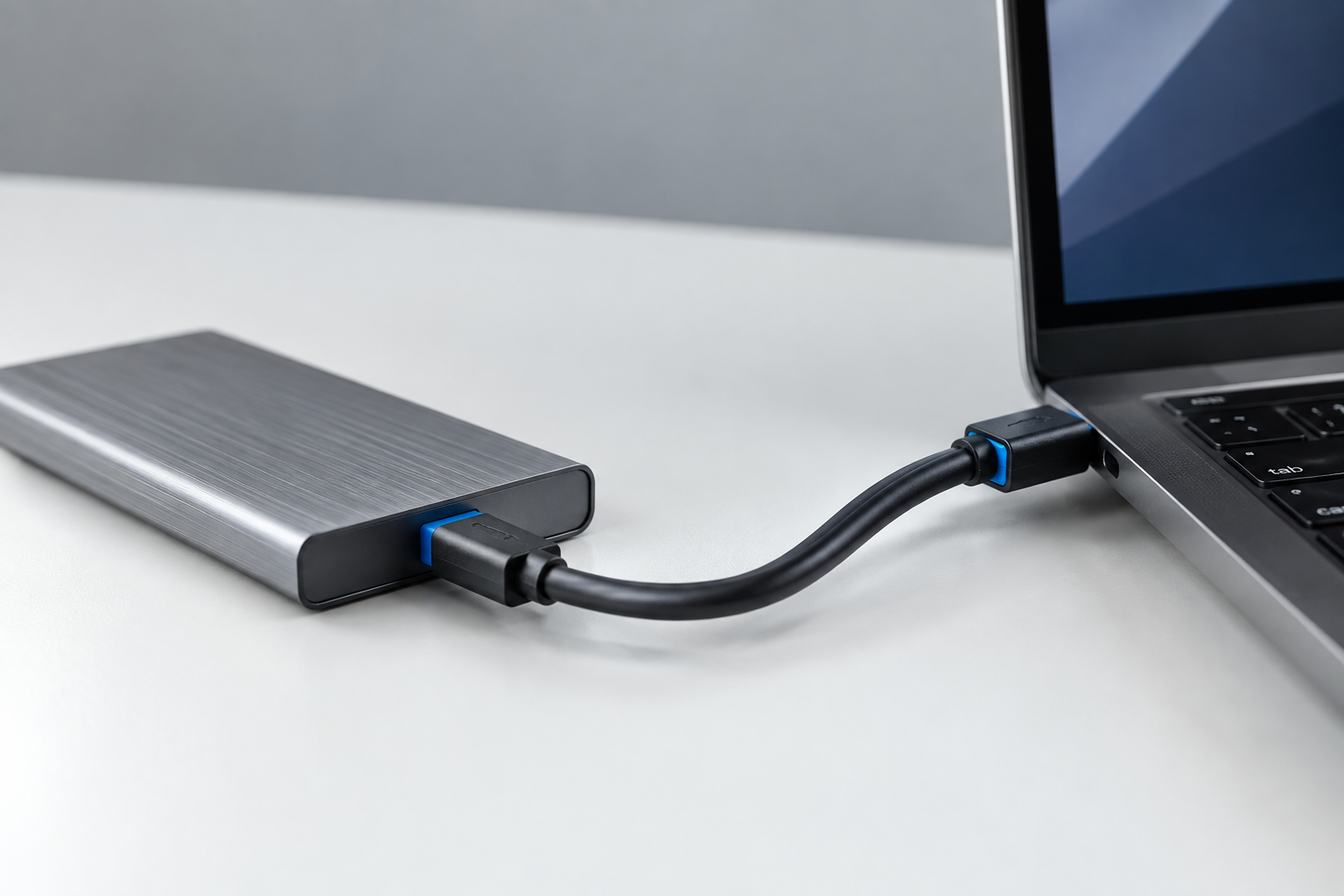
5Gbps ports, still labeled USB 3.0 on plenty of hardware, have a theoretical raw ceiling of about 625MB/s. After 8b/10b encoding overhead, that drops to roughly 500MB/s at best.
In practice, external SSDs on a 5Gbps connection top out around 400 to 440MB/s in sustained sequential transfers. That’s basically the performance envelope of a SATA SSD, which makes sense since most budget external drives use SATA-based flash controllers paired with a USB bridge chip.
- Theoretical interface max: ~500MB/s
- Realistic sustained speed: 400-440MB/s
- Best for: backups, document storage, casual photo transfers
If you’re only moving a few gigabytes at a time, you won’t notice much difference between this tier and faster ones. But if you regularly transfer large video files or full game installs, this is the tier where you’ll start losing patience.
10 Gbps (USB 3.2 Gen 2): The Sweet Spot for NVMe Enclosures
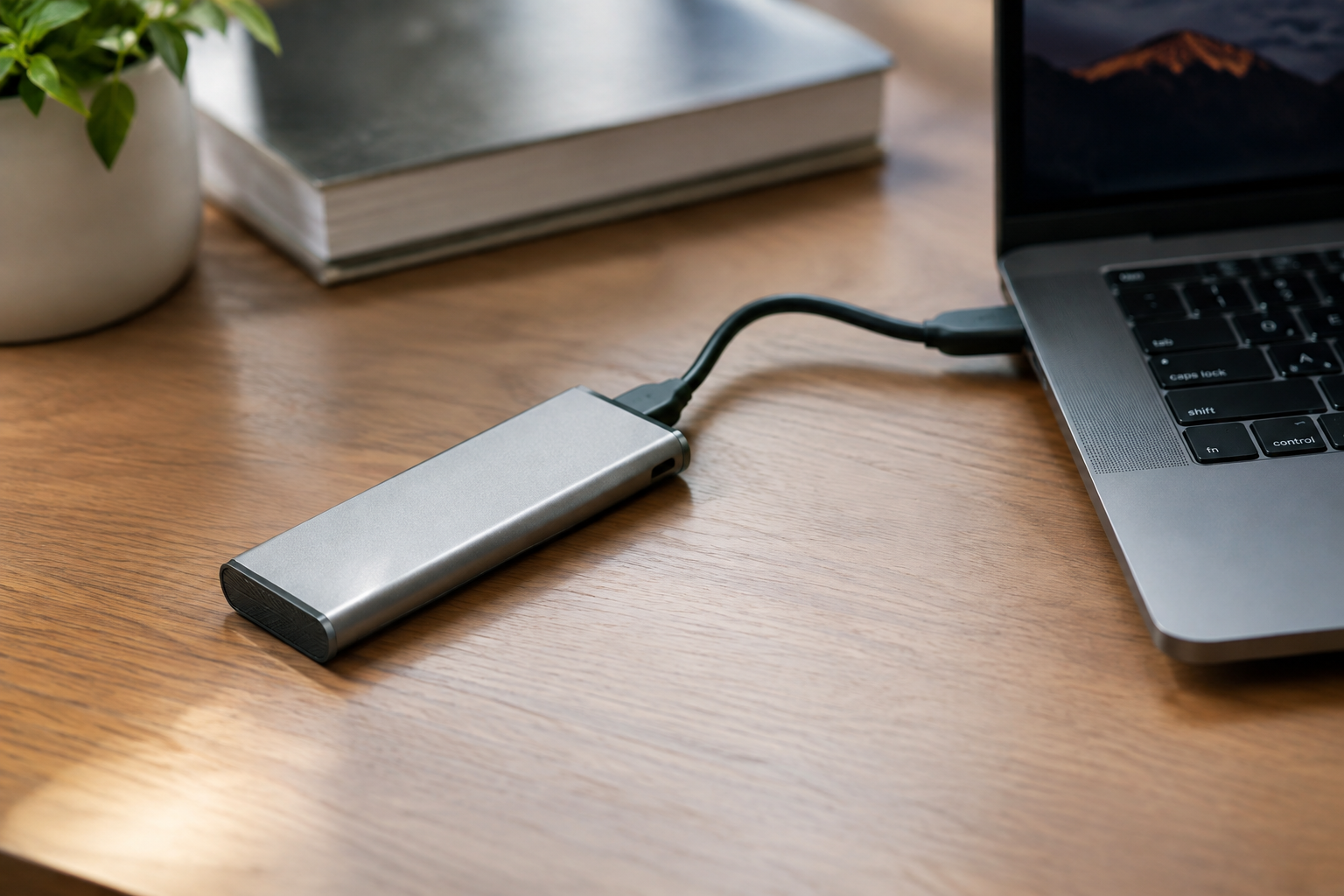
10Gbps roughly doubles the raw bandwidth of the 5Gbps tier, but thanks to the more efficient 128b/132b encoding, it actually delivers more than double the real-world throughput. Raw ceiling sits near 1,250MB/s, and after overhead, the practical maximum lands around 1,100 to 1,200MB/s.
Real-world external SSDs on 10Gbps ports typically land in the 900 to 1,050MB/s range for sustained sequential reads and writes. That’s enough to actually take advantage of an NVMe drive inside the enclosure rather than throttling it down to SATA speeds.
- Theoretical interface max: ~1,200MB/s
- Realistic sustained speed: 900-1,050MB/s
- Best for: video editing on the go, large game libraries, frequent big-file transfers
This is where most serious external SSDs live right now, and for good reason. It’s the point where the jump from a mechanical drive or SATA-class SSD becomes obvious in daily use, without needing a specialized dock or cable.
20 Gbps (USB 3.2 Gen 2×2): Fast, But Harder to Actually Use
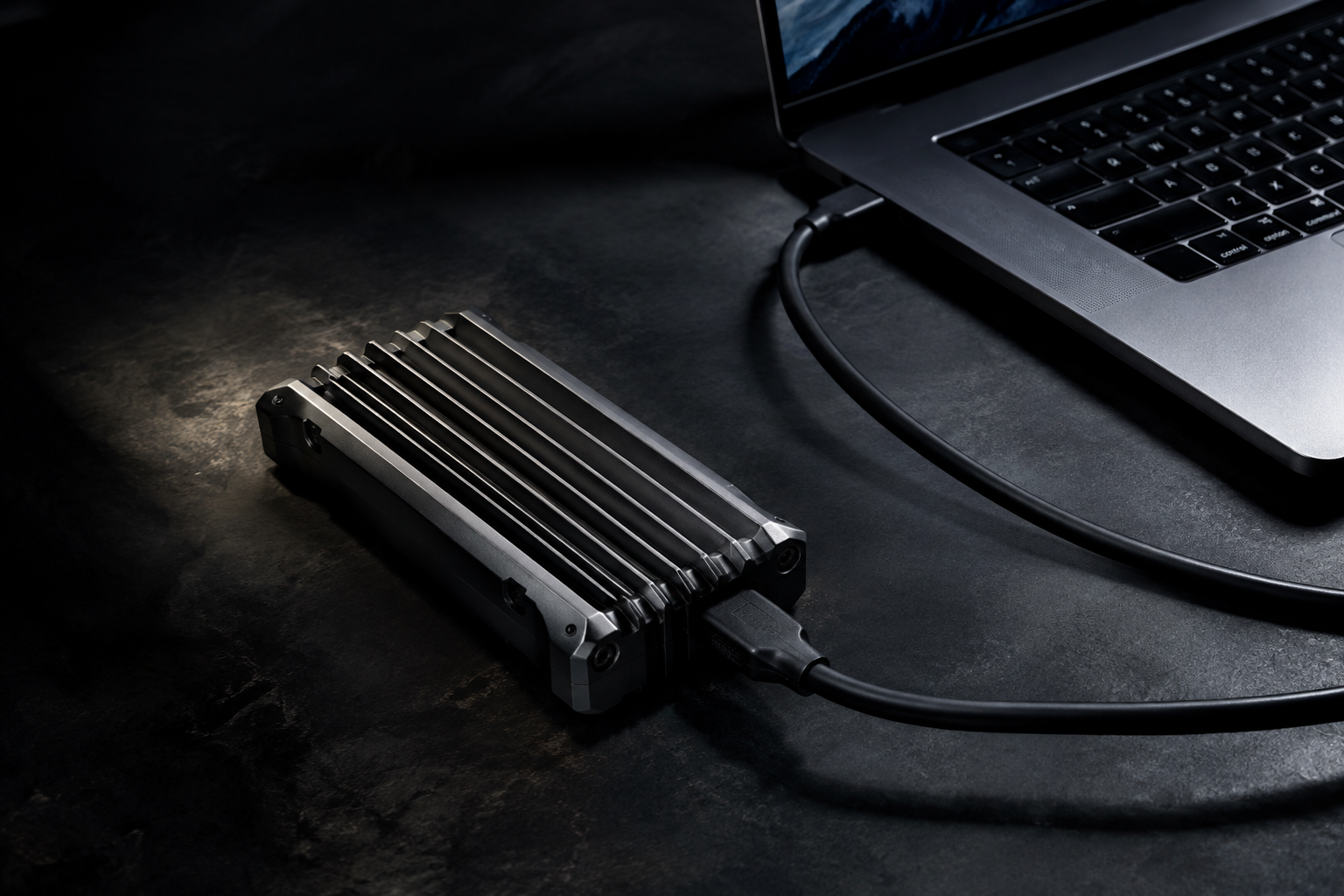
20Gbps doubles the lanes again, pushing the raw ceiling to about 2,500MB/s. With the same low-overhead encoding as the 10Gbps tier, the theoretical maximum after overhead sits close to 2,400MB/s.
Real-world numbers tell a messier story. Even well-built 20Gbps external SSDs typically deliver 1,700 to 2,000MB/s in sustained transfers, and hitting even that range depends on using a certified cable, a host port that actually supports the full 20Gbps spec, and a drive with enough thermal headroom to sustain those speeds without throttling.
- Theoretical interface max: ~2,400MB/s
- Realistic sustained speed: 1,700-2,000MB/s
- Best for: professional video workflows, large dataset transfers, users with newer laptops that actually support the standard
The catch with 20Gbps is compatibility. A lot of laptops and desktops still ship with 10Gbps or even 5Gbps ports, so plugging a 20Gbps drive into an older port just downgrades it to whatever the port supports. Before buying into this tier, check your actual port spec, not just what the manual calls it.
Quick Reference: All Three Tiers Side by Side
- 5 Gbps: ~500MB/s theoretical, 400-440MB/s real world, SATA-class performance
- 10 Gbps: ~1,200MB/s theoretical, 900-1,050MB/s real world, entry-level NVMe performance
- 20 Gbps: ~2,400MB/s theoretical, 1,700-2,000MB/s real world, high-end NVMe performance
For context, Thunderbolt 3, Thunderbolt 4, and USB4 all run at 40Gbps, roughly doubling the 20Gbps tier again, though real-world storage throughput still caps out based on the flash and controller inside the enclosure, not just the cable.
Which Speed Should You Actually Buy?
For most people, 10Gbps hits the best balance of price, compatibility, and real-world speed. It’s fast enough to move large files quickly, and it works with the vast majority of laptops and desktops sold in the last several years.
Go with 20Gbps only if you regularly move huge files (think raw 4K footage or large VM images) and you’ve confirmed your computer has a genuine 20Gbps port. Otherwise you’re paying for bandwidth you can’t use.
Stick with 5Gbps only if budget is the priority and your transfers are small. It’s still a massive upgrade over an external hard drive, and if you’re wondering whether swapping to any external SSD is worth it at all, this breakdown on whether an external SSD will make your laptop faster is worth a read before you decide.
Whatever tier you land on, remember that the drive’s internal storage type matters just as much as the port speed. Pairing a fast interface with a slow internal SSD wastes the bandwidth, and pairing a slow interface with a fast NVMe drive wastes the drive’s potential.
Frequently Asked Questions
Is 10Gbps enough for 4K video editing?
For most 4K editing workflows, yes. A 10Gbps external SSD delivering 900 to 1,050MB/s can handle single-stream 4K footage without dropped frames. If you’re working with multiple 4K streams, RAW footage, or 8K content, a 20Gbps drive gives you more headroom.
Why does my 20Gbps drive only hit 10Gbps speeds?
This almost always comes down to the port, cable, or both. If your computer’s USB port only supports 10Gbps, that’s your ceiling regardless of what the drive can do. You also need a cable rated for 20Gbps, since generic USB-C cables often cap out much lower.
Does a faster external SSD interface always mean faster real-world performance?
Not necessarily. The interface sets the ceiling, but the SSD controller, the flash memory type, and even thermal conditions during long transfers all affect sustained speed. A well-built 10Gbps drive can sometimes outperform a poorly designed 20Gbps drive once you get past short burst transfers.

James Kennedy is a writer and product researcher at Drives Hero with a background in IT administration and consulting. He has hands-on experience with storage, networking, and system performance, and regularly improves and optimizes his home networking setup.