How to Check SSD Health Without CrystalDiskInfo
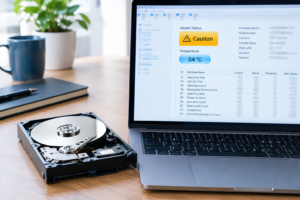
Your SSD’s health percentage isn’t a countdown timer, and treating it like one is how people either panic over a perfectly fine drive or ignore an actual failing one. CrystalDiskInfo gets recommended constantly because it’s free and simple, but it’s a Windows-only tool, and its “health” number is really just a translation of raw SMART data that varies depending on who made your drive. You can get the same information, and often a clearer picture, using built-in tools or manufacturer software instead.
Checking SSD Health Without CrystalDiskInfo

On Windows, open Command Prompt and type wmic diskdrive get status. It’s basic, but it’ll tell you if the drive is reporting “OK” or flagging a problem at the controller level. For more detail, PowerShell’s Get-PhysicalDisk command shows wear level and health status pulled directly from the drive’s firmware, no third-party app required.
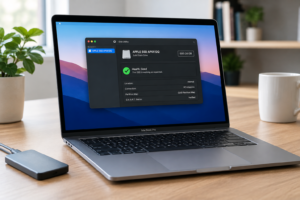
On a Mac, Disk Utility shows S.M.A.R.T. status right under the drive name in the sidebar. It only reports “Verified” or “Failing” rather than a percentage, but that binary answer is honestly more useful than a number you might misread anyway.
Manufacturer tools are worth using too, especially since they’re built around the specific SMART attributes their controllers report. Samsung Magician, WD Dashboard, and Crucial Storage Executive all read the same underlying data but present it with context specific to that drive’s design. If you’re running a Samsung drive, this pairs well with knowing how to check and upgrade Samsung SSD firmware, since outdated firmware can sometimes cause misleading health readings.
Which SMART and NVMe Fields Actually Matter

Not every SMART attribute is worth your attention. Focus on these:
- Percentage Used (NVMe attribute 0x05): This is the closest thing to a real health score on NVMe drives, calculated against the manufacturer’s rated endurance in terabytes written. It rises from 0 to 100, and once it crosses 100 it just means the drive has exceeded its warranted endurance, not that it’s about to die.
- Reallocated Sector Count: On SATA SSDs, this tracks cells the drive has retired because they failed. A few over years of use is normal. A number that’s climbing fast between checks is not.
- Media and Data Integrity Errors: This NVMe attribute flags actual data corruption events. Any non-zero value here deserves attention immediately.
- Available Spare: NVMe drives reserve spare blocks to replace worn ones. This starts at 100% and drops as spares get used. Most drives set a threshold (often 10%) where they’ll start throwing warnings.
- Power-On Hours and Total Bytes Written: These aren’t health scores themselves, but they give you context for whether other numbers make sense. A drive with 40,000 hours and heavy write totals showing some wear is expected. The same numbers on a six-month-old drive are not.
What the Health Percentage Actually Represents
Here’s where a lot of confusion comes from: there’s no universal standard for how “health” is calculated. Samsung Magician weighs Percentage Used and reallocated sectors differently than WD Dashboard does, and Crucial’s tool factors in temperature history in ways others don’t. A 90% reading on one brand’s software isn’t directly comparable to 90% on another’s.
This matters most if you’re comparing drives across brands, like deciding between a WD Black SN770 and an SN850X, or weighing WD Black against Samsung for your next build. Don’t assume the health percentages will mean the same thing between them. What matters more is the trend over time on the same drive using the same tool, not a single snapshot compared against a different brand’s scale.
Warning Signs That Justify Backing Up or Replacing

A health percentage in the 80s or even 70s isn’t automatically a reason to panic, especially on an older drive. What should get your attention:
- Percentage Used climbing rapidly over a short period rather than gradually over months
- Available Spare dropping below 50% or hitting the drive’s warning threshold
- Any Media and Data Integrity Errors showing up at all
- The drive disappearing from your system, even briefly, during use
- Noticeably slower read/write speeds compared to when the drive was new
If you see any of these, back up your data immediately and start planning a replacement. You can do this without losing any of your existing data or setup, and it’s a lot less stressful to do proactively than after a drive fails mid-transfer.
Frequently Asked Questions
Is a 90% health reading on an SSD something to worry about?
Not on its own. A drive with heavy daily use over several years dropping to 90% is normal wear, not a warning sign. Watch the trend rather than the single number, and only worry if it’s dropping quickly or paired with rising error counts.
Can a healthy SMART reading still miss a failing drive?
Yes. SMART data reflects wear and error counts the drive’s controller chooses to report, and some failure modes (like a firmware bug or sudden controller failure) don’t show up gradually in these numbers at all. That’s part of why regular backups matter more than trusting any single health metric.

James Kennedy is a writer and product researcher at Drives Hero with a background in IT administration and consulting. He has hands-on experience with storage, networking, and system performance, and regularly improves and optimizes his home networking setup.