New NVMe SSD Not Showing in Disk Management
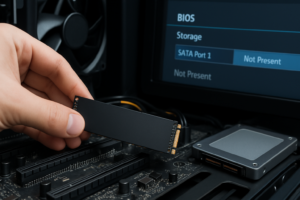
You just installed a shiny new NVMe drive, booted up your PC, and it’s nowhere to be found. Not in Disk Management, not in File Explorer, maybe not even in the BIOS. Before you assume the drive is dead, take a breath. This is one of the most common issues after an NVMe installation, and in most cases it comes down to a setting, a driver, or a simple initialization step rather than a faulty drive.
Step One: Figure Out Exactly Where the Drive Disappears
The fix depends entirely on where the drive stops showing up. Chasing the wrong solution wastes time and, in some cases, risks your data. Before doing anything else, check these four spots in order:
- Does it appear in the BIOS/UEFI boot menu or storage configuration screen?
- Does it appear in the Windows installer when you’re picking a drive to install to?
- Does it appear in Device Manager (under Disk drives)?
- Does it appear in Disk Management but not in File Explorer?
Write down which of these is true for your situation. That answer tells you exactly which section below applies to you, so you don’t waste time reinstalling drivers when the actual problem is a loose connection.
The Drive Doesn’t Show Up in BIOS/UEFI at All
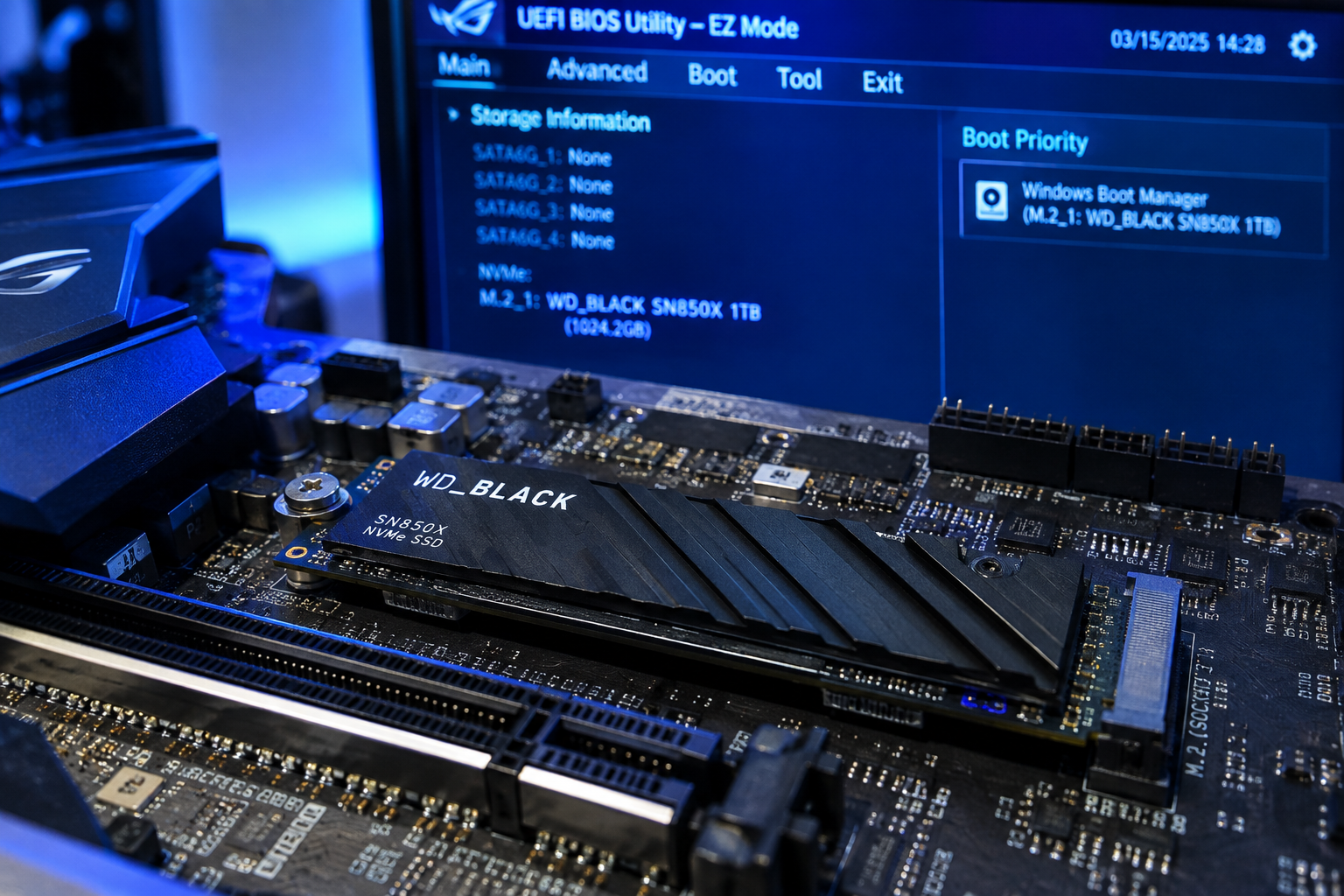
If your motherboard doesn’t detect the drive at the firmware level, nothing in Windows will fix it. This is a hardware or configuration problem, not a software one.
Start with the physical connection. Power down completely, unplug the system, and reseat the NVMe stick in its M.2 slot. Make sure the retention screw is actually tightened, since a drive that isn’t seated flush often won’t register at all.
Next, check slot sharing. Many consumer motherboards disable a SATA port or a second M.2 slot when you populate a specific M.2 slot with an NVMe drive. Check your motherboard manual for a block diagram showing which slots share bandwidth or lanes with other ports.
Also confirm you’re using an actual NVMe-capable M.2 slot. Some boards have M.2 slots that only support SATA-based M.2 drives, and an NVMe drive simply won’t initialize in them. If you’re unsure what you’re working with, this rundown on NVMe SSD vs Intel SSD differences is a good primer on drive types and compatibility.
Finally, update your BIOS. Older firmware versions on many boards shipped before certain NVMe controllers existed, so they genuinely can’t see newer drives until you flash an updated BIOS from the manufacturer’s site.
Visible in BIOS but Missing from the Windows Installer
If the drive shows up fine in BIOS but disappears the moment you try to install Windows onto it, the culprit is almost always drivers or storage mode.
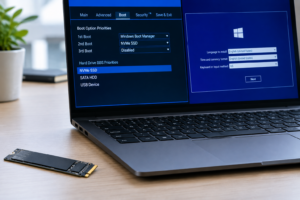
Check your SATA/storage mode setting in BIOS. If it’s set to RAID or Intel VMD (Volume Management Device) instead of AHCI, the Windows installer often can’t see NVMe drives without a specific driver loaded during setup. You have two options: switch the mode to AHCI if you don’t need RAID, or load the Intel RST (Rapid Storage Technology) or VMD driver manually during installation using a USB drive.
To load a driver mid-install, click “Load Driver” on the disk selection screen and point it to the extracted driver files on a USB stick. Intel’s website hosts the current VMD/RST driver packages for exactly this scenario.
If you’re building a new system from scratch and want a clearer sense of how NVMe fits into the bigger picture, this guide on what NVMe SSDs are actually used for covers the basics well.
Shows in Device Manager but Missing from Disk Management
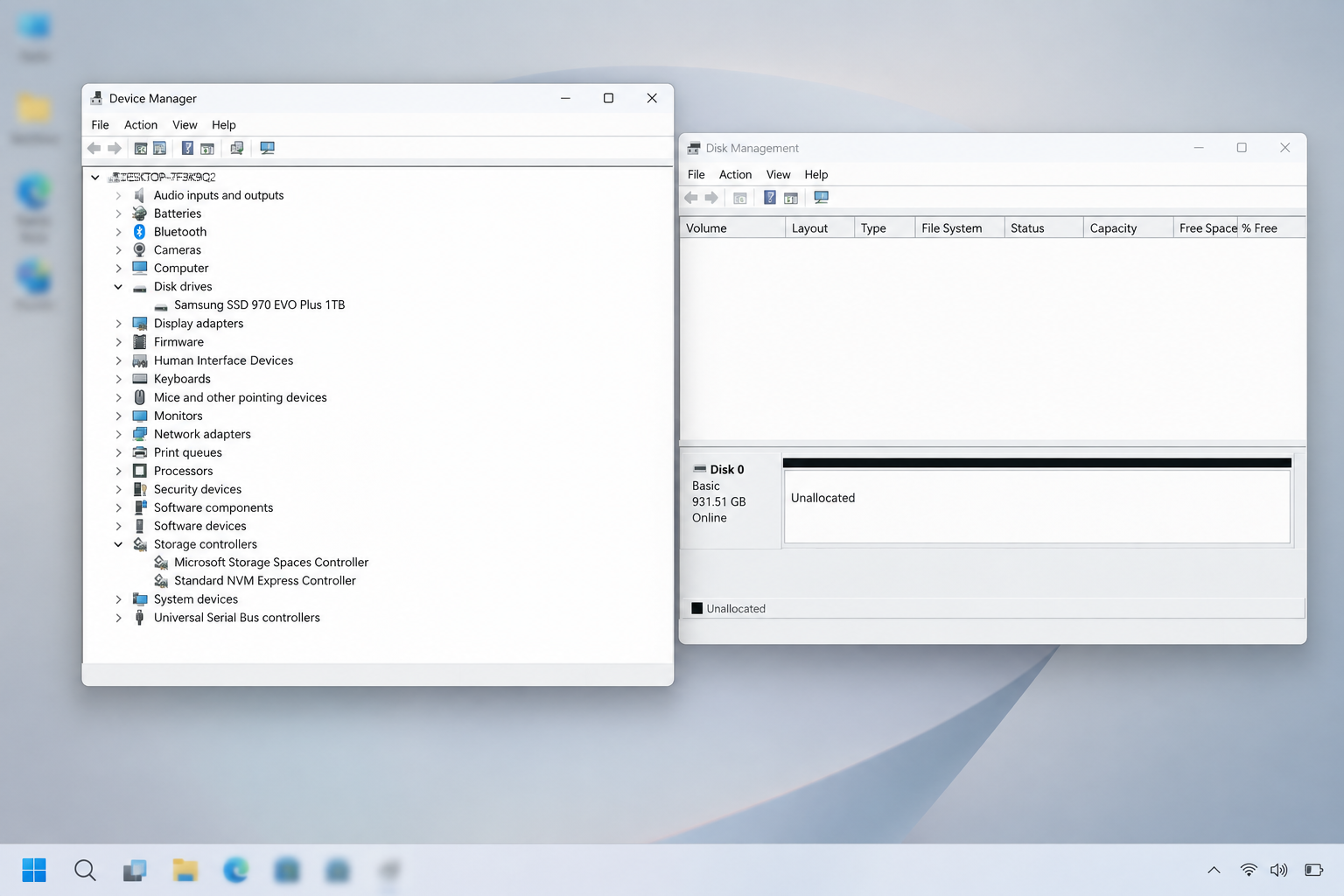
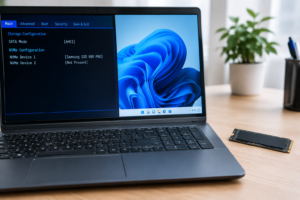
This is a less common but confusing scenario. If Windows recognizes the drive well enough to list it under Device Manager’s Disk drives category, but Disk Management shows nothing, you’re usually dealing with a driver conflict or a Windows storage service glitch.
Open Device Manager, right click the NVMe entry, and check its properties under the “Events” tab for errors. Try uninstalling the driver entirely (not the device, just the driver) and let Windows reinstall the generic Microsoft NVMe driver on reboot. Third party NVMe drivers, especially older Samsung NVMe or Intel drivers, sometimes cause this exact issue.
Restart the Virtual Disk service. Open Services (services.msc), find “Virtual Disk,” and restart it. Then reopen Disk Management. This sounds too simple to work, but it resolves the issue more often than people expect.
Shows in Disk Management but Not in File Explorer
This is the most common situation of all, and it’s also the easiest to fix. If your drive appears in Disk Management as “Unallocated” or shows no drive letter, Windows sees it but hasn’t set it up for use yet. New drives, even factory sealed ones, almost always need initialization before they’ll show up anywhere else.
Right click the disk (not the partition) on the left side in Disk Management and choose “Initialize Disk.” Pick GPT unless you have a specific reason to use MBR, since GPT supports larger drives and is the modern standard for anything running Windows 10 or 11 in UEFI mode.
After initializing, right click the unallocated space and choose “New Simple Volume.” Walk through the wizard to assign a drive letter and format it, typically as NTFS for a Windows data or boot drive.
Before formatting, repartitioning, or running any secure erase or clean command, double check you’re working on the new drive and not an existing one with data on it. Disk numbers can shift between reboots, and formatting the wrong disk is unrecoverable without backups.
If the drive already shows a partition but still isn’t in File Explorer, it may just be missing a drive letter. Right click the partition, choose “Change Drive Letter and Paths,” and assign one manually.
If you’re moving data over from an old drive as part of this upgrade, it’s worth reading through how to upgrade an SSD without losing data before you do any formatting, so you don’t accidentally wipe something you needed.
Special Case: External NVMe Enclosures
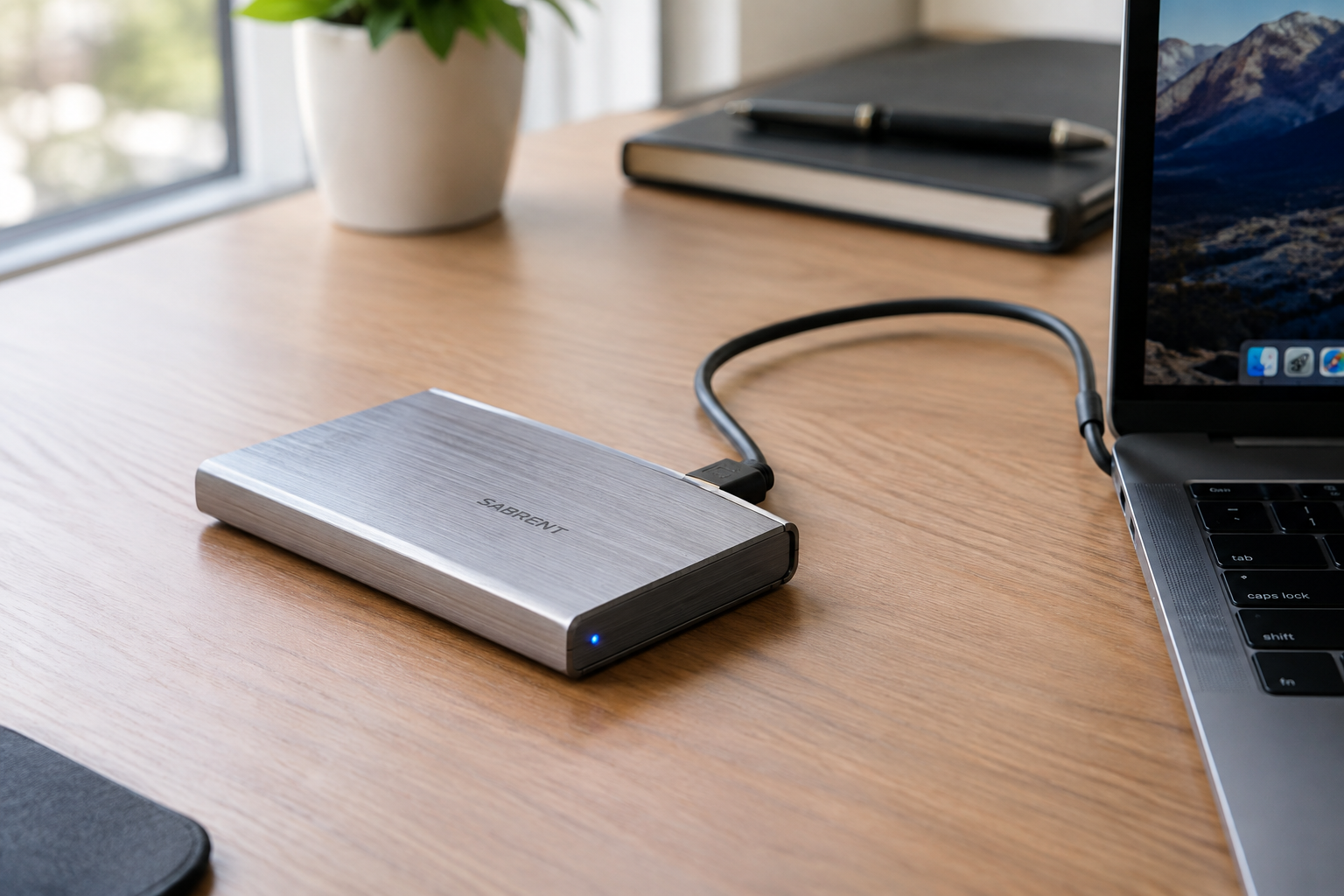
If your NVMe drive is sitting in a USB enclosure and not showing up at all, compatibility is the first thing to check. Not every enclosure supports every NVMe drive, particularly with larger capacity drives or ones using unusual controllers.
Try a different USB port, ideally a USB 3.1 Gen 2 or better port directly on the motherboard rather than through a front panel header or hub. Also test the enclosure with a different cable, since USB-C cables that only carry power and not data are a surprisingly common cause of this exact problem.
If you’re deciding between an internal upgrade and an external drive setup in general, this piece on whether an external SSD actually speeds up a laptop is a useful read before you commit to one route or the other.
Frequently Asked Questions
Why does my new NVMe SSD show up in BIOS but not in Disk Management?
This usually means the drive is brand new and hasn’t been initialized yet. Windows can see the hardware but has no partition table to display, so it just doesn’t show anywhere outside of Disk Management or Device Manager until you initialize it and create a volume.
Do I need special drivers for an NVMe drive to show up in Windows?
Most modern NVMe drives work fine with the generic Microsoft NVMe driver built into Windows 10 and 11. The exception is systems running Intel RST or VMD mode, where you need to load a specific driver during installation or the drive won’t appear as an install target at all.
Is it safe to initialize a new NVMe SSD, or could that damage it?
Initializing a drive is completely safe and is a required step for any new, blank drive. It only writes a partition table, not user data, so there’s nothing to lose on a drive that’s currently unallocated. Just make sure you’re selecting the correct disk number before proceeding, especially if you have multiple drives installed.

James Kennedy is a writer and product researcher at Drives Hero with a background in IT administration and consulting. He has hands-on experience with storage, networking, and system performance, and regularly improves and optimizes his home networking setup.