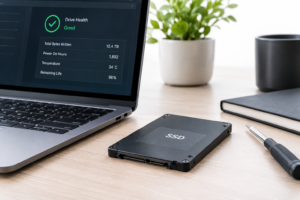
Is 80% SSD Health Good?
You check your drive’s health status and see 80%. Your first instinct is probably to panic a little, maybe start Googling “SSD dying signs” at 11pm. But that single number doesn’t tell you nearly as much as you think, and treating it like a countdown timer to failure is where most people go wrong.
SSD health percentages are a rough summary of wear indicators, not a direct measurement of remaining lifespan. An 80% reading can mean your drive is perfectly fine for years to come, or it can be a sign that something specific needs your attention. The difference comes down to which fields are driving that number and how your drive’s manufacturer calculates it.
What That Percentage Actually Represents
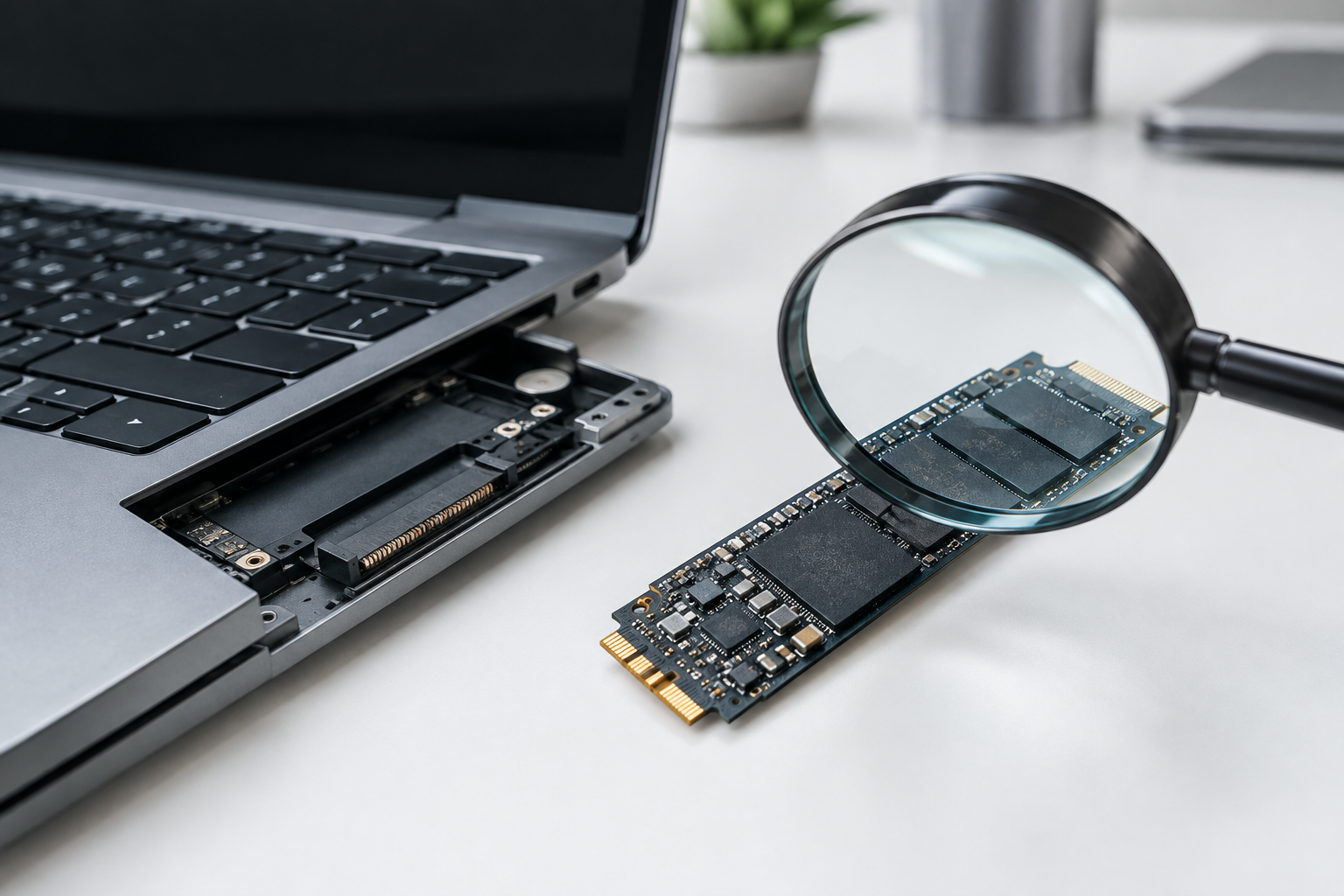
SSD health monitoring tools pull data from SMART attributes (on SATA drives) or NVMe log data (on NVMe drives) and convert it into a simplified score. The problem is that “health” isn’t one measurement. It’s a blend of several underlying values, and different tools weigh them differently.
The two attributes that matter most are:
- Percentage Used (NVMe attribute): This tracks how much of the drive’s rated endurance has been consumed, based on total bytes written compared to the manufacturer’s warranty rating. A value of 20% used roughly corresponds to the “80% health” you’re seeing.
- Media Wearout Indicator / Wear Leveling Count (SATA SMART): Similar concept, but expressed as remaining life instead of used life. It starts at 100 and counts down as flash cells wear out.
Both of these are tied to write endurance, meaning how many total gigabytes have been written to the NAND flash relative to what the manufacturer guarantees. They are not measuring bad sectors, controller errors, or actual failure risk directly. A drive can sit at 80% health and still have zero errors, because wear and errors are two separate stories.
Is 80% Health Actually Normal?
In most cases, yes. If you’ve had a drive for two or three years of regular use, dropping to 80% used life is completely expected and not a red flag on its own. Consumer SSDs are rated in TBW (terabytes written), often somewhere between 150TB and 600TB depending on capacity and NAND type, and reaching 20% of that rating just means you’re a fraction of the way through the drive’s intended lifespan.
Context matters a lot here. An 80% reading on a drive that’s five years old and has been used for heavy video editing or as a swap-heavy work drive is a very different situation than the same number appearing after only six months. The first is normal wear. The second deserves a closer look, because something unusual is consuming write cycles faster than expected, like excessive swap usage, a misconfigured cache, or a firmware bug.
If you’re not sure how much wear is reasonable for your setup, it helps to understand how heavily your system writes to the drive in the first place. Laptops running constant background sync tools, VMs, or torrent clients tend to burn through endurance faster than a typical home office machine, which is worth keeping in mind if you’re deciding how important your SSD choice really is for your specific workload.
Warning Signs That Matter More Than the Percentage

A wear percentage alone rarely predicts sudden failure. What actually signals trouble is a combination of specific SMART/NVMe attributes moving in the wrong direction. Pay attention to these instead of fixating on the single health score:
- Reallocated Sector Count or Reallocated Event Count rising: This means the drive is actively retiring bad flash blocks. Any nonzero and increasing value here is worth watching closely.
- Uncorrectable Error Count: Errors the drive’s controller couldn’t fix internally. Even a small number showing up alongside a mid-range health score is more concerning than an 80% reading with zero errors.
- Critical Warning flag (NVMe): This is a direct alert from the drive itself, separate from the wear percentage, and should never be ignored.
- Available Spare dropping below threshold: NVMe drives keep a pool of spare blocks in reserve. If this spare pool is shrinking fast, that’s a clearer failure signal than percentage used.
- Sudden read/write slowdowns: Not a SMART value, but a real-world symptom. A drive that used to feel snappy and now stutters during file transfers is telling you something the health percentage might miss entirely.
If any of these show up alongside your 80% reading, treat it as the priority, not the round number.
Manufacturer Tools Calculate Health Differently
This is where a lot of confusion comes from. Samsung Magician, WD Dashboard, Crucial Storage Executive, and third-party tools like CrystalDiskInfo don’t all use the same formula to arrive at their health percentage.
Samsung Magician tends to base its number closely on Percentage Used from the NVMe log, so 80% health usually lines up cleanly with 20% of rated TBW consumed. WD and SanDisk tools sometimes fold in additional factors like temperature history and power-on hours, which can make the number swing a bit even without heavy write activity. CrystalDiskInfo, meanwhile, often just relays the raw manufacturer-reported value without much interpretation, which is why it’s a good second opinion tool if your first reading looks alarming.
Because of this, an 80% score from one brand’s software isn’t directly comparable to 80% from another. If you’re troubleshooting a specific drive, it’s worth checking both the manufacturer’s own utility and a neutral tool to see if they agree before drawing conclusions. This matters even more if you’re comparing NVMe drives against older SATA models, since the underlying reporting standards differ quite a bit, something covered in more detail in our NVMe SSD vs Intel SSD comparison.
When to Back Up and When to Replace
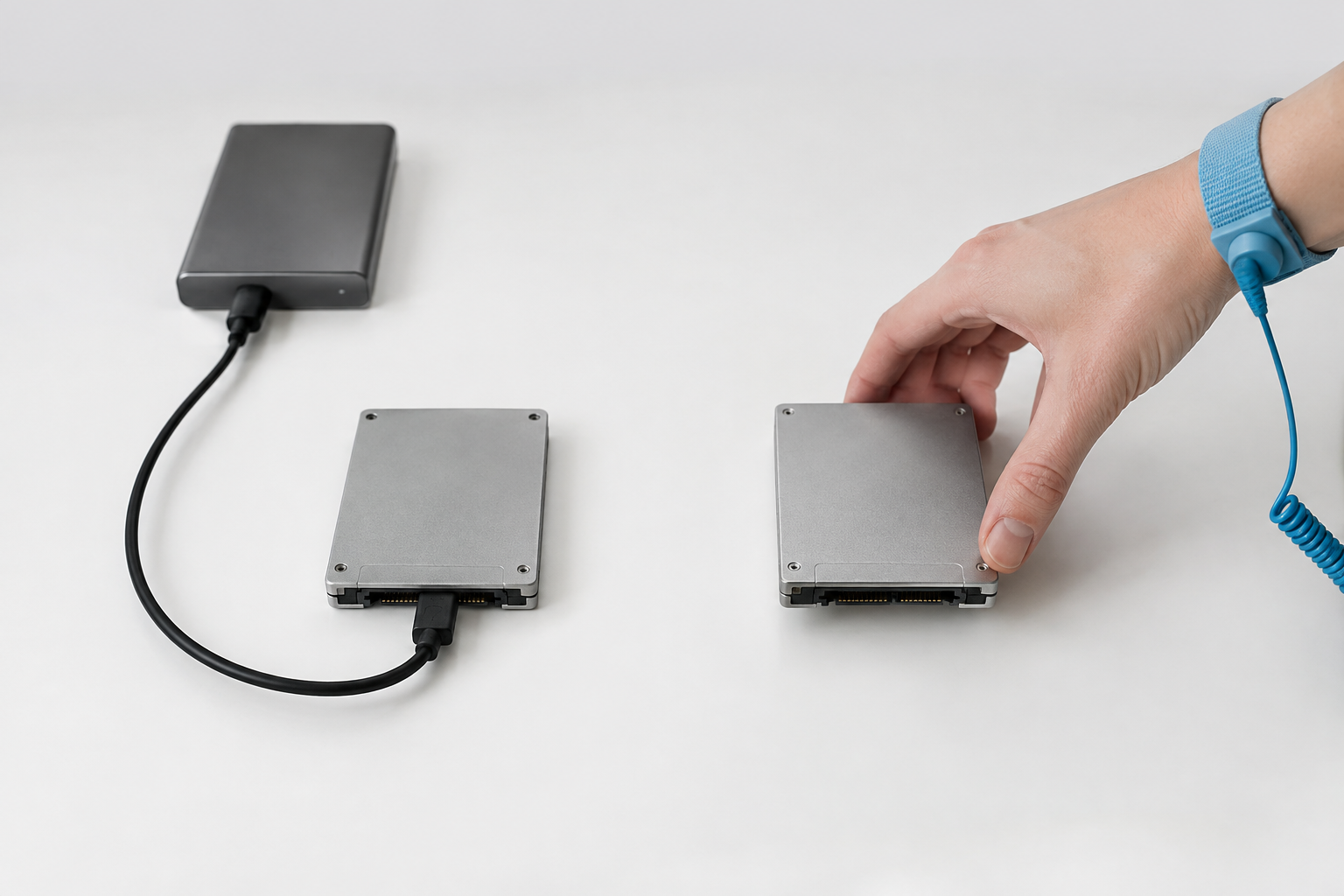
Backing up your data costs you nothing but a little time, so there’s no reason to wait for a scary number before doing it. A good rule is to keep an active backup running continuously once a drive passes the halfway point of its rated endurance, regardless of how healthy it still looks.
Replacement is a different decision, and it should be driven by symptoms, not round numbers. Consider swapping the drive if you see climbing reallocated sectors, a critical warning flag, noticeably slower performance, or repeated read errors during file transfers. An 80% health score by itself, with no other warning signs, is not a reason to replace a working drive.
If you do decide it’s time to upgrade, moving your data over doesn’t have to mean reinstalling your OS from scratch. Cloning tools can move everything to a new drive while preserving your setup, and we’ve got a full walkthrough on how to upgrade your SSD without losing data if you go that route. For anyone running out of space rather than dealing with wear, the same general process applies, and our guide on upgrading to a larger SSD covers the capacity side of things.
Frequently Asked Questions
Does 80% SSD health mean my drive is failing?
No. It typically means you’ve used about 20% of the drive’s rated write endurance, which is normal for a drive that’s been in use for a while. Failure risk depends more on error counts and warning flags than on the wear percentage alone.
How long will an SSD last at 80% health?
There’s no fixed timeline, since it depends on how much data you continue writing to the drive. A drive used for light browsing and document work could stay usable for several more years at that wear level, while a heavily written drive might reach lower percentages faster.
Should I trust the health percentage shown by my SSD’s software?
It’s a useful starting point, but not the full picture. Cross-check it with a tool like CrystalDiskInfo and look at specific attributes like reallocated sectors and critical warnings before making any decisions about backing up or replacing the drive.

James Kennedy is a writer and product researcher at Drives Hero with a background in IT administration and consulting. He has hands-on experience with storage, networking, and system performance, and regularly improves and optimizes his home networking setup.