External SSD Slow on Windows 11
You plugged in a brand new external SSD, expected blazing speeds, and instead you’re watching a file transfer crawl along at 100MB/s or less. Windows 11 isn’t lying to you, and your drive probably isn’t defective either. Most “slow external SSD” complaints trace back to one weak link in a chain of seven or eight components, and figuring out which link is broken is a lot easier than most people assume.
This guide walks through every part of that chain, from the NAND inside the enclosure to the port you plugged it into, so you can stop guessing and actually fix the bottleneck.
Start With Realistic Speed Expectations
A lot of frustration comes from comparing real-world transfer speeds to theoretical link speeds, and those two numbers are never the same thing. USB 3.2 Gen 2 is rated at 10Gbps, but that’s the raw signaling rate, not what you’ll see in File Explorer. Once you account for protocol overhead, controller efficiency, and filesystem behavior, real-world numbers look more like this:
- USB 3.2 Gen 1 (5Gbps): realistically 400 to 480MB/s
- USB 3.2 Gen 2 (10Gbps): realistically 850 to 1000MB/s
- USB 3.2 Gen 2×2 (20Gbps): realistically 1700 to 1900MB/s, and only with a bridge chip that actually supports it
- Thunderbolt 3/4 (40Gbps): realistically 2400 to 2800MB/s with a proper NVMe drive inside
If you’re seeing 100 to 130MB/s on a drive rated for 10Gbps, something in the chain is limiting you to USB 2.0 speeds or SATA-level throughput. That’s the gap this article is meant to help you close.
The Drive Inside the Enclosure Matters More Than the Enclosure’s Rating
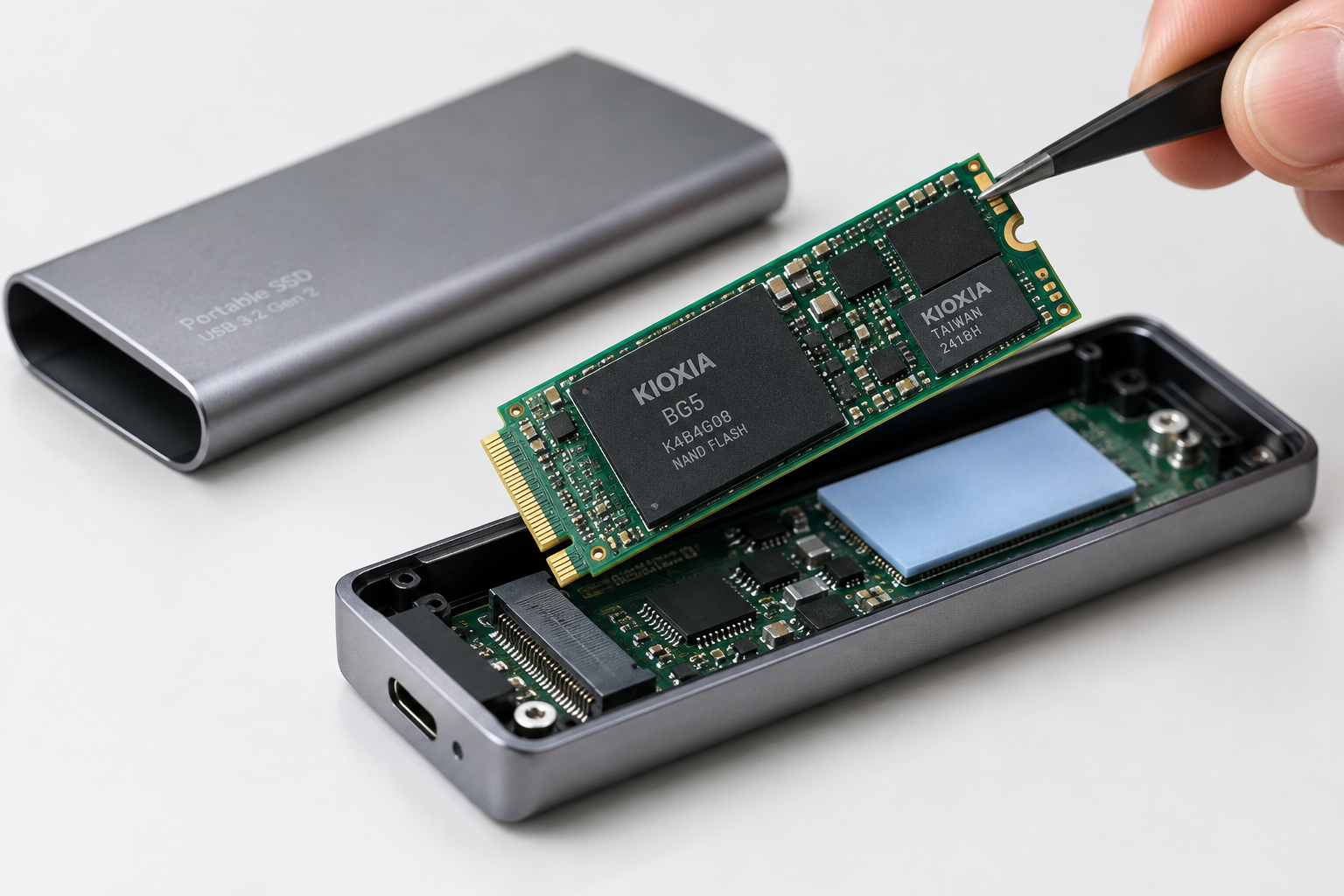
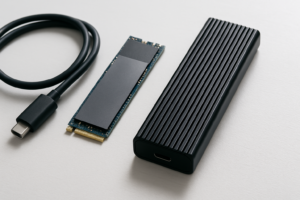
The single biggest mistake people make is assuming any M.2 SSD works the same in any M.2 enclosure. It doesn’t. There are two completely different types of M.2 drives, and the form factor alone tells you nothing about which one you have.
SATA M.2 vs NVMe M.2: Know the Difference
A SATA M.2 SSD uses the same physical connector as an NVMe M.2 SSD, but it communicates over the SATA protocol, which caps out around 550MB/s no matter what enclosure you put it in. NVMe M.2 drives use the PCIe bus instead, and depending on the generation (PCIe 3.0, 4.0, or 5.0), they can push anywhere from 2000MB/s to over 10,000MB/s.
Here’s where people get burned: some enclosures only support NVMe, some only support SATA M.2 (often called “B+M key” or “B key” slots), and a few support both. If you drop a SATA M.2 drive into an NVMe-only enclosure, it simply won’t work at all. If you drop an NVMe drive into a SATA-only enclosure, it also won’t work, because the electrical interface is different even though the slot looks identical.
Before buying an enclosure, check the listing for explicit mention of “NVMe” or “PCIe” support versus “SATA” support. This single detail causes more return requests than any other enclosure spec. If you’re trying to understand the broader performance gap between these two drive types, our breakdown of NVMe SSD vs Intel SSD and our comparison of 512GB NVMe SSD vs 512GB SSD both cover this in more detail.
The Enclosure’s Bridge Chip Is Often the Real Bottleneck
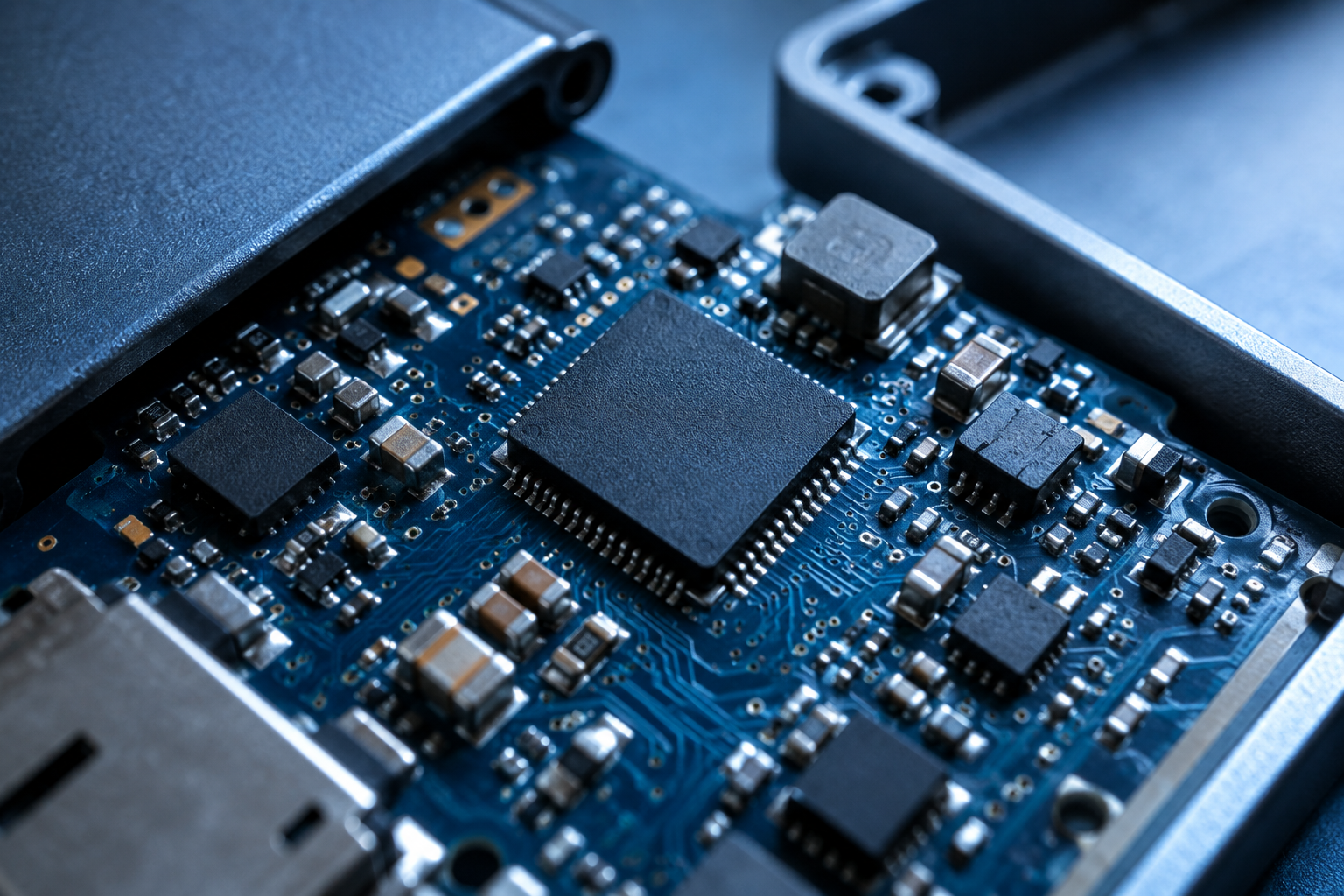
Every external SSD enclosure has a small controller chip, sometimes called a bridge chip, that translates between the drive’s native protocol (NVMe or SATA) and the external connection standard (USB or Thunderbolt). Cheap enclosures often use older or lower-tier bridge chips that can’t keep up with a fast NVMe drive even when the cable and port are capable of full speed.
ASMedia and JMicron are the two most common bridge chip makers, and quality varies a lot between models. A budget enclosure with an underpowered bridge chip will cap a 7000MB/s NVMe drive at 400 or 500MB/s, essentially wasting most of what you paid for in the drive itself. This is why two enclosures that look nearly identical can perform completely differently.
Sabrent USB 3.2 NVMe Enclosure
A well-reviewed enclosure with a reliable bridge chip that doesn’t bottleneck fast NVMe drives.
If your enclosure is more than a couple of years old, it’s also worth checking whether the manufacturer released firmware updates for the bridge chip. Firmware bugs on early USB 3.2 Gen 2×2 and Thunderbolt bridge chips were common, and updates sometimes recover a meaningful chunk of lost throughput.
USB Standard, Host Port, and Cable: The Three-Way Handshake
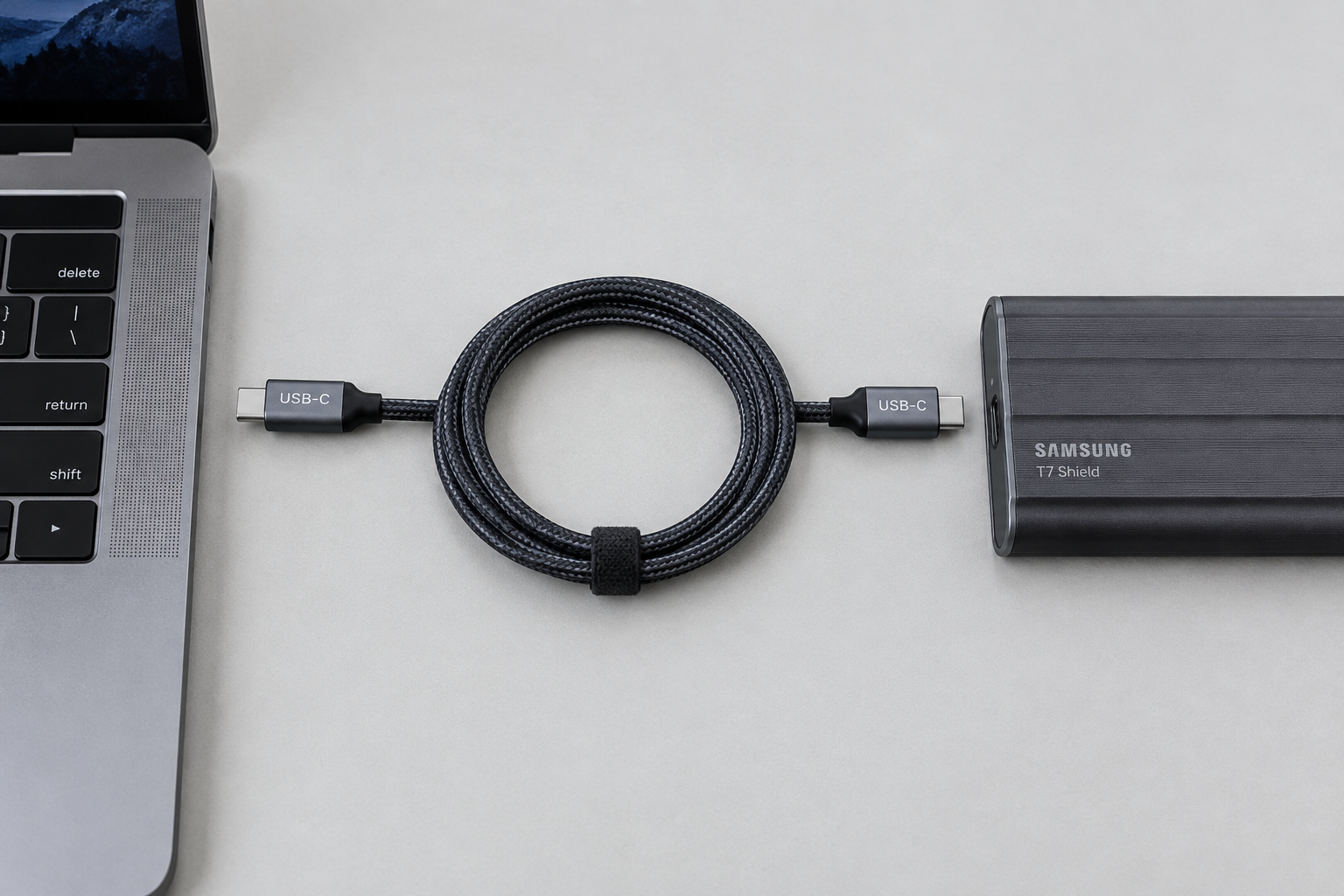
Even with a fast drive and a fast enclosure, the connection only runs as fast as the weakest of three things: the enclosure’s USB standard, the port you plug into on your PC, and the cable between them.
Check What Port You’re Actually Using
Windows 11 laptops and desktops often mix port generations on the same machine. It’s common to have one USB4 or Thunderbolt port next to several USB 3.2 Gen 1 ports that look physically identical. Open Device Manager, find your external drive under Disk Drives, then check its properties under the “Hardware” or “Events” tab to confirm what generation controller it’s actually connected to.
Cables Are Not Interchangeable
This is the most overlooked cause of slow external SSDs. A USB-C cable that came with your phone charger looks identical to a proper 10Gbps data cable, but it may only be rated for USB 2.0 data speeds even though it charges fine. Always use the cable that shipped with the enclosure, and if you’ve lost it, buy a cable explicitly rated for the speed you need.
For most external SSDs, you want a cable clearly labeled for USB-C 10Gbps or 20Gbps data transfer, not just fast charging. Cable length matters too. Anything longer than about a meter at 10Gbps or 20Gbps starts to risk signal degradation unless it’s actively shielded or uses a certified chip inside the connector.
Anker USB-C 10Gbps Cable
Certified for full 10Gbps data transfer, not just charging, which avoids the most common cable mistake.
Thermals, File Size, and Filesystem Overhead
Once the hardware chain checks out, a few software and physical factors still shape real-world speed.
Thermal Throttling in Small Enclosures
NVMe drives generate real heat under sustained load, and a lot of pocket-sized aluminum or plastic enclosures have no real airflow. During a large transfer, you might see strong speeds for the first 20 to 30GB, then a sharp drop as the controller throttles to avoid overheating. If you regularly move huge video files, look for enclosures with a metal body and a large surface area, or ones that explicitly mention thermal pads inside.
File Size and Type Change Everything
Copying one 50GB video file will get you close to the drive’s rated sequential speed. Copying 50,000 small files, like a photo library or a project folder full of source code, invokes random read/write performance instead, which is dramatically slower on every SSD, external or internal. If your transfer feels slow, check whether you’re moving many small files rather than a few large ones before you blame the hardware.
Filesystem Choice Matters More Than People Think
exFAT is the default cross-platform choice for external drives, but it isn’t always the fastest option in Windows 11, and it lacks journaling, which raises corruption risk after an unsafe removal. NTFS is generally slightly faster on Windows and adds journaling protection. If you never plan to use the drive on a Mac, reformatting to NTFS is a reasonable move. If cross-platform use matters, exFAT remains the practical choice despite the small speed tradeoff.
It’s also worth remembering that not all internal drives handle sustained writes the same way once you get past the SSD controller’s cache, which is a factor we cover in more depth in our SATA vs NVMe SSD gaming comparison and our look at whether NVMe is really faster than SATA SSDs.
A Quick Diagnostic Checklist
- Confirm whether the internal drive is SATA M.2 or NVMe M.2, and match it to what the enclosure actually supports
- Check Device Manager to confirm which port generation the drive is connected through
- Swap the cable for one explicitly rated for 10Gbps or 20Gbps
- Run a sustained large-file transfer to check for thermal throttling partway through
- Test with a single large file versus a folder of small files to isolate random vs sequential performance
- Check the enclosure manufacturer’s site for bridge chip firmware updates
Working through this list in order usually isolates the bottleneck within fifteen minutes. If you’re building a new external setup from scratch rather than troubleshooting an existing one, it’s also worth reading up on whether an external SSD will actually make your laptop faster before you buy anything.
Frequently Asked Questions
Why is my external SSD only getting USB 2.0 speeds?
This almost always means either the cable isn’t rated for USB 3.x data speeds, or you’ve plugged into a USB 2.0 port or hub. Check Device Manager under the drive’s properties to confirm the negotiated link speed, and try a different port and cable before assuming the drive itself is faulty.
Does Windows 11 slow down external SSDs compared to Windows 10?
No, the operating system itself isn’t the cause. Some users notice slowdowns after upgrading because Windows 11 changed default power settings on certain USB controllers, which can be adjusted in Device Manager under the port’s power management tab, but this is a configuration issue rather than a built-in limitation.
Can a bad power setting really cause slow transfer speeds?
Yes. Windows 11’s USB selective suspend feature can put ports into a low-power state between transfers, and on some laptops this interacts poorly with bus-powered SSD enclosures, causing intermittent slowdowns or drops. Disabling USB selective suspend for testing purposes, found under Control Panel’s power options, is a quick way to rule this out.
This article contains affiliate links. We may earn a small commission at no extra cost to you.

James Kennedy is a writer and product researcher at Drives Hero with a background in IT administration and consulting. He has hands-on experience with storage, networking, and system performance, and regularly improves and optimizes his home networking setup.