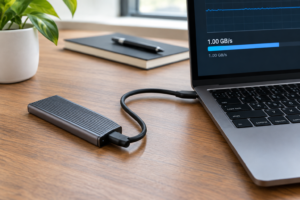
M.2 SATA SSD in an NVMe Enclosure: Will It Work?
You bought an NVMe enclosure, slotted in your M.2 SATA SSD, and now you’re staring at a drive that either won’t mount, shows up as the wrong capacity, or transfers files at speeds that feel suspiciously like a USB flash drive from 2012. You’re not imagining things. M.2 is a physical connector shape, not a guarantee that your drive and enclosure speak the same language.
This mix-up trips up a lot of people because M.2 SATA and M.2 NVMe drives look nearly identical. Before you assume your drive is defective or your enclosure is junk, let’s walk through where the real bottleneck usually hides.
Why M.2 SATA and M.2 NVMe Are Not Interchangeable
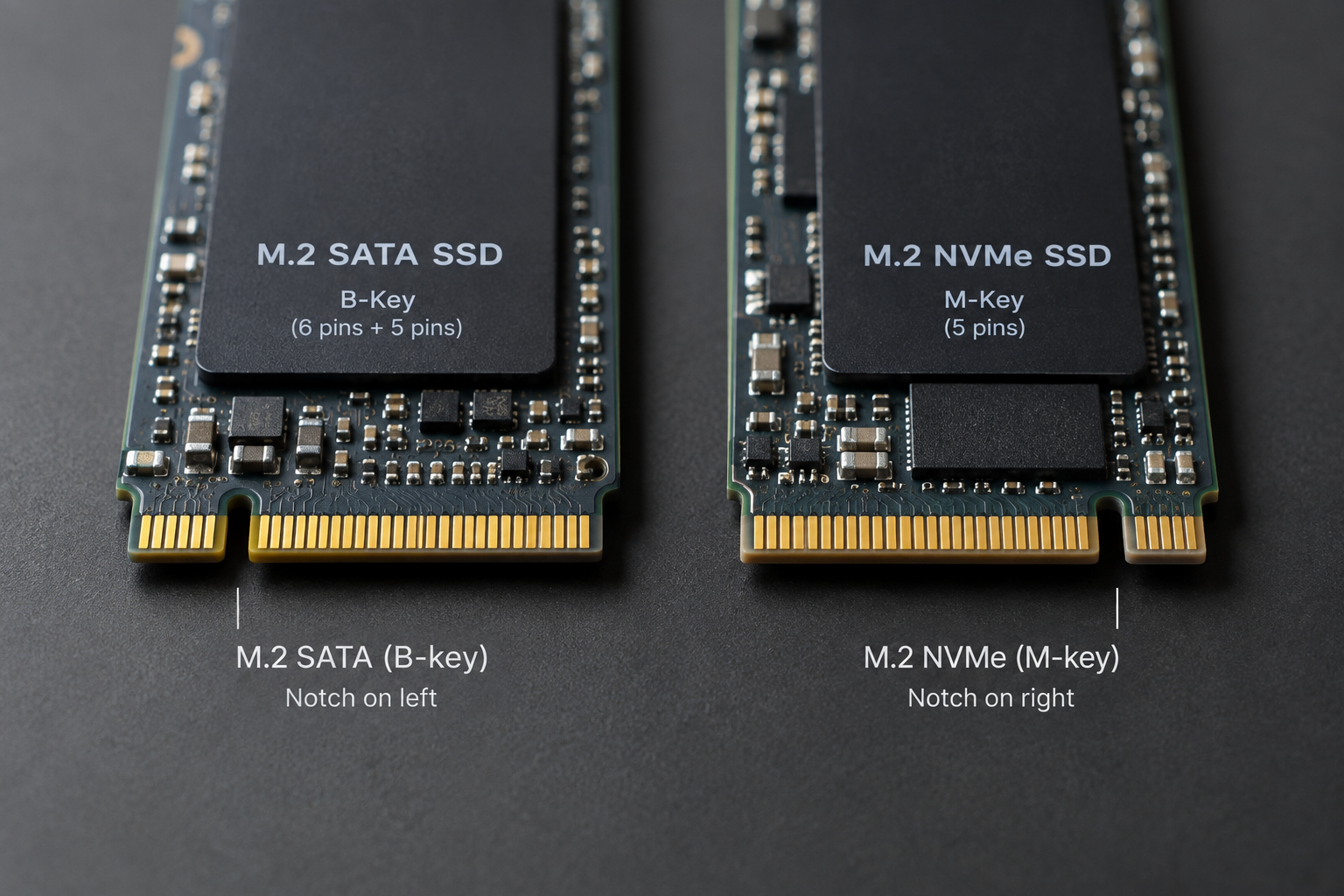
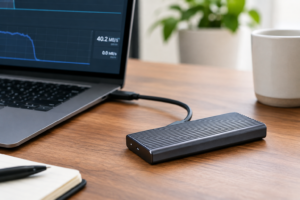
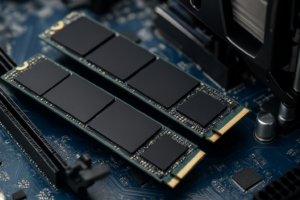
M.2 is just a slot shape. What actually determines compatibility is the protocol the drive uses to talk to the controller, and that’s either SATA or NVMe (which runs over PCIe). An M.2 NVMe enclosure has a bridge chip built specifically to translate PCIe/NVMe signaling into USB or Thunderbolt. If you drop a SATA-protocol M.2 drive into that same enclosure, the controller has no idea what to do with it, because it’s expecting PCIe lanes, not a SATA data line.
Some enclosures are dual-protocol and explicitly support both M.2 SATA and M.2 NVMe drives. These use a controller chip (often from JMicron, ASMedia, or Realtek) that can detect and bridge either protocol. But plenty of “M.2 enclosures” sold online only support NVMe, and the product listing doesn’t always make that obvious. Always check the key notch position on your drive (B-key, M-key, or B+M key) and cross-reference it with what the enclosure explicitly lists as supported.
If you’re unsure which type of SSD you’re even holding, it helps to first understand the broader differences covered in Is NVMe Really Faster Than SSDs?, since the protocol distinction matters more than the connector shape.
Sabrent USB 3.2 M.2 SATA Enclosure
A dedicated M.2 SATA enclosure avoids the protocol mismatch problem entirely instead of gambling on dual-protocol support.
Finding the Actual Bottleneck
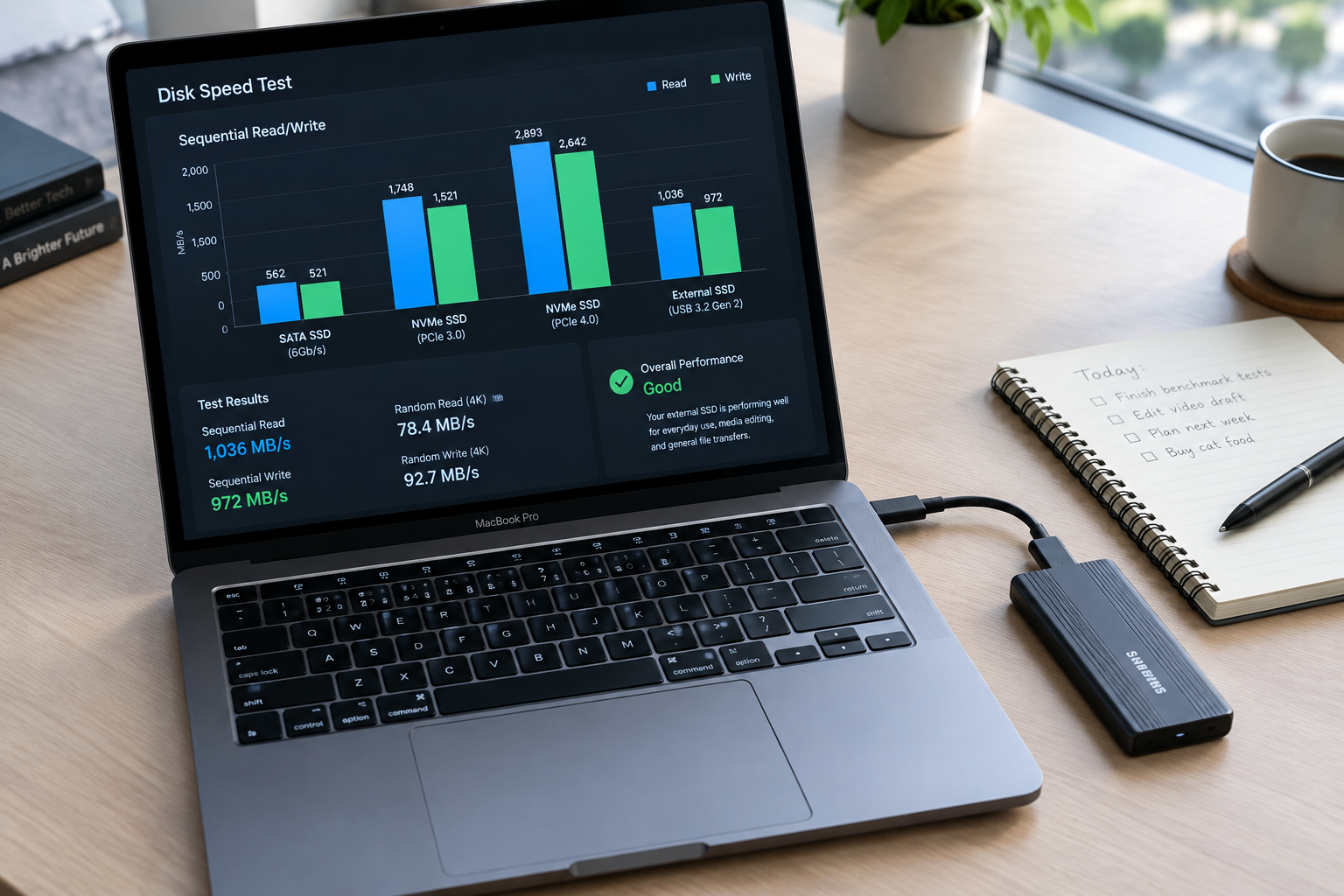
Assuming you do have a dual-protocol enclosure and the drive mounts fine, the next question is why your speeds don’t match the number printed on the box. Several things stack up here, and it’s rarely just one culprit.
- The drive itself: M.2 SATA SSDs are capped around 550 MB/s read and write, full stop, because that’s the SATA III ceiling. No enclosure or cable changes that.
- The bridge controller: Cheap USB-SATA bridge chips introduce overhead. Realistically, expect 400 to 480 MB/s sustained on a good controller, even though the drive theoretically supports 550 MB/s.
- The USB standard: USB 3.2 Gen 1 (5Gbps) tops out around 500 MB/s, USB 3.2 Gen 2 (10Gbps) up to about 900 MB/s, but you only benefit from Gen 2 speeds if you’re using it with an NVMe drive, since a SATA SSD can’t fill that pipe anyway.
- The host port and cable: Plugging a USB 3.2 enclosure into a USB 2.0 port (common on older monitors, hubs, or keyboards) silently throttles you down to around 40 MB/s. Always check the cable too. A cheap or damaged cable rated below USB 3.0 will bottleneck a fast enclosure.
- Thermals: M.2 NVMe drives running in cramped enclosures can throttle under sustained writes. This matters less for SATA drives since they run cooler, but it’s still worth avoiding enclosures with zero ventilation.
- File size and filesystem: Copying thousands of small files tanks throughput compared to one large file, regardless of drive type. exFAT and NTFS also carry different overhead, and a poorly formatted filesystem can shave off real-world speed even when the hardware is capable.
Realistically, if you’re getting 350 to 450 MB/s out of an M.2 SATA SSD in a decent USB 3.0/3.1 enclosure, that’s normal and close to the practical ceiling. If you’re seeing numbers under 100 MB/s, the problem is almost always the port, cable, or a protocol mismatch, not the drive.
Picking the Right Enclosure for Your Drive
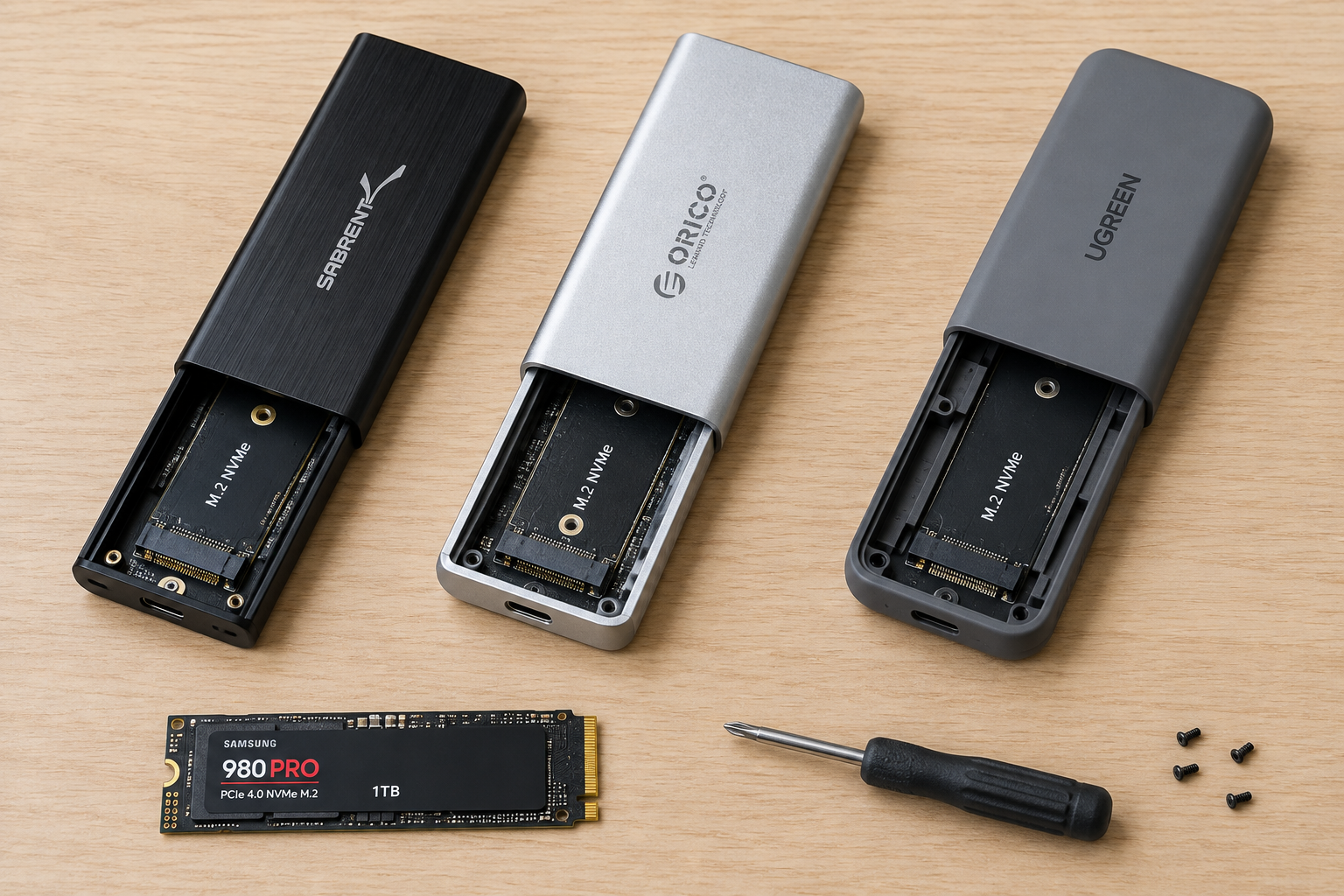
If you already own an M.2 SATA drive and want zero compatibility headaches, buy an enclosure that specifically states SATA support, not just “M.2 compatible.” Search listings for dual-protocol or SATA/NVMe combo enclosures, since the wording matters more than the price tag here.
ORICO Dual Protocol M.2 NVMe SATA Enclosure
Explicitly supports both M.2 SATA and NVMe drives, which removes the guesswork most buyers run into.
If you’re building out an external drive for the first time and haven’t picked your SSD yet, it’s worth comparing what you’d actually gain from NVMe versus SATA in 512GB NVMe SSD vs 512GB SSD. For most portable, external-drive use cases where you’re bottlenecked by USB anyway, a SATA M.2 drive paired with a proper enclosure like Samsung 870 EVO M.2 is often the more economical choice, since you won’t see NVMe’s full speed advantage over a slower USB link regardless.
And if you’re wondering whether swapping in a faster external drive actually speeds up your laptop’s day-to-day performance, that’s a separate question worth reading about in Will External SSD Make Laptop Faster.
Frequently Asked Questions
Can I tell if my M.2 drive is SATA or NVMe just by looking at it?
Sometimes, but not reliably. Check the notch on the connector edge: B-key only usually means SATA, M-key only usually means NVMe, and B+M key (a notch on both sides) can be either, so you need to check the model number against the manufacturer’s spec sheet to be sure.
Will a dual-protocol enclosure slow down my NVMe drive to match SATA speeds?
No. A properly designed dual-protocol enclosure detects which protocol the installed drive uses and switches its bridge accordingly. Your NVMe drive will still run at NVMe speeds (limited by the USB or Thunderbolt link), and a SATA drive will run at SATA speeds. The enclosure doesn’t force both drive types down to the lowest common speed.
This article contains affiliate links. We may earn a small commission at no extra cost to you.

James Kennedy is a writer and product researcher at Drives Hero with a background in IT administration and consulting. He has hands-on experience with storage, networking, and system performance, and regularly improves and optimizes his home networking setup.