USB-C Speed Chart: 5 Gbps vs 10 Gbps vs 20 Gbps vs 40 Gbps
Shop for an external SSD or a new laptop dock and you’ll run into a wall of numbers: 5Gbps, 10Gbps, 20Gbps, 40Gbps, sometimes even USB4 and Thunderbolt labels slapped on the same port. They all use the same USB-C connector, which makes it easy to assume they all perform the same way. They don’t, and the gap between the fastest and slowest tier is bigger than most people realize.
This guide breaks down what each USB-C speed class actually means, how those theoretical numbers translate into real file transfer speeds, and why your external drive might never hit the number printed on the box. We’ll keep the math simple and stick to units that actually matter when you’re moving files.
USB-C Speed Chart: The Quick Reference
Before getting into the details, here’s the cheat sheet. These are the official USB-IF specifications, along with realistic sustained transfer speeds you can expect from a well-matched external SSD.
- USB 3.2 Gen 1 (5Gbps): Theoretical max 500 MB/s, realistic sustained speed 400 to 450 MB/s
- USB 3.2 Gen 2 (10Gbps): Theoretical max 1,000 MB/s (1 GB/s), realistic sustained speed 900 to 1,050 MB/s
- USB 3.2 Gen 2×2 (20Gbps): Theoretical max 2,000 MB/s (2 GB/s), realistic sustained speed 1,700 to 1,900 MB/s
- USB4 / Thunderbolt 3 / Thunderbolt 4 (40Gbps): Theoretical max 4,000 MB/s (4 GB/s), realistic sustained speed 2,800 to 3,800 MB/s depending on the SSD controller
Notice that “realistic” is always lower than “theoretical,” sometimes by a lot. That gap isn’t a defect. It’s just how data transfer actually works once you account for overhead and hardware limits, which we’ll get into next.
Why Gbps and MB/s Aren’t the Same Thing
This is where most confusion starts. USB speeds are marketed in gigabits per second (Gbps), but file sizes and transfer speeds on your computer are measured in megabytes per second (MB/s). One byte equals 8 bits, so the naive conversion is to divide the Gbps figure by 8.
Do that with 5Gbps and you get 625 MB/s. But the real-world ceiling is closer to 500 MB/s, not 625. The difference comes from encoding overhead built into the USB signaling protocol.
Older USB 3.2 Gen 1 and Gen 2 connections use 8b/10b encoding, which adds 2 bits of overhead for every 8 bits of actual data. That means only 80% of the raw signal carries usable information, immediately cutting your effective bandwidth by 20%. Newer 20Gbps and 40Gbps standards use more efficient 128b/132b encoding, which only loses about 3% to overhead, which is part of why those higher tiers scale so much better than a simple doubling would suggest.
On top of encoding loss, you lose additional throughput to protocol overhead, controller efficiency, and the physical limits of NAND flash memory itself. That last one matters more than people expect, since even a 40Gbps port can’t make a slow SSD faster than the SSD’s own hardware allows.
USB 3.2 Gen 1: The 5Gbps Baseline
This is the USB-C speed you’ll find on budget laptops, most desktop motherboard rear I/O, and entry-level external hard drives. It used to be called “USB 3.0” or “USB 3.1 Gen 1” before USB-IF renamed it, so don’t be surprised if you see all three names used interchangeably by manufacturers.
At 500 MB/s theoretical and roughly 400 to 450 MB/s in practice, this tier is fine for external hard drives and budget SATA-based external SSDs. It becomes a bottleneck the moment you pair it with a fast NVMe SSD, since even an entry-level NVMe drive can exceed 2,000 MB/s internally. If you’re building an external drive for backups or media storage rather than heavy production work, 5Gbps is still a reasonable and inexpensive choice.
USB 3.2 Gen 2: The 10Gbps Sweet Spot
10Gbps is where USB-C starts feeling genuinely fast. This tier doubles the raw bandwidth of 5Gbps and, thanks to similar encoding overhead, roughly doubles real-world throughput too, landing around 900 to 1,050 MB/s for a well-built external SSD.
This speed class is common on mid-range and premium laptops, most current external SSD enclosures, and many phones with USB-C ports. It’s fast enough to fully saturate a SATA SSD and comes close to matching a single-lane NVMe drive in real-world use. For anyone shopping for an external SSD for everyday backups, photo libraries, or game storage, 10Gbps hits the best balance of speed, cost, and compatibility.
If you’re trying to decide whether the drive itself matters as much as the port speed, it’s worth reading up on whether NVMe is really faster than SATA SSDs, since the interface is only half of the performance equation.
USB 3.2 Gen 2×2: The Underrated 20Gbps Tier
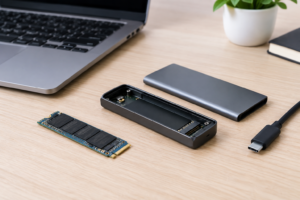
20Gbps USB-C is the least common tier despite being a solid performer. It requires a fully wired USB-C cable with all four high-speed lanes connected, which is why cheap cables often can’t deliver the full speed even when both the drive and the host port support it.
In practice, you’ll see sustained speeds of 1,700 to 1,900 MB/s on a good external NVMe enclosure. That’s enough to notice a real difference when moving large video files or game installs compared to 10Gbps. The catch is that fewer laptops and desktops actually include a 20Gbps port, so check your device’s exact spec sheet rather than assuming any USB-C port supports it.
USB4 and Thunderbolt: The 40Gbps Tier
This is the fastest tier available over a USB-C connector, and it covers three closely related standards: Thunderbolt 3, Thunderbolt 4, and USB4. All three share the same 40Gbps signaling rate, though Thunderbolt adds a few extra guarantees around PCIe bandwidth allocation and certification requirements that USB4 alone doesn’t always mandate.
Real-world throughput on this tier depends heavily on the SSD controller inside the enclosure, since 4,000 MB/s theoretical bandwidth is more than most single NVMe drives can actually deliver on their own. Expect sustained speeds in the 2,800 to 3,800 MB/s range from a well-matched enclosure and drive, with the fastest dual-drive RAID enclosures pushing closer to the theoretical ceiling.
This is the tier you want if you’re editing 4K or 8K video directly off an external drive, running a bootable external SSD for a laptop with limited internal storage, or doing any workload where an external SSD needs to genuinely feel as fast as an internal one. Anything slower and you’ll notice the bottleneck during large exports or transfers.
Why Your SSD Matters as Much as the Port
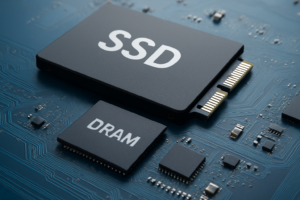
A 40Gbps port doesn’t guarantee 40Gbps performance. The SSD controller and NAND flash inside your external drive have their own ceiling, and cheap DRAM-less controllers often can’t sustain high speeds for large transfers even when connected through a fast port.
This is the same principle that applies to internal storage decisions. If you’re weighing whether an upgrade will actually make a difference, the same logic used to evaluate how much your SSD choice affects overall laptop performance applies here: the interface sets the ceiling, but the drive determines whether you actually get close to it.
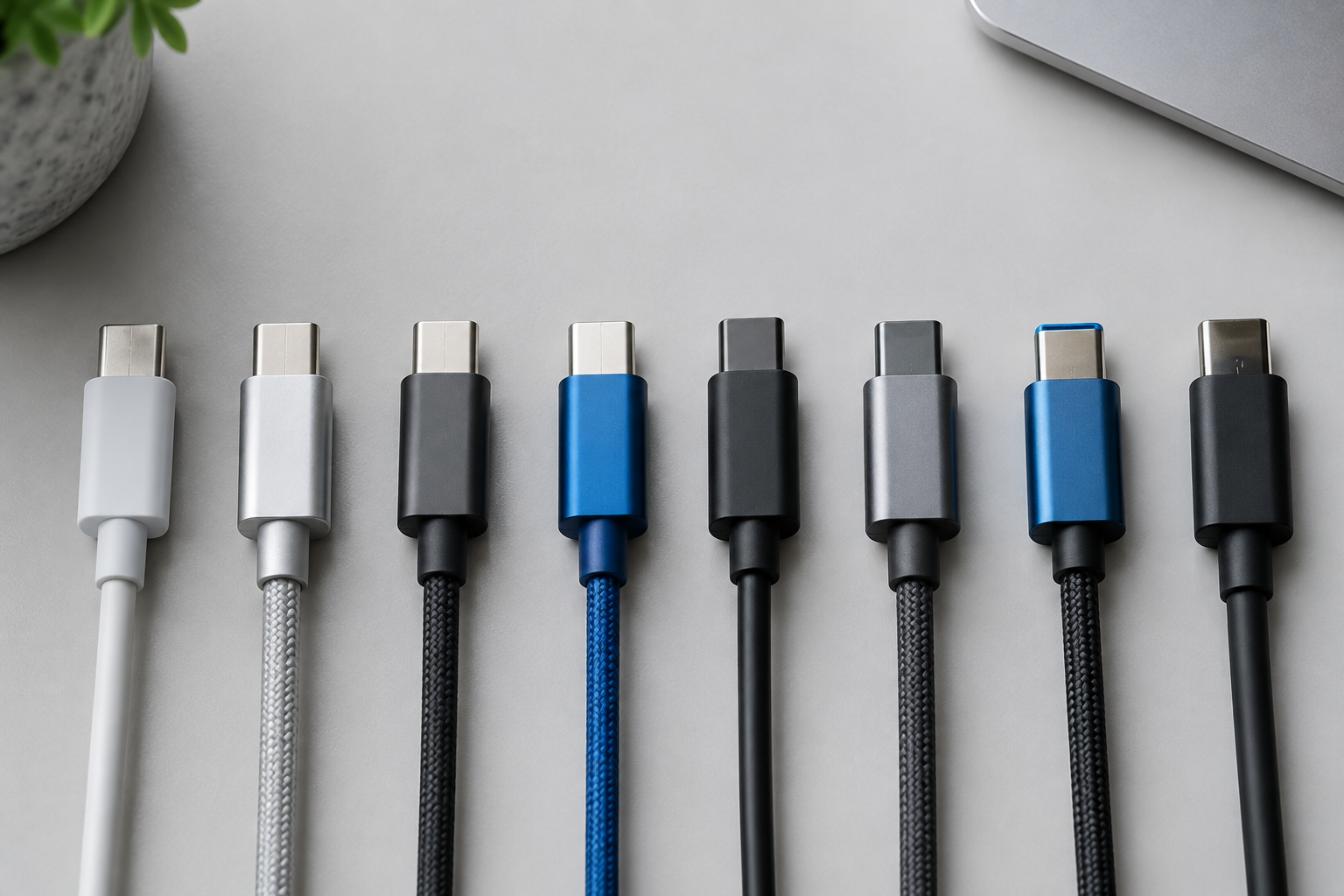
Cable quality matters just as much. A cable rated for 5Gbps or basic charging will physically limit a 40Gbps drive to a fraction of its potential speed, regardless of what the port and drive are capable of. Always match your cable’s certification to the speed tier you’re trying to use, and don’t assume every USB-C cable in a drawer is interchangeable.
Frequently Asked Questions
Is USB-C always the same speed?
No. USB-C is a connector shape, not a speed guarantee. The same physical port can support anywhere from 480 Mbps (USB 2.0 speeds) up to 40Gbps depending on the chipset behind it, so you always need to check the manufacturer’s spec sheet rather than assuming based on the connector alone.
Does Thunderbolt 4 mean faster speeds than USB4?
Not necessarily in raw bandwidth, since both max out at 40Gbps. Thunderbolt 4 does guarantee a minimum level of PCIe bandwidth and mandatory support for features like dual 4K displays and external GPUs, which USB4 implementations can skip depending on the manufacturer.
Why is my 10Gbps external SSD only hitting 600 MB/s?
This usually comes down to one of three things: a cable that isn’t rated for full 10Gbps speed, a host port that’s actually running at 5Gbps despite being labeled USB-C, or an SSD controller that can’t sustain peak speeds once its cache fills up during large transfers.
Do I need 40Gbps for everyday use?
Probably not. For general file transfers, backups, and photo storage, 10Gbps already outperforms most people’s actual needs. Reserve 40Gbps drives for video editing, large game libraries, or situations where you’re treating the external drive as a near-replacement for internal storage.

James Kennedy is a writer and product researcher at Drives Hero with a background in IT administration and consulting. He has hands-on experience with storage, networking, and system performance, and regularly improves and optimizes his home networking setup.