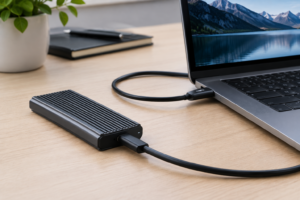
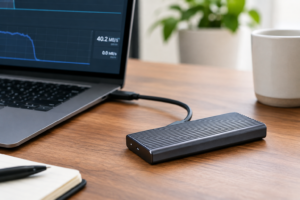
External SSD Not Reaching Advertised Speed
You just paid a premium for an external SSD rated at 2,000MB/s or higher, plugged it in, ran a transfer, and watched it crawl along at a fraction of that number. You’re not imagining it, and you’re probably not doing anything wrong either. External SSD performance depends on a chain of components, and if even one link in that chain is weak, the whole system slows down to match it.
This guide walks through every part of that chain: the drive itself, the enclosure’s bridge chip, the connection standard, your computer’s port, the cable, heat, and even the type of files you’re moving. By the end, you should be able to pinpoint exactly where your bottleneck is hiding instead of just guessing.
Start With the Drive: SATA M.2 vs NVMe M.2
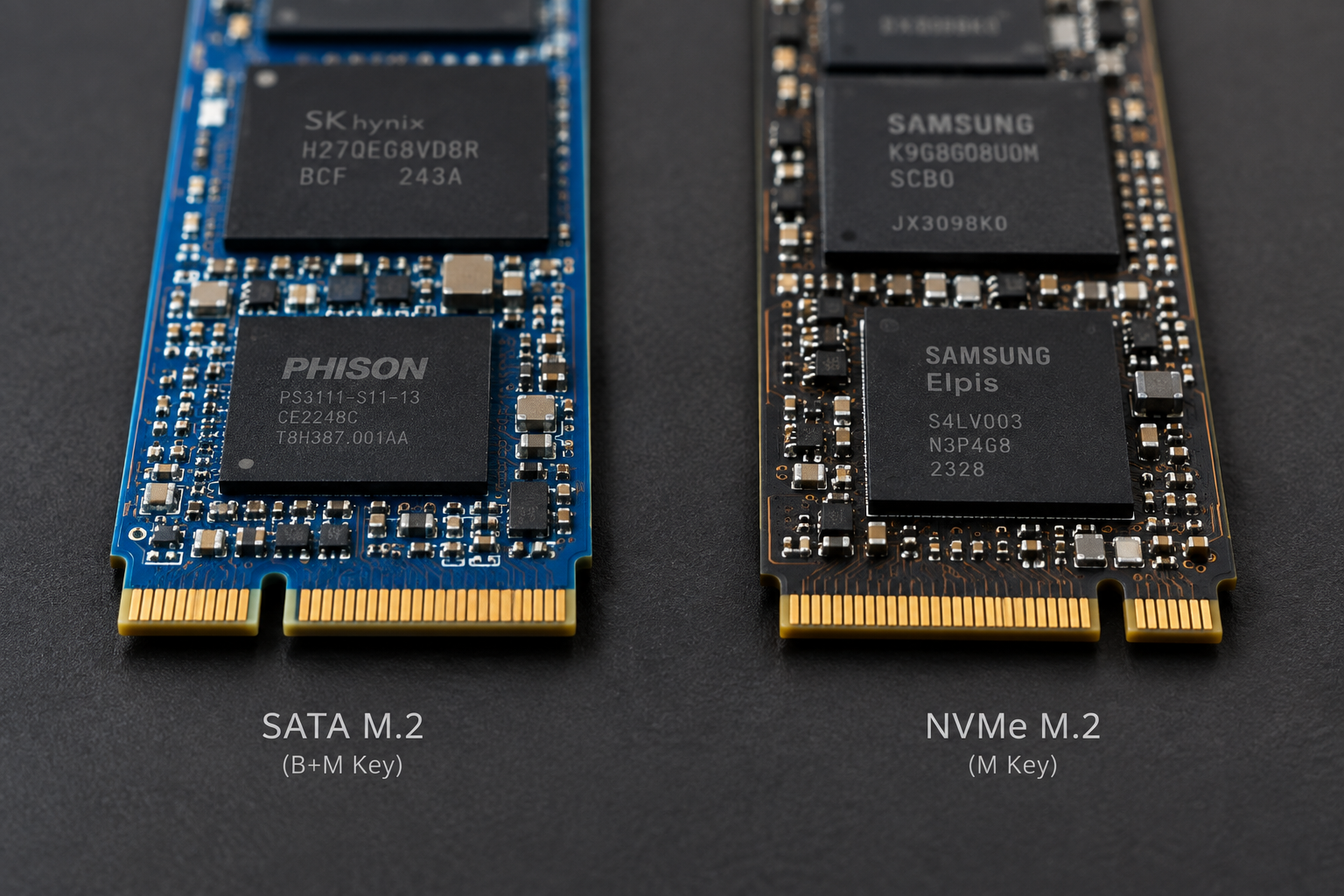
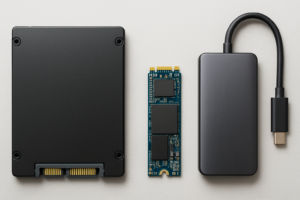
This is the mistake that trips up more people than anything else on this list. M.2 is a physical connector shape, not a performance guarantee. An M.2 SSD can be either a SATA drive or an NVMe drive, and they use completely different protocols with very different ceilings.
A SATA M.2 SSD is electrically identical to a 2.5 inch SATA drive, just in a smaller shape. It’s capped at roughly 550 to 560MB/s no matter what enclosure you put it in. An NVMe M.2 SSD talks over PCIe instead, and depending on the generation, it can hit anywhere from around 1,800MB/s (early PCIe 3.0 drives) up to 7,000MB/s or more on newer PCIe 4.0 and 5.0 models.
If you bought a “high speed” enclosure and dropped in a SATA M.2 drive expecting NVMe numbers, that’s your answer right there. Check the drive’s actual spec sheet or model number before blaming the enclosure. If you’re trying to decide which type makes sense for your next build, our comparison of SATA vs NVMe SSD for gaming breaks down the real-world difference in plain terms, and our deeper dive into whether NVMe is really faster than SATA SSDs covers the protocol-level reasons why the gap exists.
The Enclosure’s Bridge Chip Is Often the Hidden Bottleneck
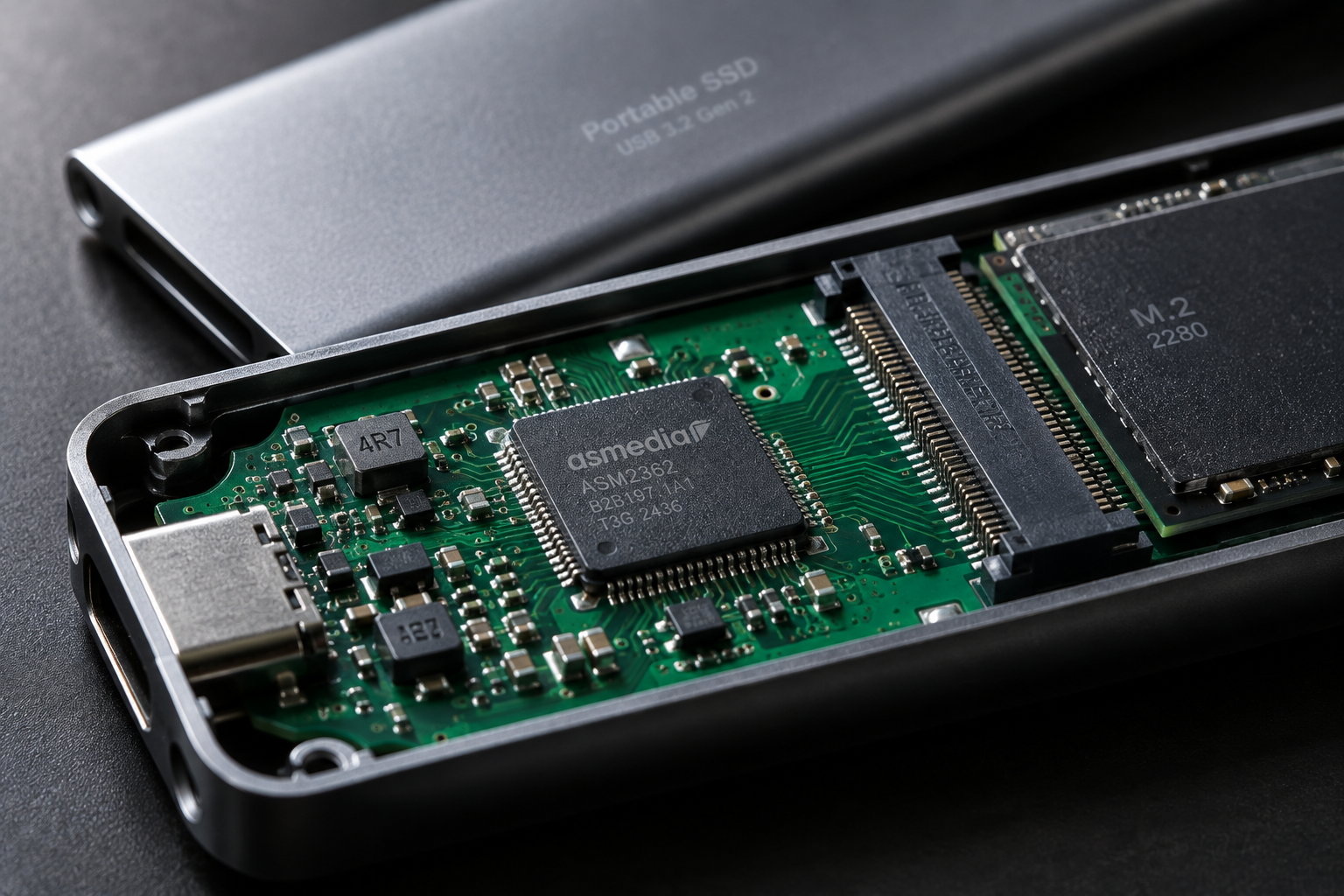
Every external SSD enclosure has a small controller chip, sometimes called a bridge chip, that translates between the drive’s native protocol (SATA or NVMe/PCIe) and the USB or Thunderbolt signal going out to your computer. This chip matters more than most buyers realize.
Cheap enclosures often use older or lower-tier bridge chips that can’t fully saturate a fast NVMe drive even when the USB standard technically supports it. You’ll see this a lot with budget USB-C enclosures that claim “10Gbps support” but max out closer to 700 to 800MB/s because the bridge chip itself is the limiting factor, not the drive or the cable.
Look for enclosures built around known-good controllers like ASMedia’s ASM2364 (for 20Gbps USB) or JHL chips (for Thunderbolt). Brands like Sabrent, OWC, ORICO, and Acasis tend to be transparent about which chipset they use, which is a good sign in itself.
Sabrent Thunderbolt 3 NVMe Enclosure
A well-regarded enclosure with a reliable bridge chip that can actually keep up with fast NVMe drives instead of choking their throughput.
USB and Thunderbolt Standards, With Real Numbers
Marketing loves to quote the theoretical maximum of a connection standard, but real-world throughput is always lower once you account for overhead. Here’s what to actually expect:
- USB 3.2 Gen 1 (5Gbps): Realistically 400 to 450MB/s, even though the “5Gbps” number suggests more.
- USB 3.2 Gen 2 (10Gbps): Typically 900 to 1,000MB/s in sustained transfers.
- USB 3.2 Gen 2×2 (20Gbps): Usually lands between 1,700 and 1,900MB/s with a good enclosure and cable.
- Thunderbolt 3 / Thunderbolt 4 (40Gbps): Commonly 2,600 to 3,000MB/s with a fast NVMe drive, sometimes higher with premium hardware.
Notice that none of these match the advertised link speed exactly. That gap is normal and expected, it comes from protocol overhead, encoding schemes, and the fact that the bus is shared with other traffic. If your numbers land within that realistic range, your setup is actually working correctly, even if it doesn’t hit the number on the box.
The Host Port on Your Computer Matters Too
Not every USB-C port is created equal. Some laptops have one Thunderbolt port and several USB 3.2 Gen 1 ports that look identical but perform very differently. Plugging your fast NVMe enclosure into the wrong port can silently cut your speed by more than half.
Check your laptop or desktop’s actual port specifications, not just the connector shape. This is especially common on budget and mid-range laptops where only one or two ports get full bandwidth. If you’re using a USB-C hub or dock, that’s another potential chokepoint since many hubs share bandwidth across multiple ports or downgrade to a slower standard entirely.
This is also worth keeping in mind if you’re using an external drive to supplement a laptop with limited internal storage. Our article on whether an external SSD can actually make a laptop faster covers how port limitations factor into that decision.
Cables Are Not Interchangeable
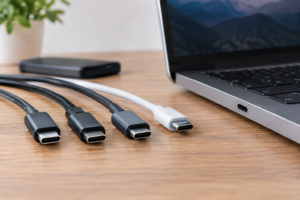
This is the most overlooked culprit in the entire chain. USB-C cables all look the same, but they support wildly different speeds and power delivery specs. A cable rated for USB 2.0 speeds will physically plug into a Thunderbolt port and “work,” it just won’t move data anywhere near full speed.
For a 20Gbps enclosure, you need a cable specifically certified for that speed, and those cables are typically short (under about 0.8 meters) because signal integrity degrades quickly at higher bandwidths over longer runs. Thunderbolt cables need their own certification too, and a generic charging cable will bottleneck even the best enclosure and drive combination.
If you’re not sure what cable came with your enclosure, or you’ve misplaced the original, it’s worth buying a properly rated USB-C 20Gbps cable rather than grabbing whatever’s in your junk drawer.
Cable Matters USB-C 20Gbps Cable
Properly certified for full 20Gbps throughput, which rules out cable bottlenecks entirely.
Thermal Throttling Is Real, Especially on NVMe Drives
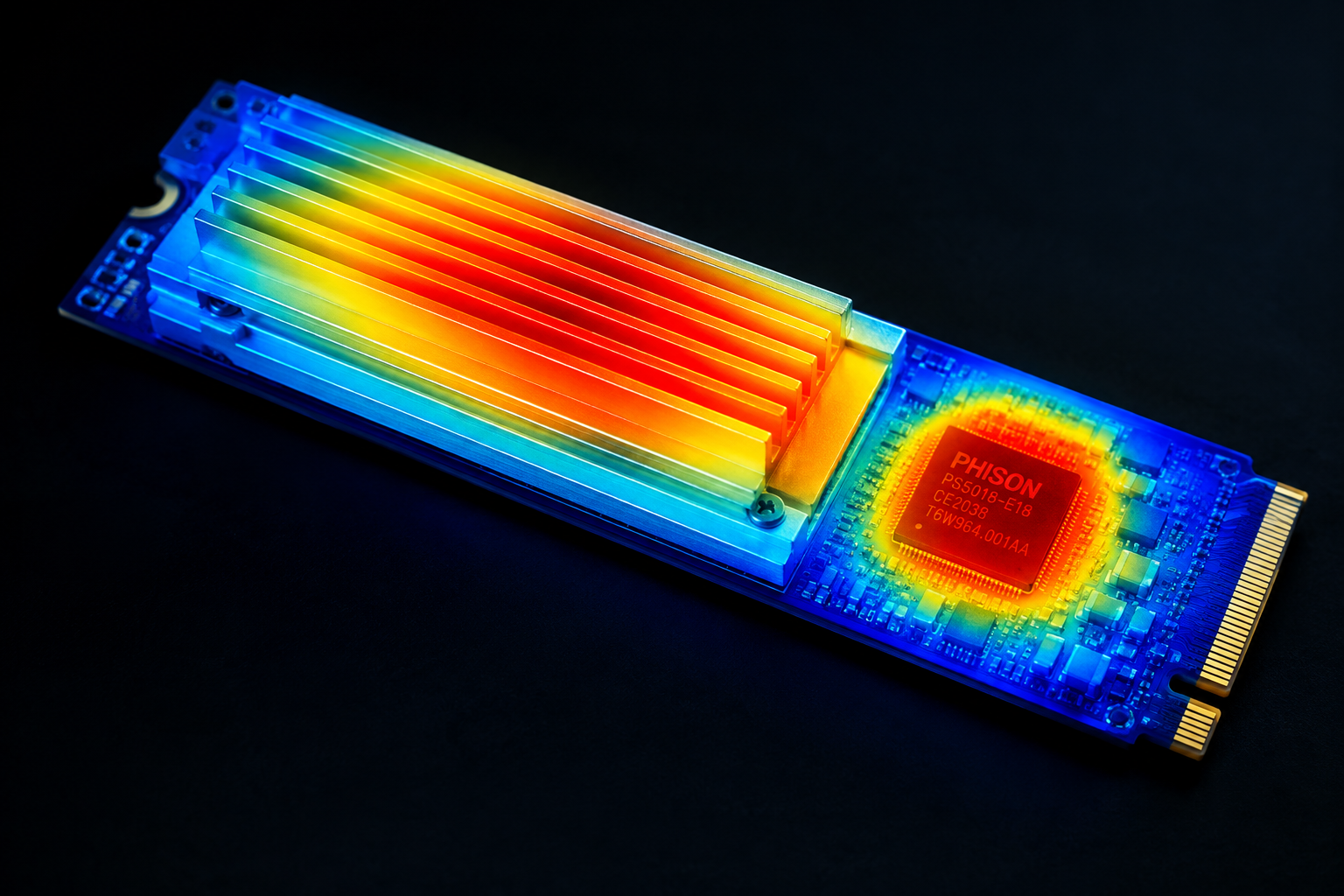
NVMe SSDs run hot under sustained load, and cramming one into a tiny aluminum or plastic enclosure with no airflow is a recipe for thermal throttling. You’ll usually see this pattern: the transfer starts fast, then drops noticeably after 20 to 60 seconds as the drive controller reduces speed to protect itself from overheating.
Metal enclosures with some kind of thermal pad contact between the SSD and the housing dissipate heat far better than plastic shells. Some higher-end enclosures even include small fans or heat sinks built into the design specifically to prevent this drop-off during large transfers.
If you’re moving huge video files or doing long backup jobs regularly, this is worth paying attention to. A drive that benchmarks great in a short test can still throttle hard during a real 200GB transfer.
File Size, Filesystem, and Protocol Overhead
Benchmarks with large sequential files always look better than real-world usage involving thousands of small files. Copying a single 50GB video file will get you much closer to a drive’s rated speed than copying a folder with 100,000 small documents and thumbnails, because each small file carries its own overhead for opening, writing, and closing.
Your filesystem choice matters as well. exFAT is common for cross-platform external drives, but it’s not as efficient as NTFS on Windows or APFS on Mac for sustained large transfers. If you’re only ever using the drive with one operating system, formatting it natively for that OS instead of exFAT can give you a modest but real speed bump.
Protocol overhead is unavoidable too. USB and Thunderbolt both spend a portion of their theoretical bandwidth on error checking, encoding, and control signaling, which is why you never see real-world numbers matching the advertised link speed exactly. This applies whether you’re pairing an enclosure with an NVMe drive built for demanding workloads or a more modest SATA-based drive.
Putting Together a Troubleshooting Checklist
When your external SSD isn’t hitting expected speeds, work through this order rather than guessing randomly:
- Confirm whether your M.2 drive is actually SATA or NVMe, since this sets your realistic ceiling before anything else matters.
- Check your enclosure’s bridge chip specs to make sure it supports the drive’s full protocol speed.
- Verify which USB or Thunderbolt standard your specific port supports, not just the connector shape.
- Swap the cable for one certified at the correct speed rating.
- Run a longer transfer to check for thermal throttling rather than trusting a quick benchmark.
- Test with a single large file versus many small files to see how much of the slowdown is filesystem overhead.
If you’ve upgraded from an older drive and want to understand how much of a real-world difference NVMe actually makes over a traditional SSD, our comparison of the WD Black SN770 vs SN850X specs shows how much variation exists even within the same brand’s NVMe lineup.
WD Black SN850X NVMe SSD
A strong PCIe 4.0 drive that can genuinely push high external speeds when paired with a capable enclosure and Thunderbolt or 20Gbps USB connection.
Frequently Asked Questions
Why does my external SSD show slower speeds than the drive inside my laptop?
Internal NVMe drives connect directly to the PCIe lanes on your motherboard, while external drives have to pass through a bridge chip and then a USB or Thunderbolt connection, both of which add overhead and reduce top speed. Even a great external setup will usually run somewhat slower than the same drive installed internally.
Can I make a SATA M.2 SSD run faster by using a better enclosure?
No. SATA M.2 drives are capped by the SATA protocol itself at around 550 to 560MB/s, regardless of how fast the enclosure or cable is. Only an NVMe M.2 drive can take advantage of a faster USB or Thunderbolt enclosure.
Is Thunderbolt always faster than USB for external SSDs?
Thunderbolt 3 and 4 offer higher maximum bandwidth (40Gbps) than most USB standards, so they can support faster NVMe drives more fully. But if your drive or enclosure can’t actually push that much data, a well-built 20Gbps USB setup can come close enough that the difference isn’t noticeable in daily use.
Why does my transfer speed drop after the first minute?
This is almost always thermal throttling. The SSD controller heats up under sustained write load and reduces its own speed to avoid damage. Enclosures with better heat dissipation, like metal housings with thermal pads, handle this much better than cheap plastic shells.
Chasing advertised speeds without understanding the full chain, drive type, bridge chip, connection standard, port, cable, and thermals, will always leave you disappointed. Once you know where to look, most “my SSD is slow” problems turn out to have a simple, fixable explanation rather than a defective drive.
This article contains affiliate links. We may earn a small commission at no extra cost to you.

James Kennedy is a writer and product researcher at Drives Hero with a background in IT administration and consulting. He has hands-on experience with storage, networking, and system performance, and regularly improves and optimizes his home networking setup.